Stopping from the Backup TeraStation
Log in to Settings for the backup TeraStation and click Force Failover to Stop.
Stopping Failover Forcibly
If failover hasn’t been stopped by taking actions from both the main and backup TeraStations, navigate to Backup>
Failover> Configure Failover in Settings for the main TeraStation and click Force Failover to Stop to restart both
TeraStations. After the TeraStations are restarted, make sure that all settings such as IP address and files in the shared
folders are unchanged.
When you forcibly stop failover, attributes of the shared folders on the backup TeraStation will become read-only.
Change the attribute settings to the desired options if necessary.
Backing Up Your Mac with Time Machine
Time Machine is a backup program included with macOS. Configure your TeraStation as shown below to use Time
Machine.
1. Preparing a Shared Folder for Time Machine
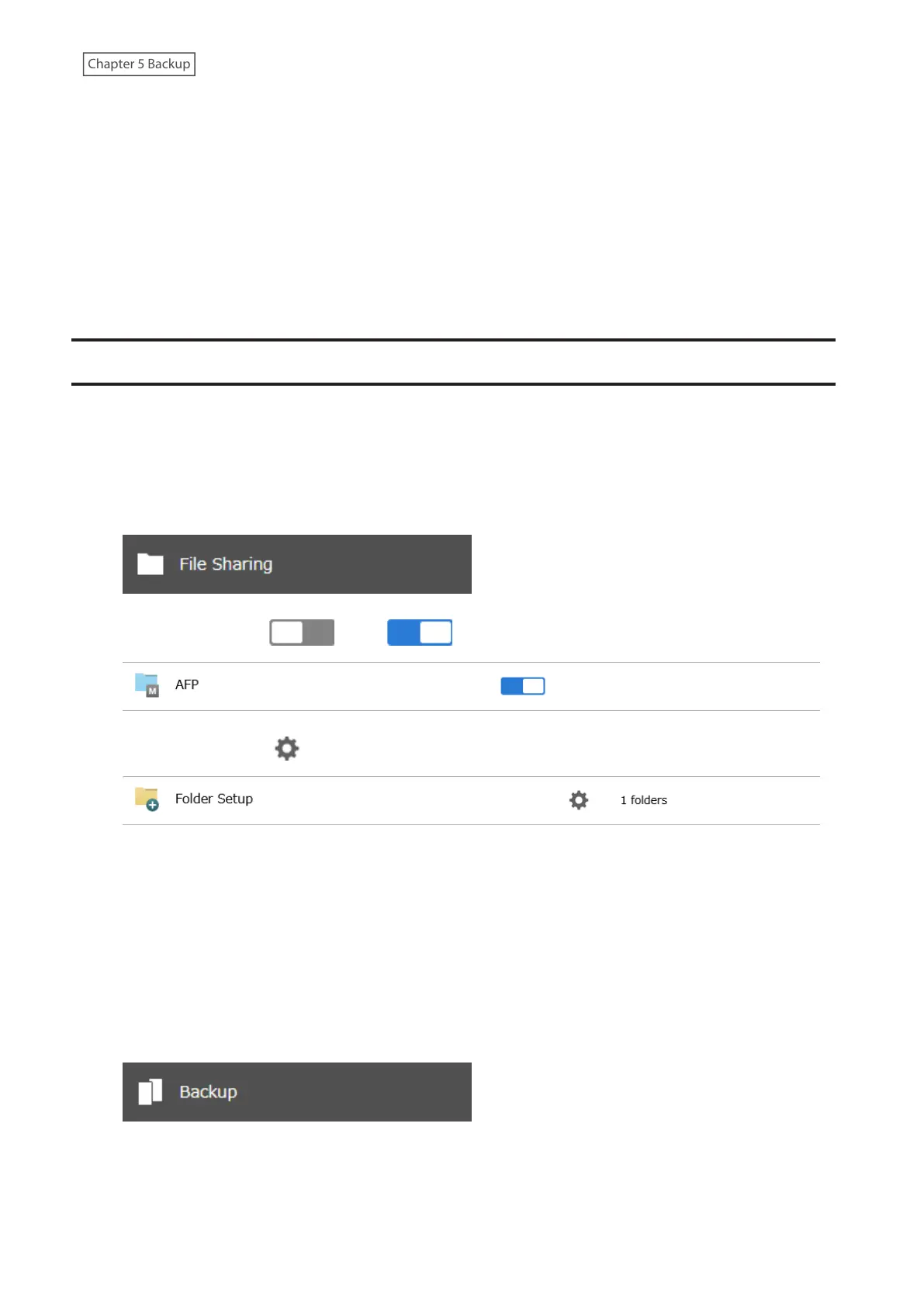
1 From Settings, click File Sharing.
2 Move the AFP switch ( ) to the position to enable AFP.
3 Click the settings icon ( ) to the right of “Folder Setup”.
4 Choose a shared folder as your backup destination for Time Machine.
5 Under “LAN Protocol Support”, select the “AFP (Mac)” checkbox on the Basic tab and click OK.
6 The process is complete once you close the confirmation window that appears.
2. Configuring a Shared Folder as a Backup Destination
1 From Settings, click Backup.
126















 To Next Page