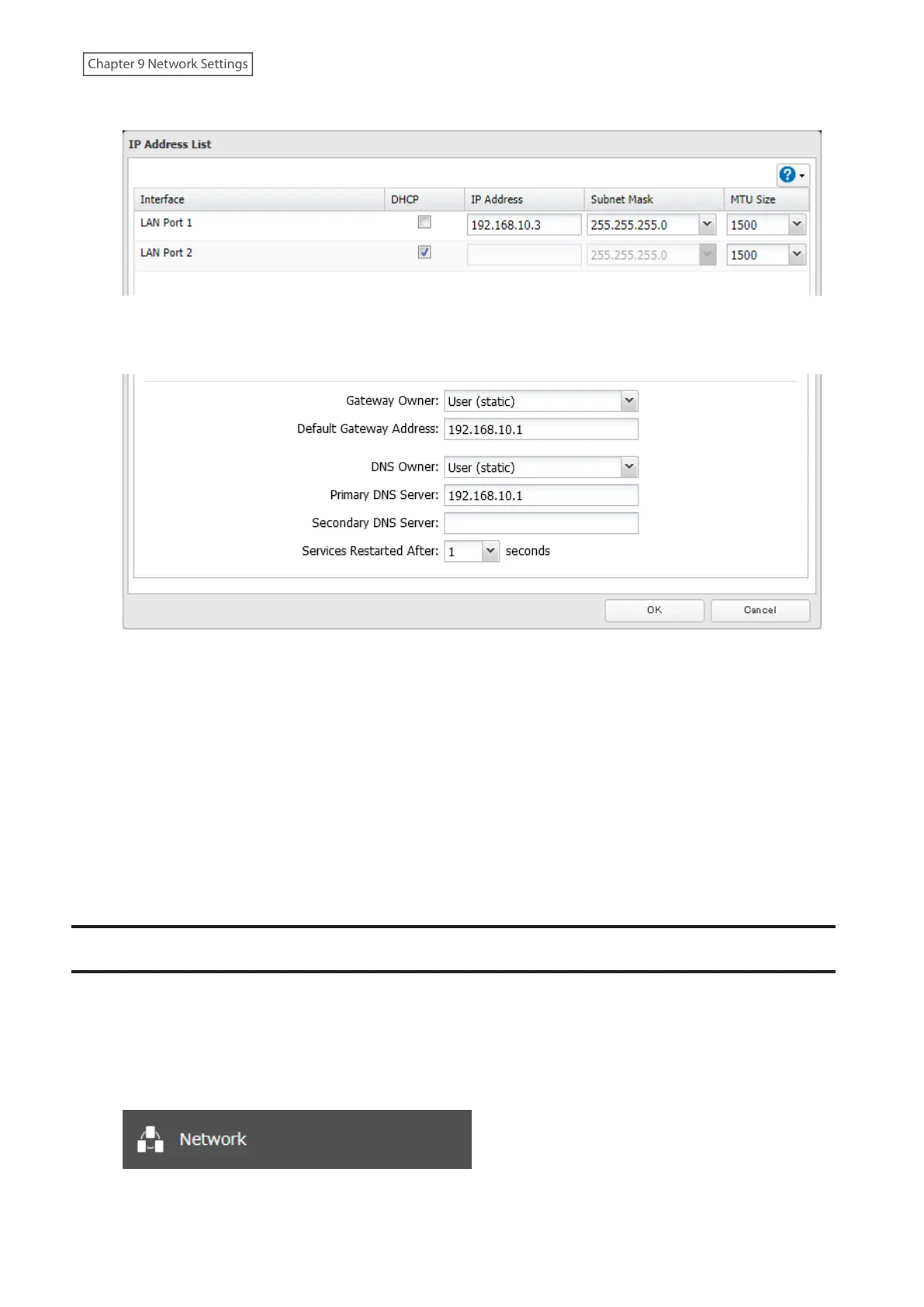
4 Clear the “DHCP” checkbox and enter the desired IP address and its subnet mask.
5 Select “User (static)” from the drop-down list for both the “Gateway Owner” and “DNS Owner” options, then
enter the desired default gateway address and DNS server addresses.
6 Click OK. The process is complete once you close the confirmation window that appears.
Notes:
• Only one default gateway and DNS address can be configured for all LAN ports. Different network addresses
cannot be assigned to the LAN ports.
• Do not set the IP address of the same segment for all LAN ports. This may cause unstable network
communication.
• Network services such as SMB or AFP will restart when the Ethernet cable is disconnected/reconnected or if a
network issue occurs. You can specify the time to delay the restart at the “Services Restarted After” option.
• When you disable DHCP, all addresses including default gateway and DHCP server addresses cannot be assigned
automatically, even if you can select the “Assign automatically” options for them.
Mapping IP Address and Hostname
The TeraStation allows you to map an IP address and a hostname (FQDN) of another host you would like the
TeraStation to communicate with, such as the domain controller. If you configure the mapping pair, the TeraStation
can be accessed using the configured pair when name resolution is needed. Follow the procedure below to
configure FQDN mapping.
1 From Settings, click Network.
228
Chapter 9 Network Settings















 To Next Page