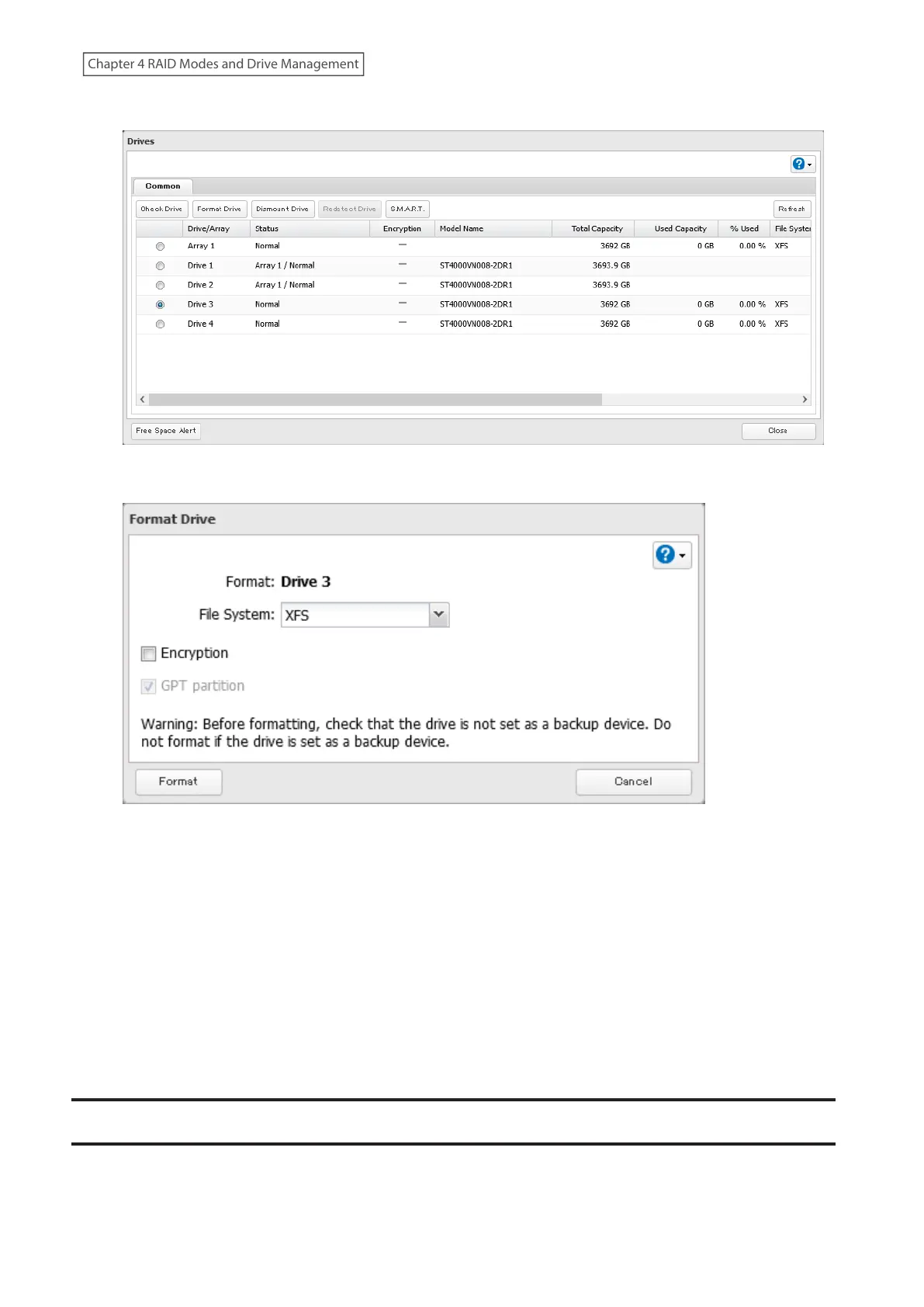
3 Select the drive or array to format, then click Format Drive.
4 Select a format type, then click Format.
5 The “Confirm Operation” screen will open. Enter the confirmation number, then click OK.
6 Depending on the size and the formatted file system of your drive, the format may take several minutes or
several hours to complete. Either the I13 message for RAID arrays, the I20 message for drives, or the I28
message for USB drives will appear as a notification.
7 The process is complete once you close the confirmation window that appears.
Notes:
• Do not turn off or disconnect power to the TeraStation while formatting a drive.
• For drives that are 2.2 TB or larger, make sure that the “GPT partition” checkbox is selected.
Encrypting Drives
Internal drives (and arrays) can be encrypted with 256-bit AES during formatting. Encrypted drives and arrays are
then readable only from that specific TeraStation. To decrypt a drive or array, clear the “Encryption” checkbox and
format it again.
72
Chapter 4 RAID Modes and Drive Management















 To Next Page