3 Click Advanced settings.
4 Click and right-click Inbound Rules, then click New Rule.
5 Select “Port” and click Next.
6 Select “TCP”, enter the port number that is used on the application to the right of “Specific local ports”, and click
Next. The default port number on the application is “7010”. The port number can be confirmed on the Options
tab of the application.
7 Click Next, then click Next again.
8 Enter a desired name for the setting and click Finish to complete.
Configuring Boot Authentication on the TeraStation
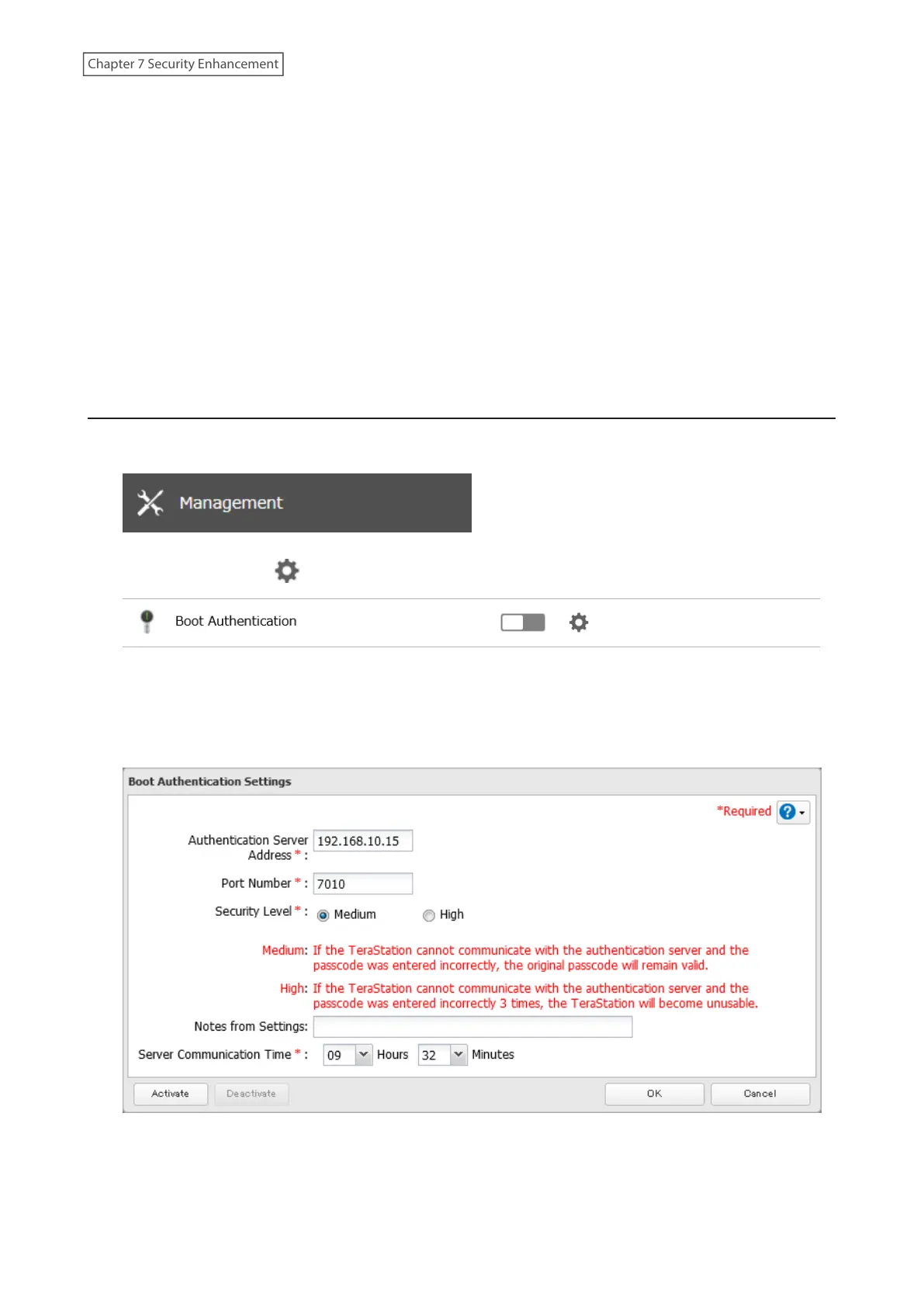
1 From Settings, click Management.
2 Click the settings icon ( ) to the right of “Boot Authentication”.
3 Click Edit.
4 Enter the authentication server’s IP address or hostname and port number, specify the security level and
communication time settings, then click Activate.
5 The drive formatting process will start. Click Yes.
6 The “Confirm Operation” screen will open. Enter the confirmation number, then click OK.
207
Chapter 7 Security Enhancement















 To Next Page