6 The process is complete once you close the wizard.
Checking the Device Information from Dashboard
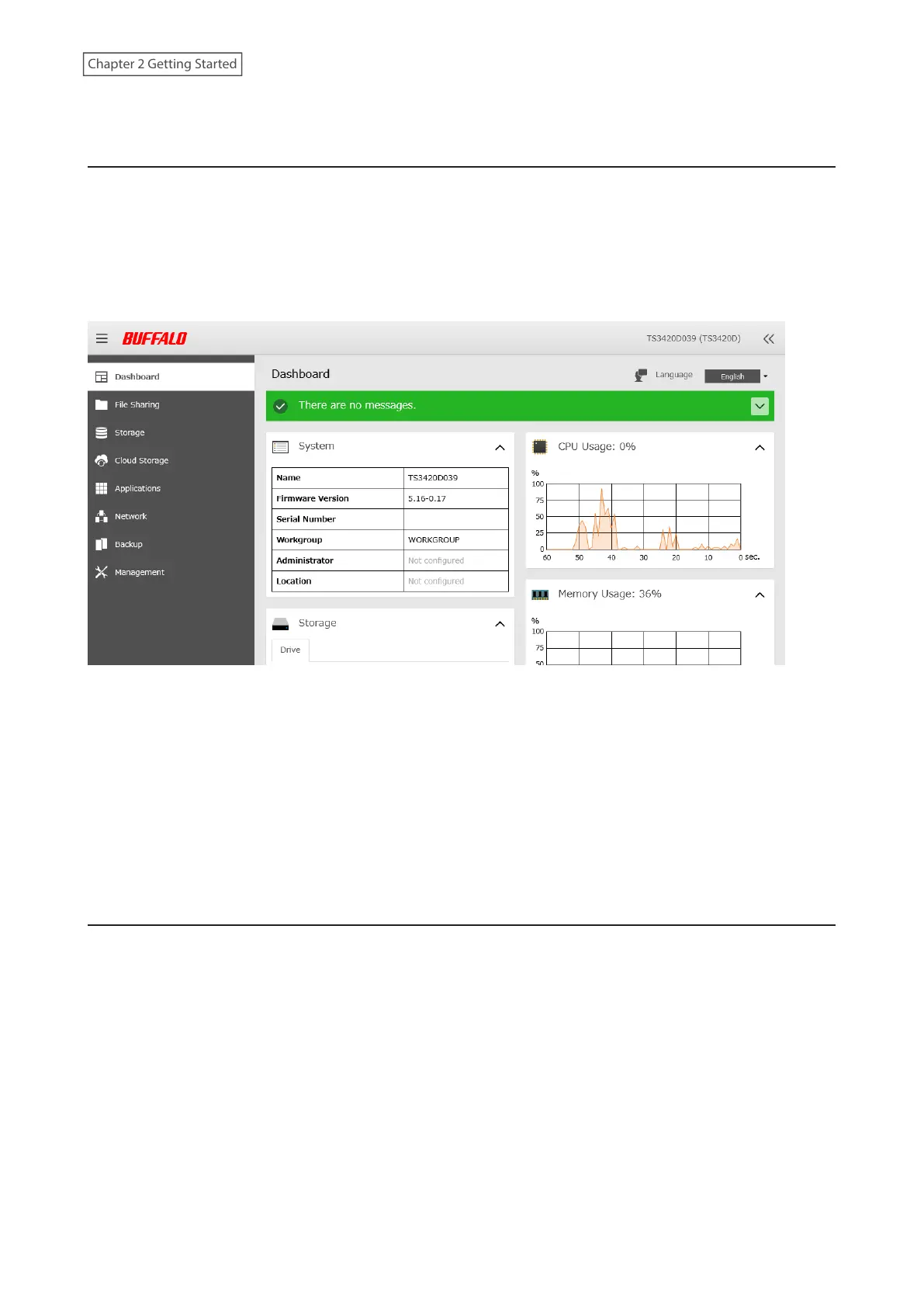
When opening the Settings interface, the Dashboard page will appear first. Dashboard will show the following
device information:
• Notices, such as information events and errors
• System information, such as hostname, firmware version, IP address, etc.
• Drive information, such as used space of internal drives, LVM volumes, iSCSI volumes, etc.
• CPU and system memory usage
• Network information, such as IP address, link speed, sent and received rates, etc.
Notes:
• If the number of files on the TeraStation increases, it will also increase the memory usage of the TeraStation. This
memory usage will decrease after a certain period of time passes. To reduce the memory usage immediately, try
the following operations:
◦ Restarting the TeraStation.
◦ Dismounting the USB drive.
• If there is not enough free space on the TeraStation, it may cause abnormal system behavior. Make sure that there
is always at least 1 GB or more of free space on the TeraStation.
• You can click the Clear button to delete any messages from the Dashboard.
Shutting Down or Restarting the TeraStation from Settings
You can shut down or restart the TeraStation remotely. Follow the procedure below to remotely shut down or restart
the TeraStation from Settings.
1 Log in to Settings using NAS Navigator2.
23
Chapter 2 Getting Started















 To Next Page