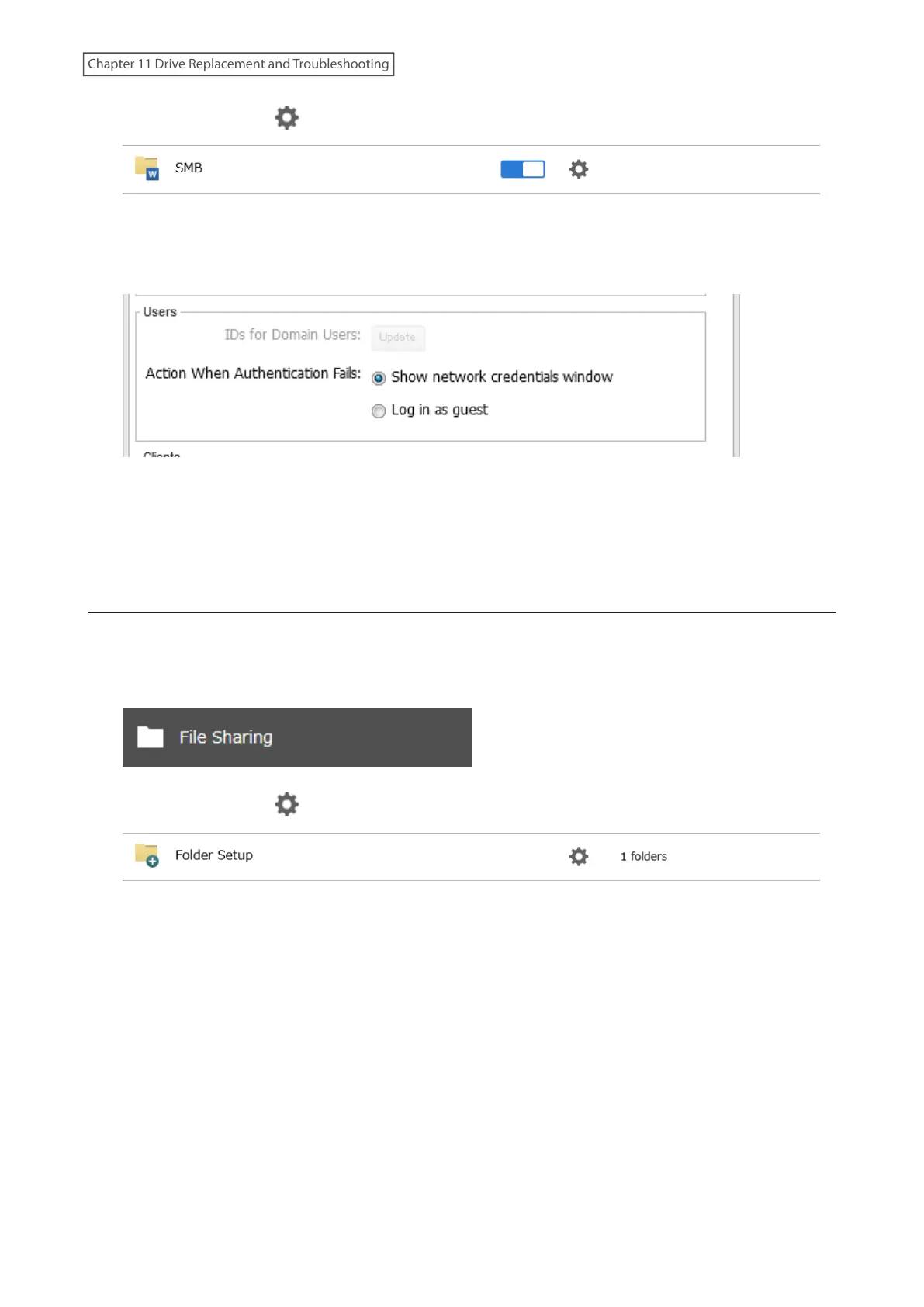
2 Click the settings icon ( ) to the right of “SMB”.
3 Click Edit.
4 Change the “Action When Authentication Fails” option to “Show network credentials window”, then click OK.
5 The process is complete when the file sharing menu list is displayed.
The settings are now changed. A window to enter a username and password will appear the next time you access a
shared folder but fails.
Restoring Owner and Permission Settings
If you changed the owner to an unexpected user or accidentally lost permissions to a specific folder, you can follow
the procedure below to restore them.
1 From Settings, click File Sharing.
2 Click the settings icon ( ) to the right of “Folder Setup”.
260
Chapter 11 Drive Replacement and Troubleshooting















 To Next Page