Dismounting Drives
If the TeraStation is off, then all drives are already dismounted and may be unplugged safely. If the TeraStation is
powered on, dismount drives (internal and external) before unplugging them by following the procedure below.
Notes:
• Do not dismount internal drives while a RAID array is rebuilding or RMM is being configured. If you do, data on
the drives may be lost.
• To dismount an RDX cartridge from an RDX dock, first perform the dismount process either using the function
button or from Settings, then press the eject button on the dock to disconnect the cartridge.
Using the Function Button
When you press the function button, the TeraStation will beep once. Press and hold down the button until the
TeraStation beeps again and the button starts blinking blue. It will take about six seconds. When the function button
stops blinking and returns to glowing, the dismount is finished. You may now unplug any USB drives safely.
After 60 seconds, the function button will go out and any drives that have not yet been unplugged will be
remounted.
Using Settings
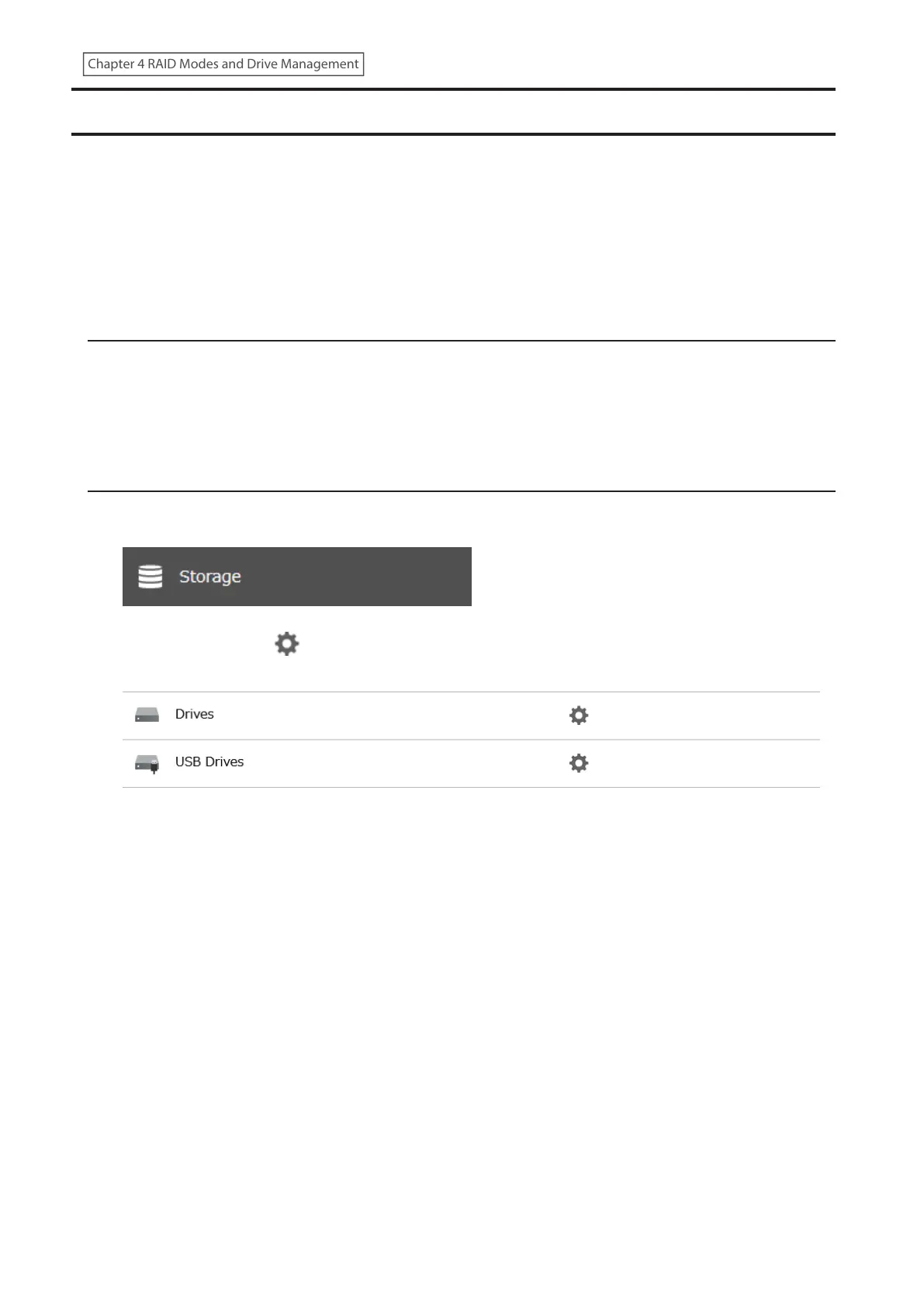
1 From Settings, click Storage.
2 Click the settings icon ( ) to the right of “Drives” to dismount an internal drive or “USB Drives” to dismount
an external drive.
67
Chapter 4 RAID Modes and Drive Management















 To Next Page