• If you enter an incorrect bucket name and then cancel editing the Amazon S3 settings, the incorrect bucket name
may still accidentally be registered. If this occurs, start from step 4 above and reconfigure the Amazon S3 settings
correctly.
• Do not configure a folder that is created through the procedure above as a replication destination folder.
Uploading Files to Amazon S3
To upload files to Amazon S3 buckets, using a backup job is recommended.
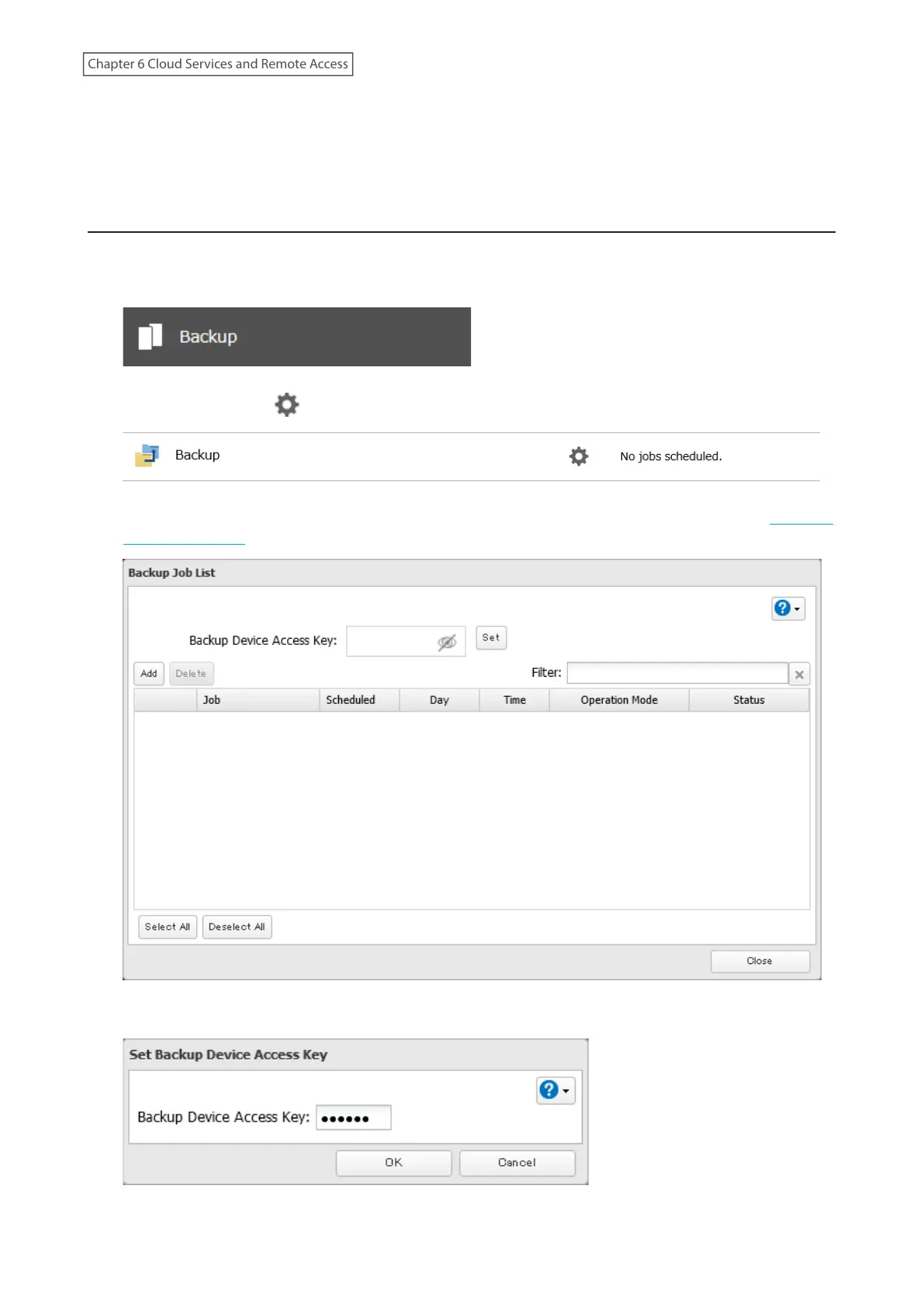
1 From Settings, click Backup.
2 Click the settings icon ( ) to the right of “Backup”.
3 If you had configured a backup device access key for the remote folder that was created through the “Creating
an Amazon S3 Job” section above, click Set. If you hadn’t, skip to step 5.
4 Enter the backup device access key and click OK.
136
Chapter 6 Cloud Services and Remote Access















 To Next Page