Notes:
• Configure the share attribute only through Settings. Configuring folder attributes through Windows is not
supported and may cause unexpected behavior.
• To set a read-only share or USB drive to another attribute, follow the procedure above and change the attribute in
step 2 from “Read only” to the desired attribute.
Hidden Shares
If a shared folder becomes hidden, it will not be displayed under Network, and only certain users will be allowed to
access it. To hide a shared SMB folder, follow the procedure below.
1 From Settings, navigate to File Sharing> Folder Setup and choose a shared folder to make hidden.
2 Click the Option 2 tab and select the “Hidden share (SMB only)” checkbox, then click OK.
3 The process is complete once you close the confirmation window that appears.
Notes:
• If protocols other than “SMB (Windows/Mac)” or “Backup” under “LAN Protocol Support” on the Basic tab are
enabled, the hidden shares option will be grayed out and cannot be selected.
• Configure hidden share attributes only through Settings. Configuring them through Windows is not supported
and may cause unexpected behavior.
To access a hidden folder, open File Explorer in your computer and enter “\\TeraStation name\shared folder name$\”
into the address bar. For example, if the TeraStation name is “TSXXX001” and the shared folder name is “share”, enter
“\\TSXXX001\share$\” to open it.
Configuring Users
Adding a User
Note: You may add up to 300 users, which include the default users “admin” and “guest”.
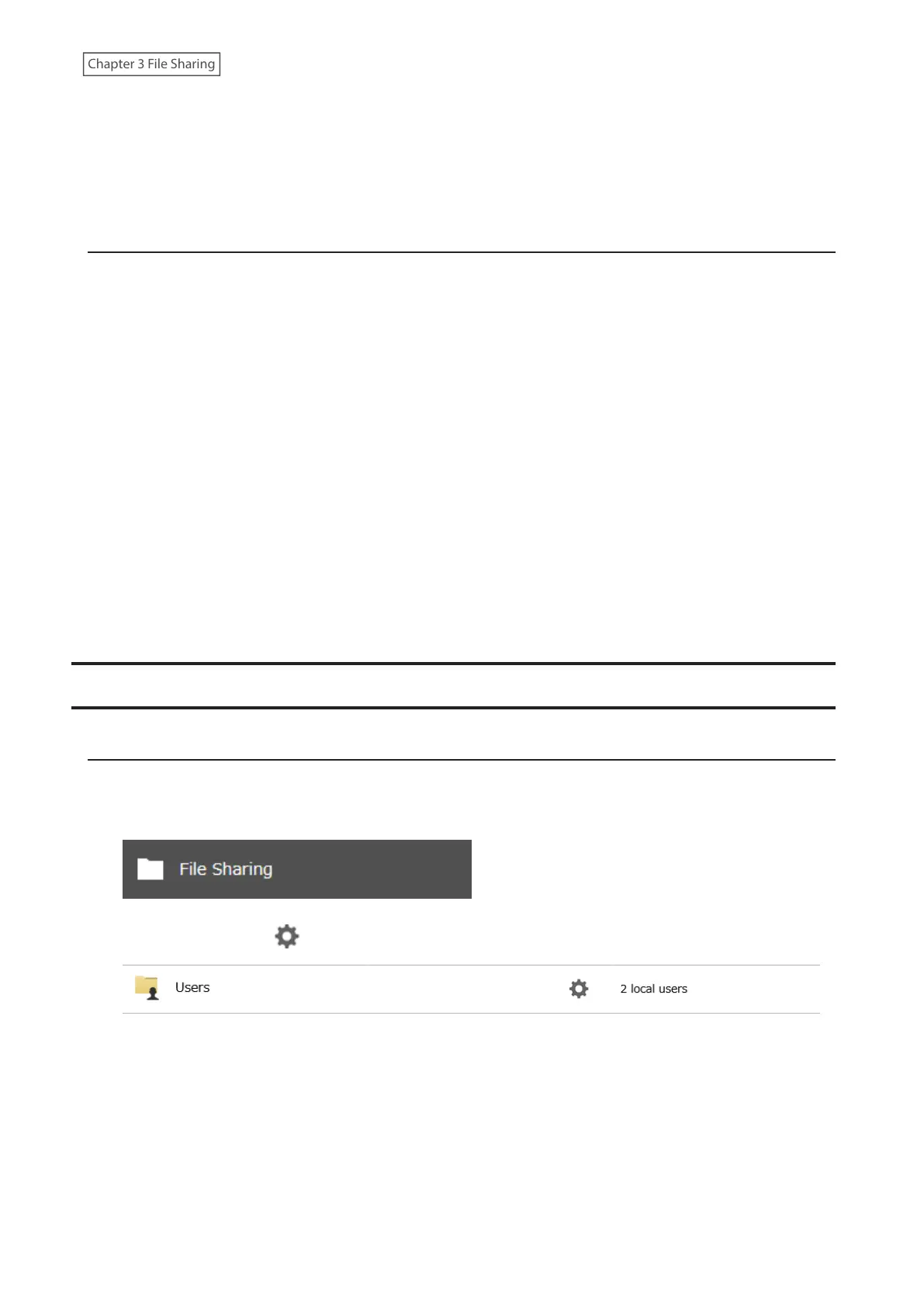
1 From Settings, click File Sharing.
2 Click the settings icon ( ) to the right of “Users”.
28















 To Next Page