◦ Unit (Week): 1–53 for all versions
◦ Unit (Month): 1–13 for all versions
◦ Unit (Size): 1–100 for file sizes and 1–13 for all versions
5 Click OK. The process is complete once you close the confirmation window that appears.
Notes:
• To delete the saved logs, click Delete at the window in step 3.
• If there is not enough space to save logs, the I70 message will appear as a notification. If it does, free up space
by deleting the current file access logs. If no free space is made available elsewhere, older logs will automatically
be deleted.
• If the shared folder to which logs are saved was created on a drive or RAID array, and that drive or RAID array is
later changed using RMM, the log folder will be automatically changed to the system area. The I72 message will
also appear as a notification.
• You cannot delete a RAID array, format a drive, or change a folder name while file access logs are being saved to
the shared folder.
Updating the Firmware
If a new firmware version is available, a message is displayed when you access Settings. To either manually or
automatically update the firmware, follow the appropriate procedure below.
Notes:
• If all drives and RAID arrays on the TeraStation have LVM enabled but no LVM volumes have been created, you will
not able to update the firmware from Settings.
• Settings will not be available while the firmware is updating. Don’t try to access Settings from another computer
until the update is finished.
Updating Manually Using Settings
To update the firmware from Settings, follow the procedure below.
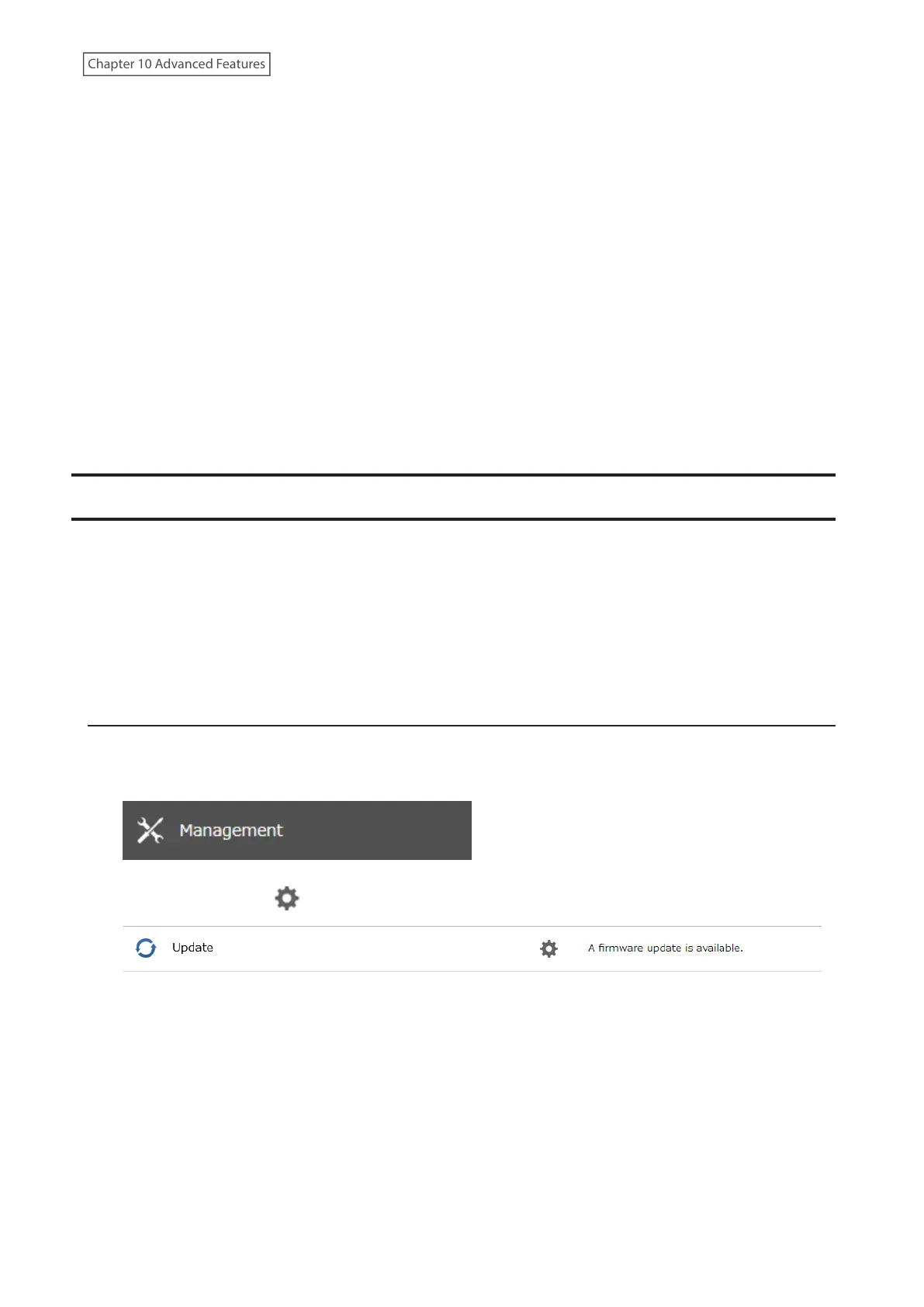
1 From Settings, click Management.
2 Click the settings icon ( ) to the right of “Update”.
3 Click OK.
240
Chapter 10 Advanced Features















 To Next Page