Note: Do not shut down the TeraStation while connecting to an iSCSI volume. It may cause unexpected data erasure.
Make sure all connections are disconnected before shutdown.
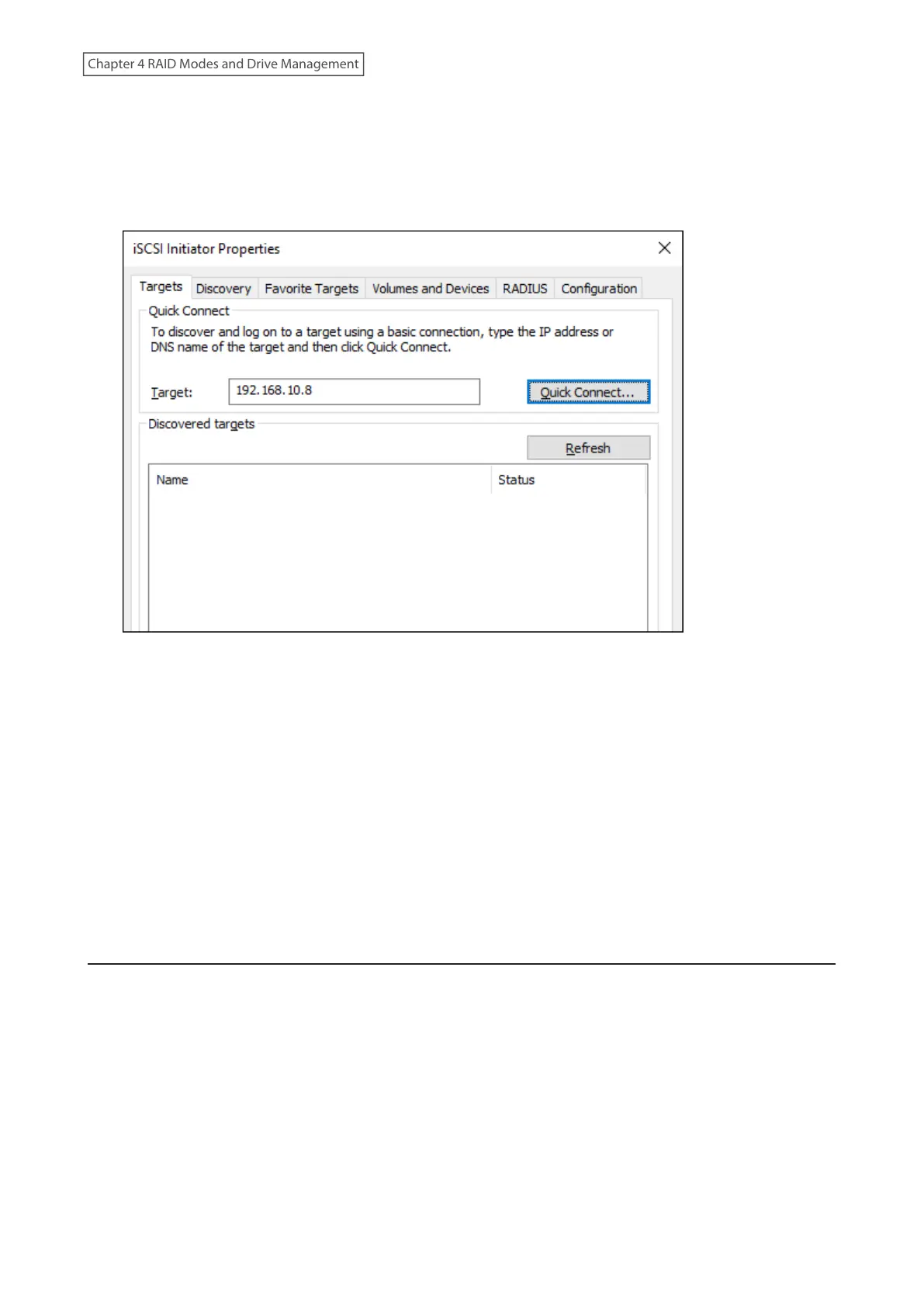
1 From Windows, navigate to Control Panel> System and Security> Administrative Tools> iSCSI Initiator.
2 Enter the IP address of the TeraStation into the “Target” field and click Quick Connect.
3 Confirm if the connection is established and click Done.
4 The process is complete when the status of the selected volume is displayed as “Connected” on the iSCSI
initiator.
You can also check that the volume status is “Connected” in Settings by navigating to Storage> iSCSI.
Using with Multiple Computers
If the TeraStation is divided into multiple volumes (or drives), it can be used with multiple computers. However, it is
not recommended to access a single volume or drive from multiple computers at the same time for security reasons.
When using the TeraStation as an iSCSI device, it should only connect to a single initiator unless the computer
running the initiator also has clustering enabled and configured on its operating system. To avoid using multiple
initiators for access, enable mutual authentication.
Formatting Volumes
If using the connected volume for the first time, the volume should be formatted to be used as a local drive. Follow
the procedure below for formatting.
1 From Windows, navigate to Control Panel> System and Security> Administrative Tools> Computer Management.
2 Click Disk Management.
When the “Initialize Disk” screen appears, click OK without changing any settings.
3 Right-click the drive volume that shows the status “Unallocated” and click New Simple Volume from the
displayed menu. Follow the screen to finish formatting.
85
Chapter 4 RAID Modes and Drive Management















 To Next Page