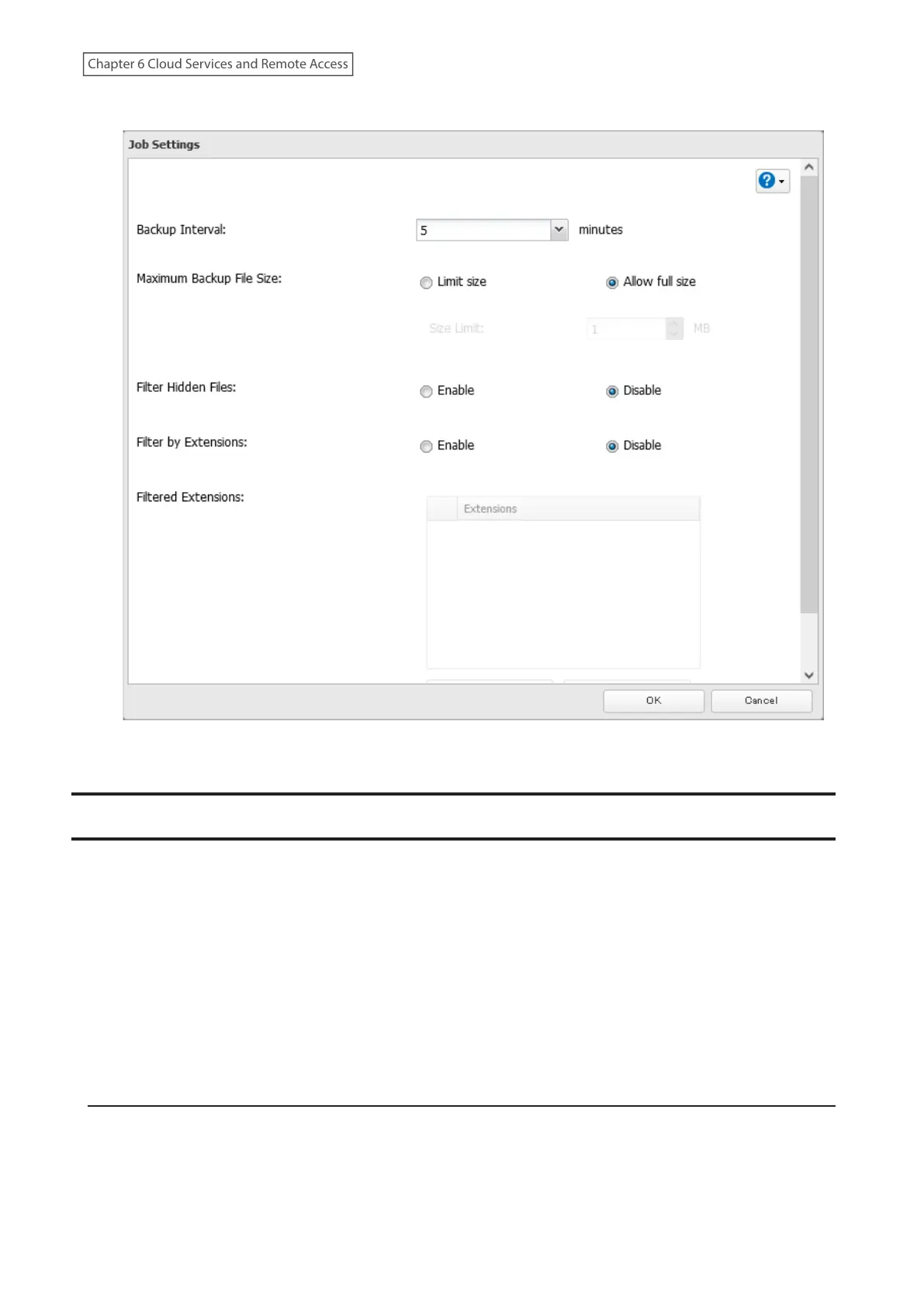
6 Configure the desired settings and click OK.
7 The process is complete once you close the confirmation window that appears.
Synchronizing with Microsoft OneDrive
The TeraStation supports synchronizing with Microsoft OneDrive, the online cloud storage service. Once linked, you
can share the TeraStation files via OneDrive (or OneDrive files via the TeraStation). Follow the procedure below to
configure your TeraStation for use with Microsoft OneDrive.
Notes:
• To use Microsoft OneDrive Sync, you need a Microsoft account and an available empty OneDrive folder. If you
don’t have a Microsoft account, or if you need to create a OneDrive folder, refer to the Microsoft website.
• If using OneDrive through a proxy server, click Proxy Settings and select whether to use the configured settings or
configure an identical proxy server. If using the identical proxy server, select “New settings” and enter the proxy
server name, port number, username, and password. Consult your network administrator for detailed proxy
server settings.
Creating a OneDrive Sync Job
Follow the procedure below to create a new job.
1 From the Microsoft portal, create your Microsoft account before proceeding with the procedure.
162
Chapter 6 Cloud Services and Remote Access















 To Next Page