Notes Before Use
• To use boot authentication, a Windows PC is necessary to serve as the authentication server.
• When activating boot authentication, the drives on the TeraStation will be formatted and all data on the drives
will be erased. Back up any important data to another device. Even though the data is deleted, the RAID array
will be kept as is.
• Assigning the TeraStation a static IP address is recommended for boot authentication.
• When boot authentication configuration finishes, export the configuration file for backup. Refer to the
“Exporting Managed TeraStations to a File” section in the Boot Authentication Tool help for the procedure.
• Boot authentication cannot be enabled if any of the following functions are enabled: drive encryption, LVM,
iSCSI, and failover. Conversely, these functions cannot be enabled while boot authentication is enabled.
Important Notice
This feature was developed with the intention of preventing critical data leakage by rendering the TeraStation
unusable in cases of misoperation or missing important setting files. Before configuring boot authentication, back
up the data on the TeraStation by referring to the “Backing Up Data on the TeraStation” section in chapter 5, and
then create a USB initialization drive by referring to the “Creating a USB Initialization Drive” subsection in chapter 8.
With these preparations, a TeraStation that is unusable may be initialized and revert to a usable state.
If any of the situations below occur, the TeraStation will stop booting and become inaccessible.
• The TeraStation is unable to communicate with the authentication server due to the server crashing or it being
on another network.
• The TeraStation unit has been deleted from Boot Authentication Tool or the Boot Authentication Tool database
has been erased.
• Security level is configured to “High” and the incorrect passcode is entered three times.
Setting Up the Authentication Server on a Windows PC
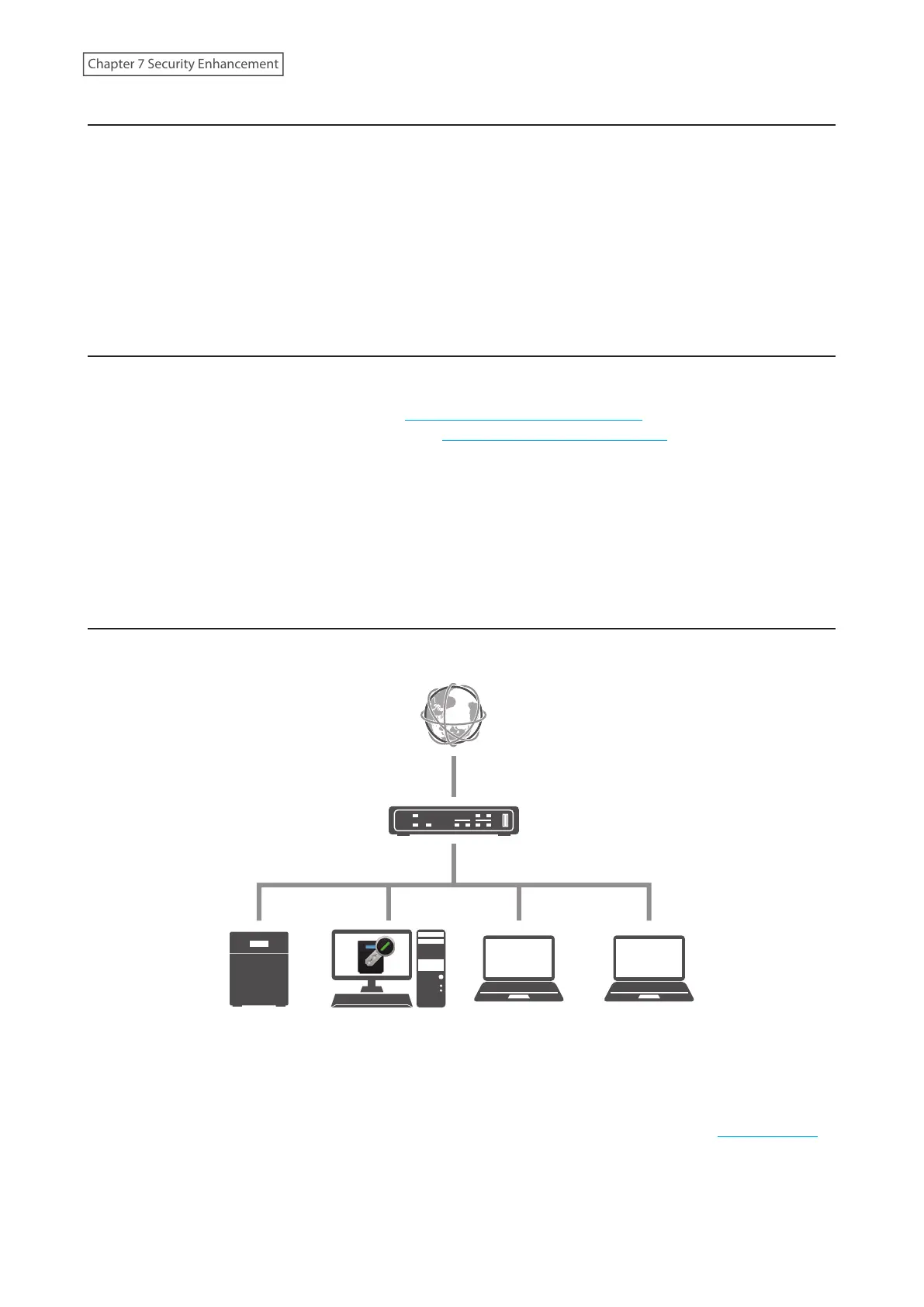
To set up the authentication server, follow the procedure below. The authentication server must be placed on the
local network or VPN.
Note: For proper operation, make sure that the TeraStation and the authentication server are on a network with only
one router. If there are two or more routers on the network, the authentication server may not acquire the correct
TeraStation status. For example, if the TeraStation’s IP address has been changed, its status does not change to
“Warning”.
1 Download the application for the authentication server, “Boot Authentication Tool”, from the Buffalo website
and install it onto the Windows PC.
2 Register the specific port number that is used on the application as a firewall exception rule. Navigate to
Control Panel> System and Security> Windows Firewall on the authentication server.
206
Chapter 7 Security Enhancement















 To Next Page