4 The process is complete when the drive is visible as an icon in Computer or This PC and can be used as a
normal drive on the computer.
Disconnecting Volumes
To disconnect a volume, follow the procedure below.
1 From Windows, navigate to Control Panel> System and Security> Administrative Tools> iSCSI Initiator.
The status of the connecting volume will be displayed as “Connected” under “Discovered targets”.
2 Select a volume to disconnect and click Disconnect.
3 Click Yes.
4 The process is complete when the volume status is displayed as “Inactive” on the iSCSI initiator.
Configuring Access Restrictions
A CHAP name and secret can be configured for the entire iSCSI volume or each existing volume. Access restrictions
can be configured so that entering a target CHAP name and secret is required for each connection.
The TeraStation can perform mutual authentication (two-way authentication). Dual passwords ensure that only
authorized client computers can access the volume on the TeraStation.
Configuring for the Entire TeraStation
Follow the procedure below to enable access restrictions for the entire TeraStation.
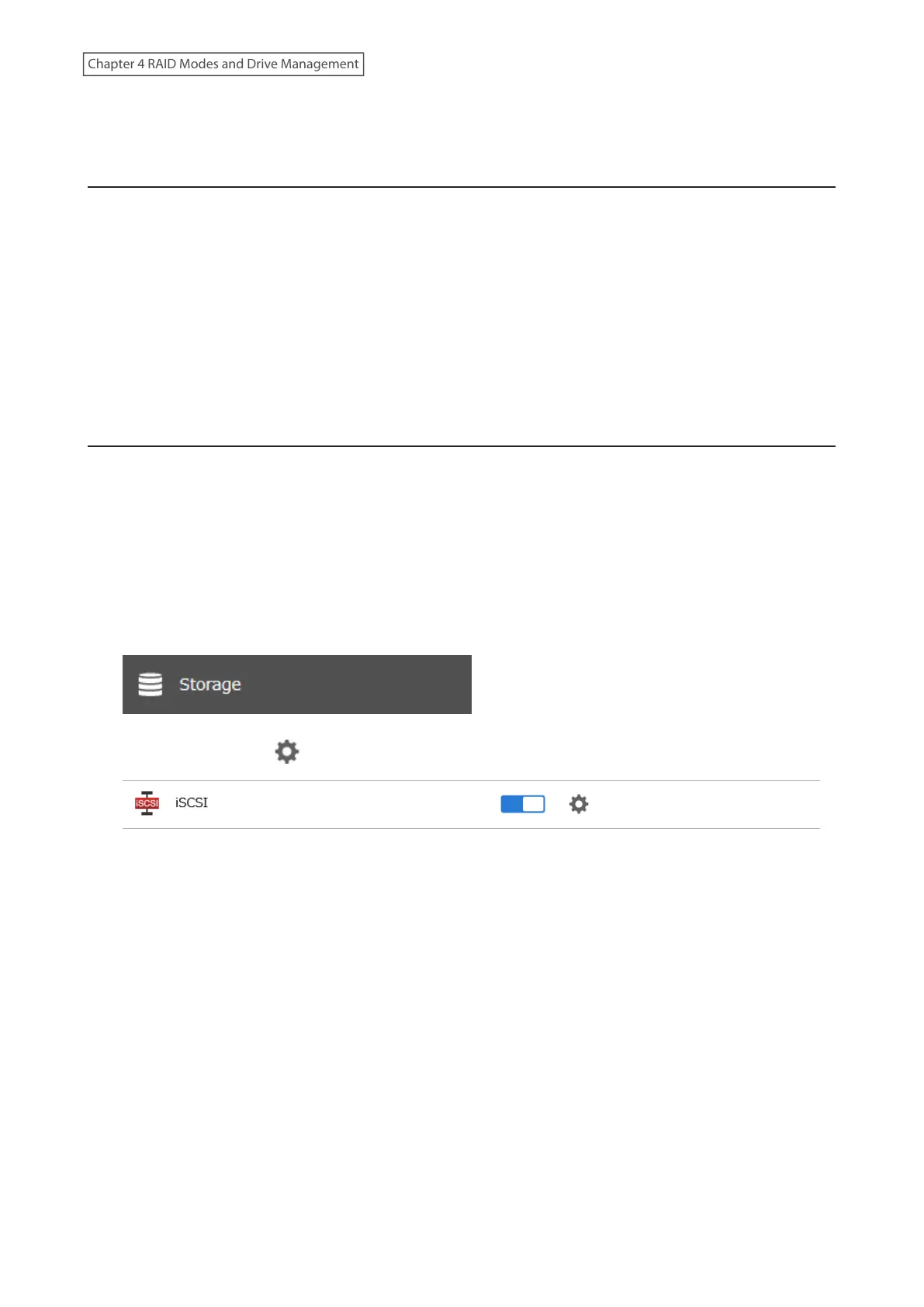
1 From Settings, click Storage.
2 Click the settings icon ( ) to the right of “iSCSI”.
86
Chapter 4 RAID Modes and Drive Management















 To Next Page