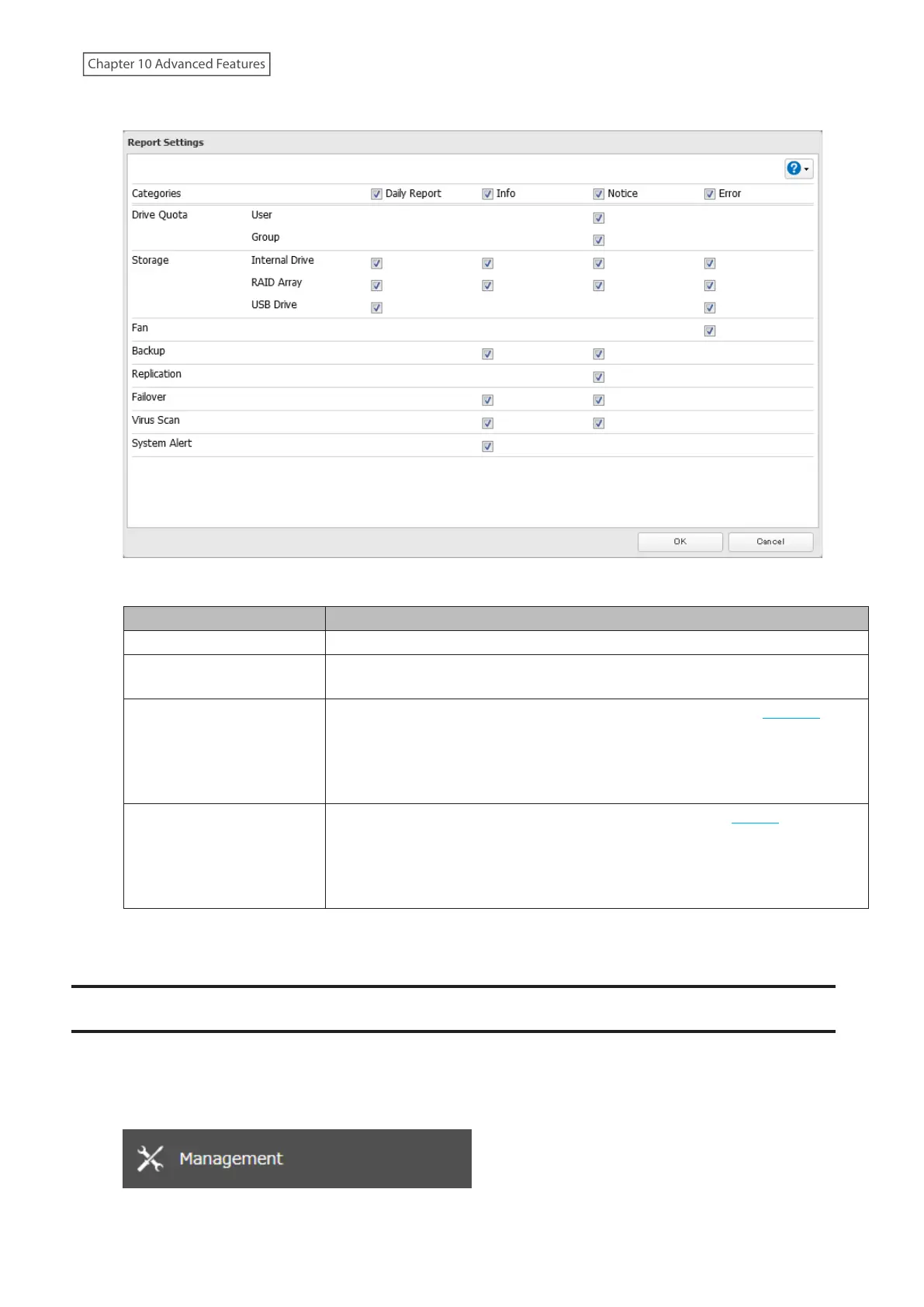
4 On the displayed screen, select or clear the category’s checkboxes, then click OK.
Notification emails will be categorized into the following importance levels. Refer to the chart below for the
detailed information of category importance levels.
Levels Details
Daily Report Describes the status of the TeraStation in a daily report email.
Info
Sends a notification email if an event occurs. Info reports will contain just
information such as capacity information, job starts/completes, etc.
Notice
Sends a notification email if a non-critical error occurs. Refer to the “Notices”
section in chapter 13 for the list of events that will trigger this event notification.
Notice reports will contain warnings such as something has failed, but the
function or unit can continue operating as usual. It is recommended to perform
the corrective action for the notice as soon as possible.
Error
Sends a notification email if a critical error occurs. Refer to the “Errors” section in
chapter 13 for the list of events that will trigger this event notification.
Error reports will describe critical failures that prevented a function or unit from
operating properly. It is recommended to perform the corrective action for the
error immediately.
5 Click OK. The process is complete once you close the confirmation window that appears.
Sleep Mode
To save energy, you can specify times to put the TeraStation into sleep (standby) mode, during which the drives and
LEDs are turned off.
1 From Settings, click Management.
233
Chapter 10 Advanced Features















 To Next Page