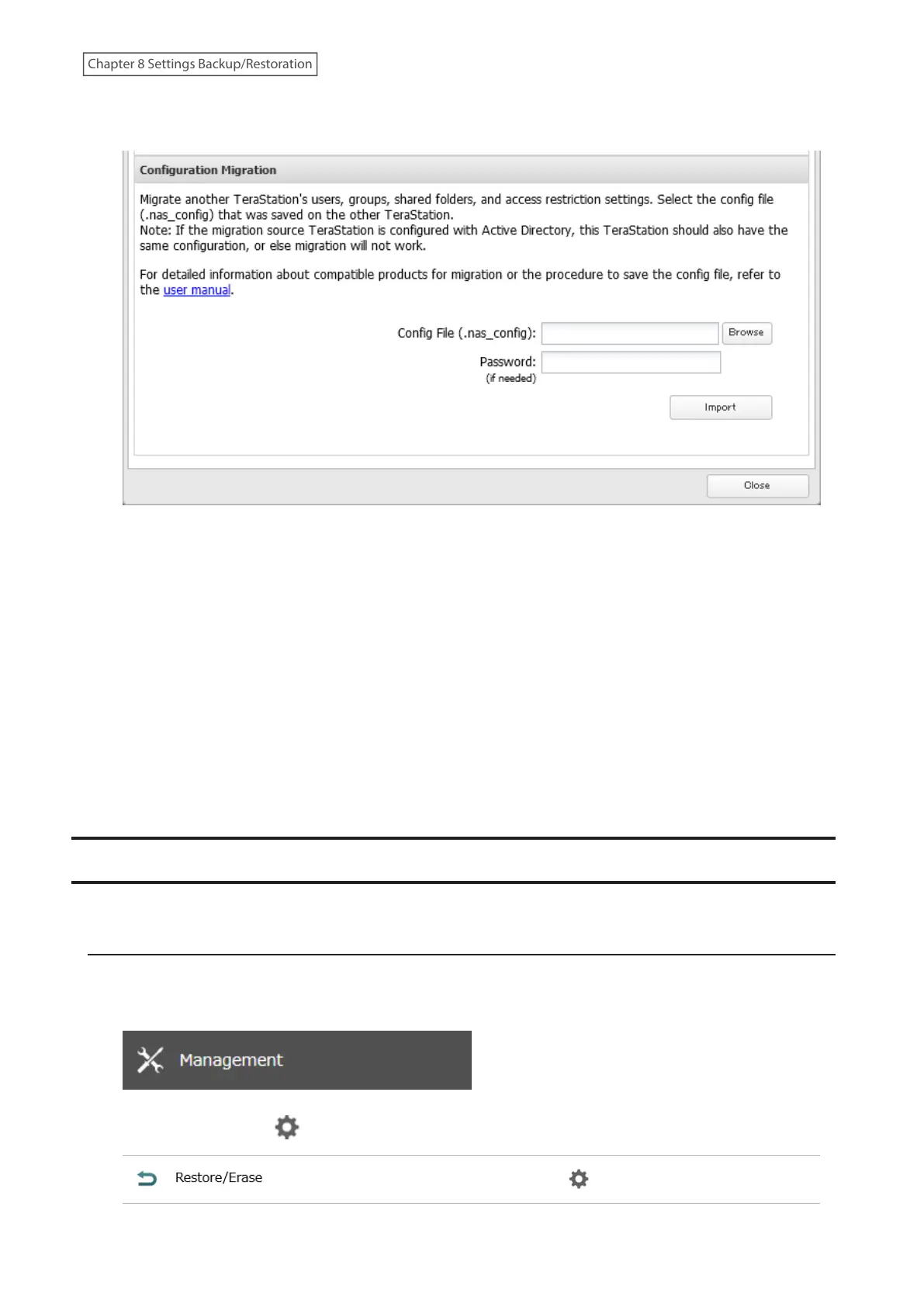
4 Click Browse and choose the config file (.nas_config) that was created with the migration source Buffalo NAS
device. If the config file was created with a password, enter it into the “Password” field.
5 Click Import.
6 The “Confirm Operation” screen will open. Enter the confirmation number, then click OK.
7 The process is complete once you close the confirmation window that appears.
Notes:
• If the migration target Buffalo NAS device contains shared folders, users, and groups that share the same name as
the transferred settings, the existing settings will be overwritten.
• If the migration target Buffalo NAS devices have already added some shared folders, users, and groups, the
transferred settings may exceed the maximum number of allowed shared folders, users, or groups. Excess
items will not be transferred. After migration finishes, open Settings and verify that all settings were properly
transferred.
Restoring Factory Defaults
The settings on the TeraStation can be restored to factory defaults using Settings or an USB drive.
Initializing from Settings
To initialize the TeraStation to its factory defaults from Settings, follow the procedure below.
1 From Settings, click Management.
2 Click the settings icon ( ) to the right of “Restore/Erase”.
215
Chapter 8 Settings Backup/Restoration















 To Next Page