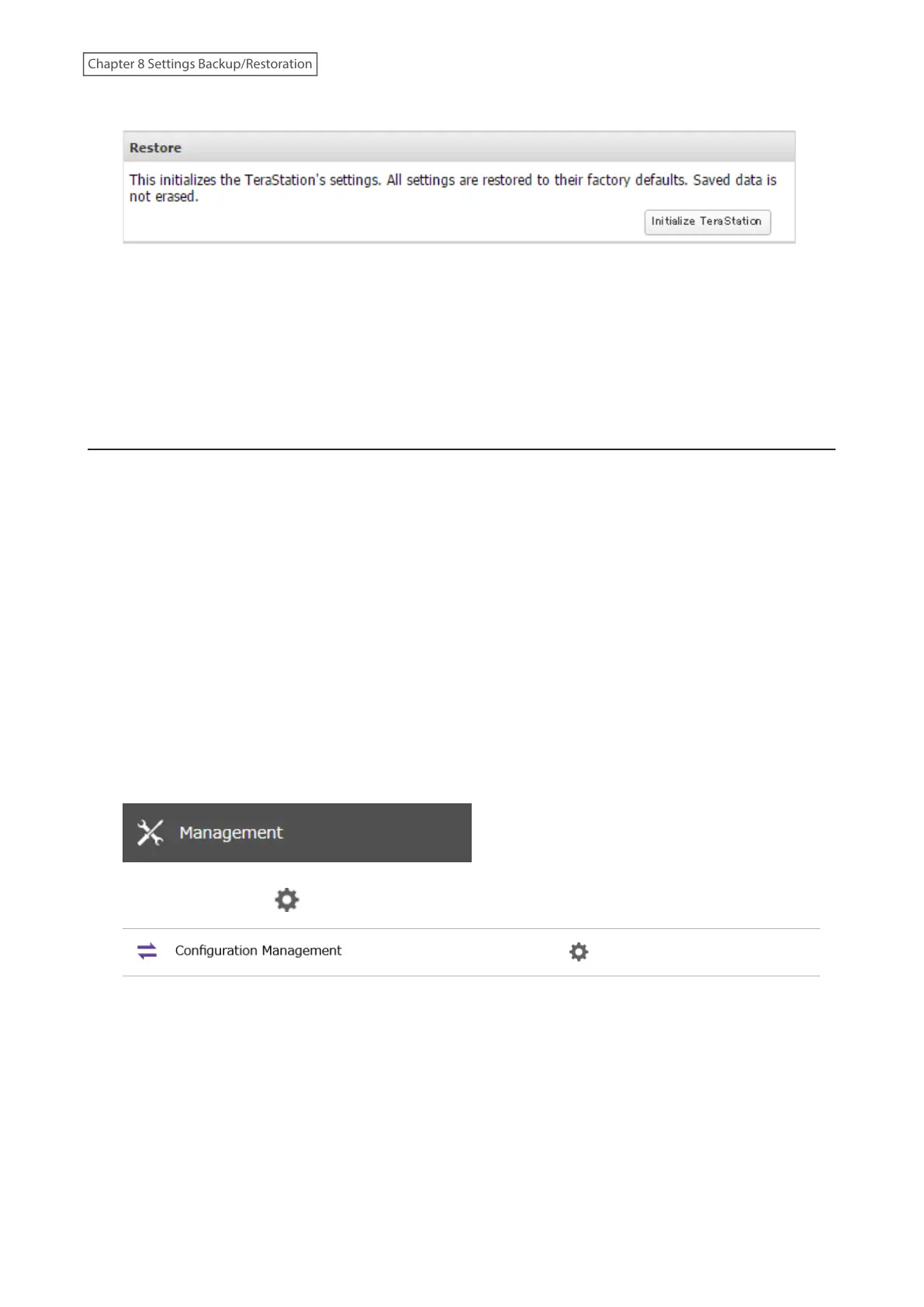
3 Click Initialize TeraStation.
4 The “Confirm Operation” screen will open. Enter the confirmation number, then click OK.
5 The settings will be restored to its factory default settings. The I26 message will appear as a notification while
settings are being restored.
6 The process is complete when the I26 message disappears.
Initializing Using the USB Initialization Drive
A USB initialization drive will restore the settings on your TeraStation to their factory defaults. You can initialize them
without logging in to Settings. Follow the procedure below to create a USB initialization drive.
Notes:
• You can use the USB initialization drive to initialize settings on the same TeraStation unit that created it.
• Normally, making and using a USB initialization drive will not affect data on the TeraStation. However, always back
up your data regularly!
• This USB initialization drive can be used to recover the system if your TeraStation doesn’t boot at all. In this case, if
the data partition is damaged, then all your data will be deleted by the recovery process.
Creating a USB Initialization Drive
1 Insert a 1 GB or larger USB drive (not included) into a USB port on the TeraStation.
Note: All data on the USB drive will be erased!
2 From Settings, click Management.
3 Click the settings icon ( ) to the right of “Configuration Management”.
216
Chapter 8 Settings Backup/Restoration















 To Next Page