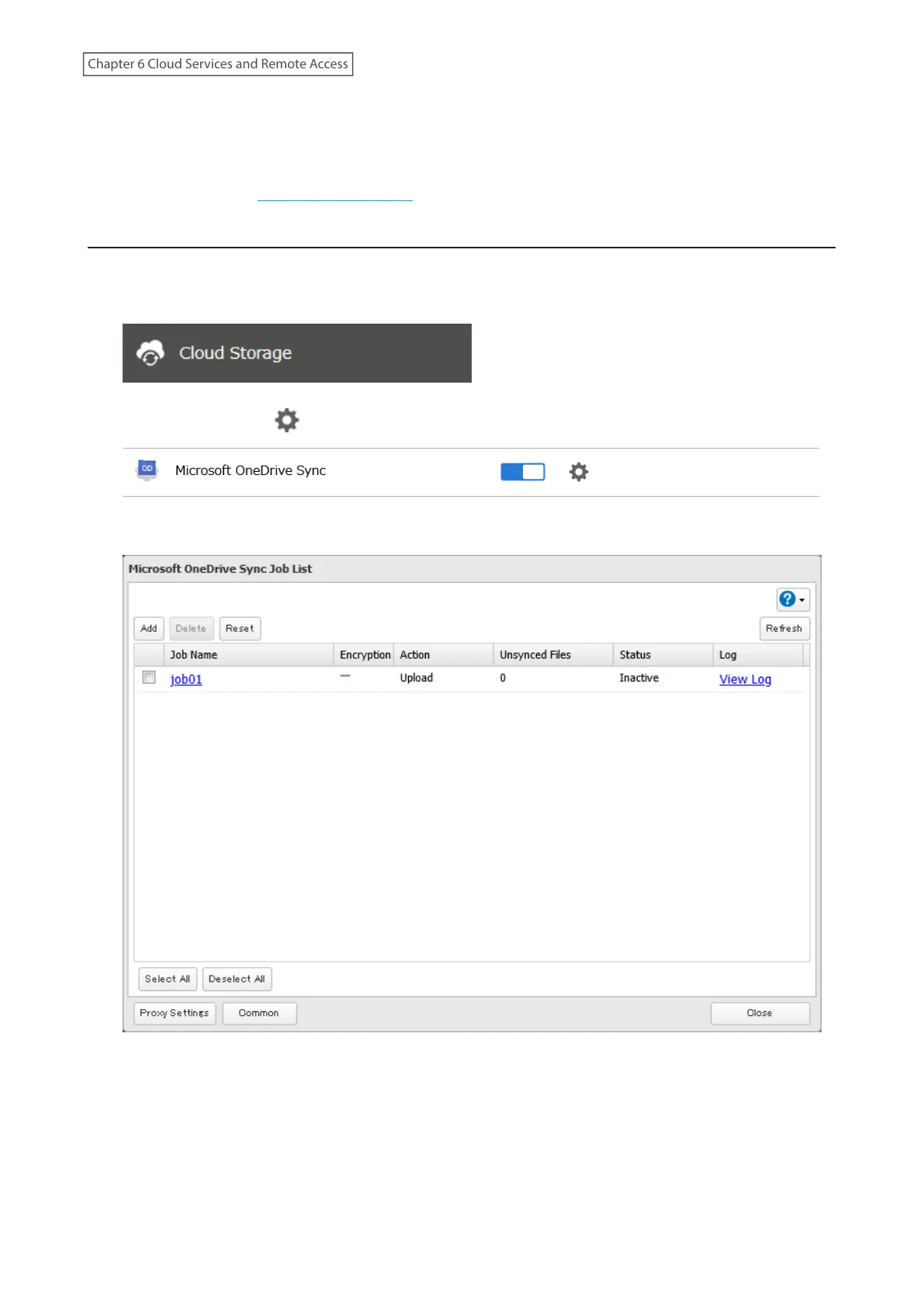
• If unexpected behaviors occur during file sync, such as some files not being synced, click Reset on the job list
window. This will resync all files on the TeraStation and/or OneDrive the next time the sync process runs. The
existing files will be overwritten, and files that will be resynced will vary depending on the sync action settings.
To start resyncing immediately after clicking Reset, change the frequency settings to “Always sync within the sync
period” by referring the “Changing Job Settings” section below.
Changing Job Settings
Follow the procedure below to change any job settings you have already configured.
1 From Settings, click Cloud Storage.
2 Click the settings icon ( ) to the right of “Microsoft OneDrive Sync”.
3 From the job list, click the job whose settings you want to change.
173
Chapter 6 Cloud Services and Remote Access















 To Next Page