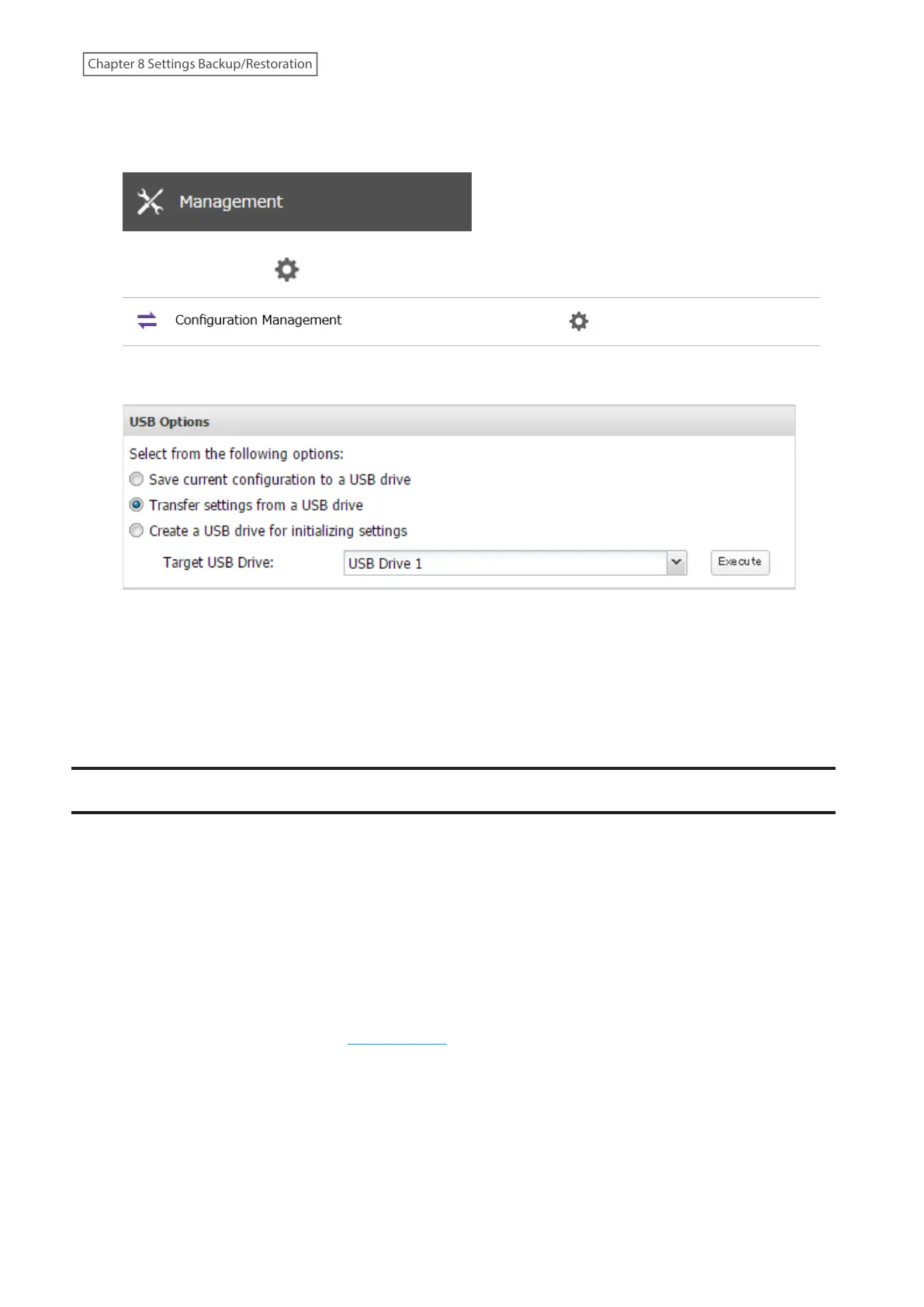
1 Insert the USB drive with the saved settings into a USB port on the TeraStation.
2 From Settings, click Management.
3 Click the settings icon ( ) to the right of “Configuration Management”.
4 Select “Transfer settings from a USB drive”.
5 From “Target USB Drive”, select the USB drive that is connected to the USB port on the TeraStation, then click
Execute.
6 The “Confirm Operation” screen will open. Enter the confirmation number, then click OK.
7 The process is complete once you close the confirmation window that appears.
Transferring Another Buffalo NAS Device’s Settings
You can transfer saved settings from another series Buffalo NAS device to your TeraStation. The following settings
can be transferred:
• Shared folders which are created from “File Sharing”> “Folder Setup”
• Access restrictions
• Users
*
• Groups
*Except two-factor authentication settings
Note: This feature currently supports the following Buffalo NAS devices as of November 2020. The latest
compatibility information will be on the Buffalo website.
• TS-X series (TS-XL/R5, TS-WXL/R1, TS-WXL/1D, TS-RXL/R5, TS-XEL/R5 TeraStation models) running firmware version
1.58 or later
• TS5000 series (TS5200D, TS5200DN, TS5400D, TS5400DN, TS5400R, TS5400RN, TS5600D, TS5600DN, TS5800D,
TS5800DN TeraStation models)
• TS4000 series (TS4200D, TS4400D, TS4400R, TS4800D TeraStation models)
• TS3000 series (TS3200D, TS3400D, TS3400R TeraStation models)
• TS5010 series (TS5210DN, TS5410DN, TS5410RN, TS5810DN, TS51210RH TeraStation models)
213
Chapter 8 Settings Backup/Restoration















 To Next Page