• If FTP is enabled, local and domain group access restrictions from the AD network will not work. Use user access
restrictions instead.
• For an access-restricted shared folder, if you change the access restrictions of all users and groups from read and
write or read-only to access prohibited from the user or group list page in Settings, that shared folder can only be
accessed by admin users and groups.
• If you allow read and write or read-only access for most users, group access restrictions are recommended.
• Depending on the domain controller’s policy settings, the domain controller may force the TeraStation to leave
the Active Directory domain. If this occurs, the TeraStation will lose the domain users and groups so if you have
configured access restrictions using domain accounts, these users will no longer be able to access shared folders.
In such a case, change the policy settings on the domain controller or let the TeraStation join the Active Directory
domain again.
• If there is a local user with the same name as a domain user, access restrictions may not work properly.
Restricting Access to Subfolders
You may restrict access to subfolders in shared folders by configuring access permissions from your computer using
Windows File Explorer.
Notes:
• Depending on the environment, the function may not work properly when enabled. We recommend verifying
the functionality before using.
• Access permissions configuring from File Explorer is available for up to 18 files and 24 folders. This number of
available access permissions may vary if access permissions are inherited from the parent object.
The number of available access permissions are not many so using group access permissions is recommended
if the permission level is the same to the multiple users; it will save spending the number of available access
permissions.
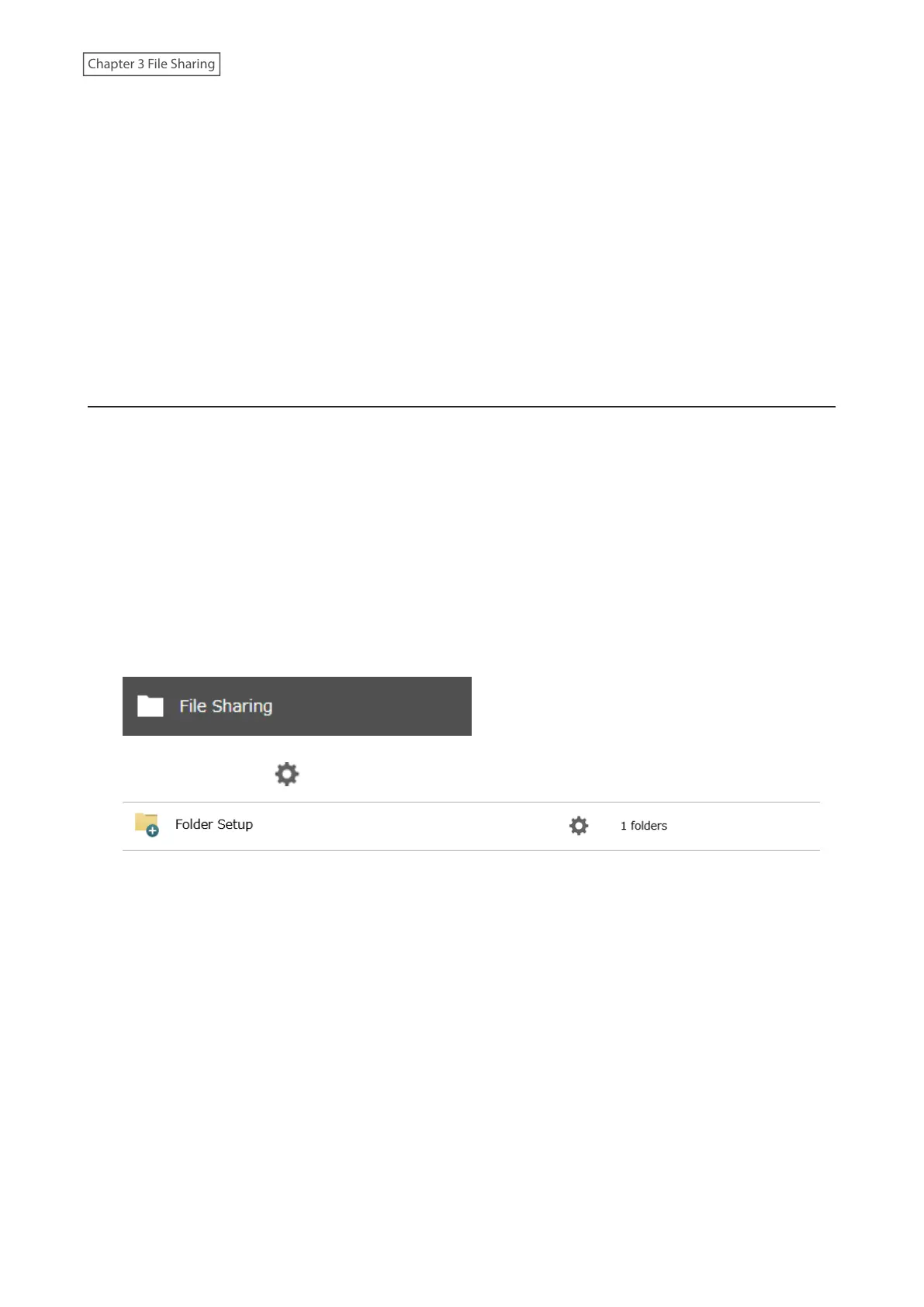
1 From Settings, click File Sharing.
2 Click the settings icon ( ) to the right of “Folder Setup”.
39















 To Next Page