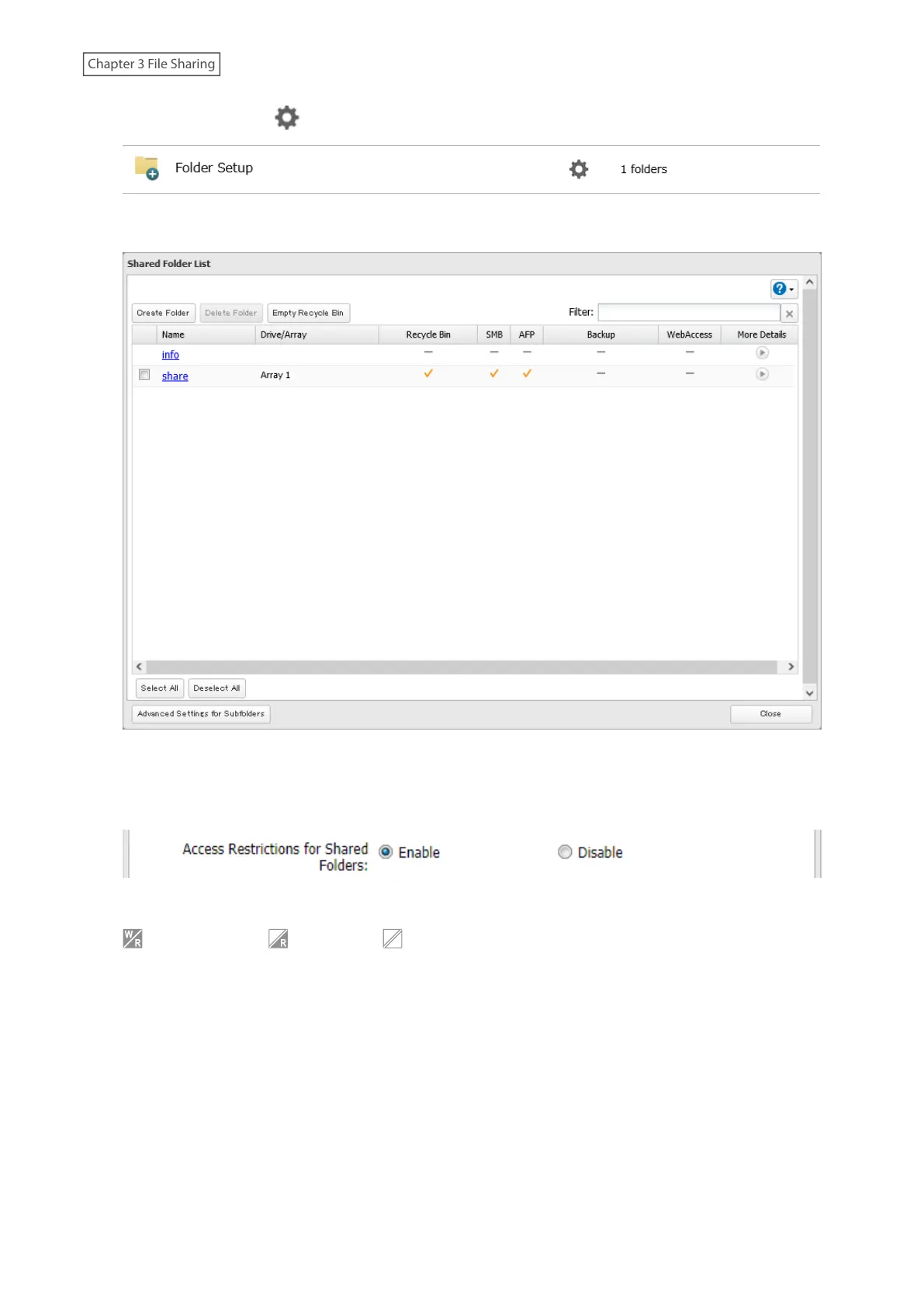
9 Click the settings icon ( ) to the right of “Folder Setup”.
10 Click the shared folder that you want to set access restrictions for.
11 Click the Access Restrictions tab.
12 Enable “Access Restrictions for Shared Folders”.
13 Select the level of access for the user or group and click OK.
: Read and write : Read-only : No access
14 The process is complete once you close the confirmation window that appears.
Notes:
• To have the TeraStation join an Active Directory domain, configure it to use a DNS server that can resolve names
for the Active Directory domain.
• After building an Active Directory domain, the administrator password for joining the domain must be changed
at least once, or joining the Active Directory domain will fail.
• The DNS name and NetBIOS name of Active Directory domains should be identical.
• If the TeraStation is a member server of an Active Directory domain, you cannot connect as a guest user via AFP.
• If your TeraStation is a member server in an Active Directory domain and you change the authentication method
to “Workgroup”, the account on the domain controller will not be deleted automatically.
38















 To Next Page