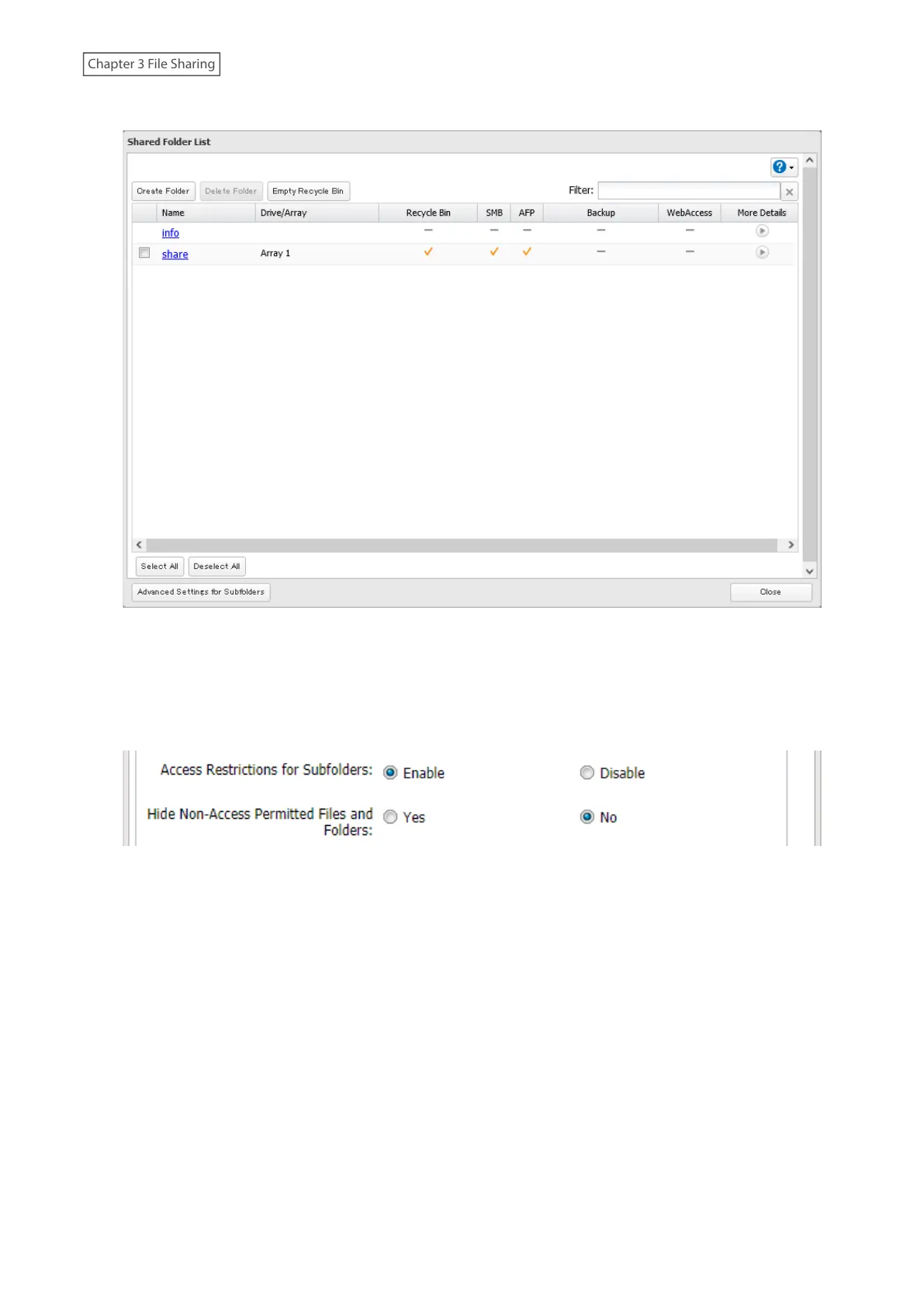
3 Click the shared folder that you want to set access restrictions for.
4 Clear all checkboxes for “LAN Protocol Support” other than “SMB (Windows/Mac)”, “Backup”, and “NFS”.
5 Click the Option 2 tab.
6 Enable “Access Restrictions for Subfolders” and click OK.
Note: If “Hide Non-Access Permitted Files and Folders” is enabled, non-access permitted sub-files and folders
will not be displayed in shared folders.
7 The process is complete once you close the confirmation window that appears.
Enabling subfolders’ access restrictions finished. Next, configure access permissions for each user or group to files
and folders in subfolders from File Explorer.
40















 To Next Page