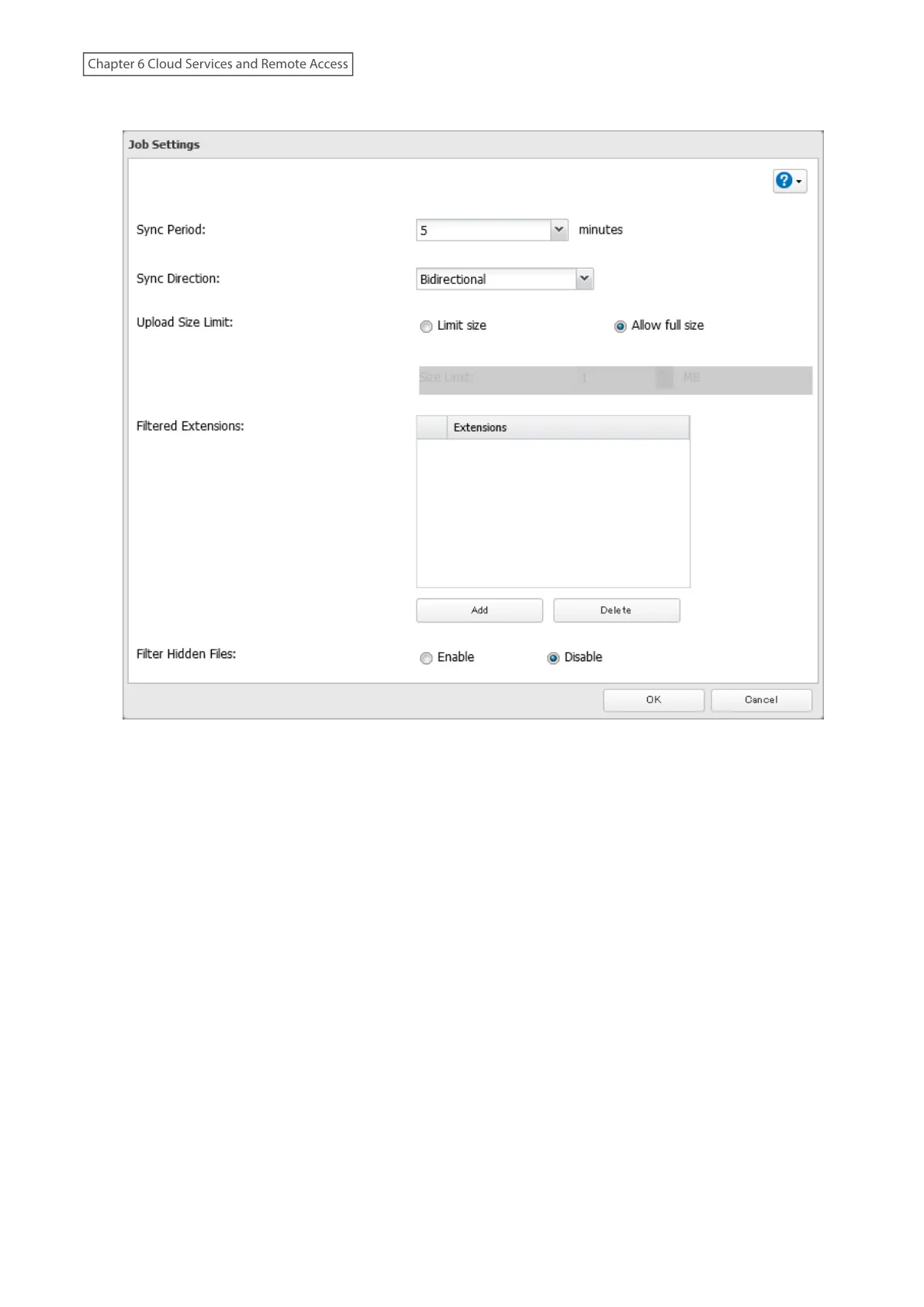
6 Configure the desired settings and click OK.
7 The process is complete once you close the confirmation window that appears.
Notes:
• When specific settings are changed, the changes will not be applied and the files on Dropbox may not be
synchronized to the TeraStation. In such a case, delete the target files to be synchronized and upload them to
Dropbox again or delete the job and recreate it again. The following are the specific circumstances for when files
may not be synchronized:
◦ Uploading or downloading fails.
◦ File extensions are removed from filtering.
◦ The sync direction is changed.
• “Hidden files” from the “Filter Hidden Files” option refer to files whose filename starts with a period.
• Regardless of whether file filtering was configured, the following files will not be uploaded to Dropbox:
◦ desktop.ini
◦ thumbs.db
◦ Files whose filename contains the symbols / \ > < : " | ? *
◦ Files whose filename ends with either a space or period
◦ Files whose filename starts with either ~$ or .~
◦ Files whose filename starts with ~ and have the file extension .tmp
145
Chapter 6 Cloud Services and Remote Access















 To Next Page