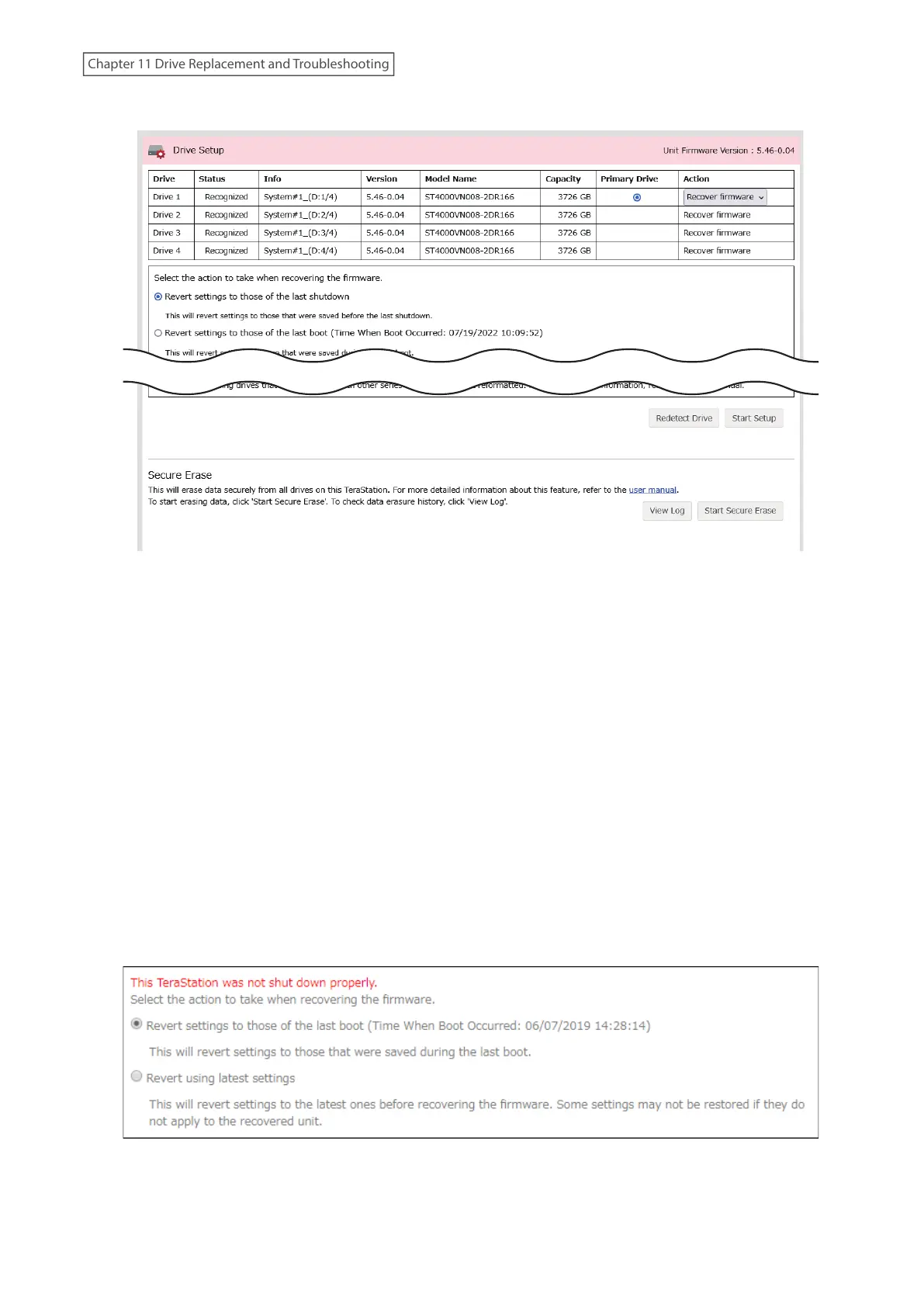
4 Make sure that “Recover firmware” is selected from the drop-down list under “Action”, then click Start Setup.
Note: There are two more options for “Action” other than “Recover firmware”. The details for all options are
below:
• Use the drive's firmware: The TeraStation will boot using the firmware on the drive.
• Recover firmware: The TeraStation will be recovered using the firmware on the NAND flash.
• Format drive: The drive will be formatted.
5 The “Confirm Operation” screen will open. Enter the confirmation number, then click OK.
6 The recovery process will start. When the process is finished, click OK.
7 The TeraStation will shut down automatically. Press the power button to turn it on.
The TeraStation will be recovered from the malfunction that is keeping the power LED blinking. Make sure the
TeraStation finishes booting properly.
Notes:
• If the TeraStation does not recover from the error after trying the procedure above, try again from the first step.
• If the TeraStation did not power off properly in the previous shutdown, a message will appear in the window as
below:
258
Chapter 11 Drive Replacement and Troubleshooting















 To Next Page