Specifying the Scanning Size of the Original
You can specify the scanning size of your original.
Select <Scan Size> in the <Send Settings> tab Select the original size
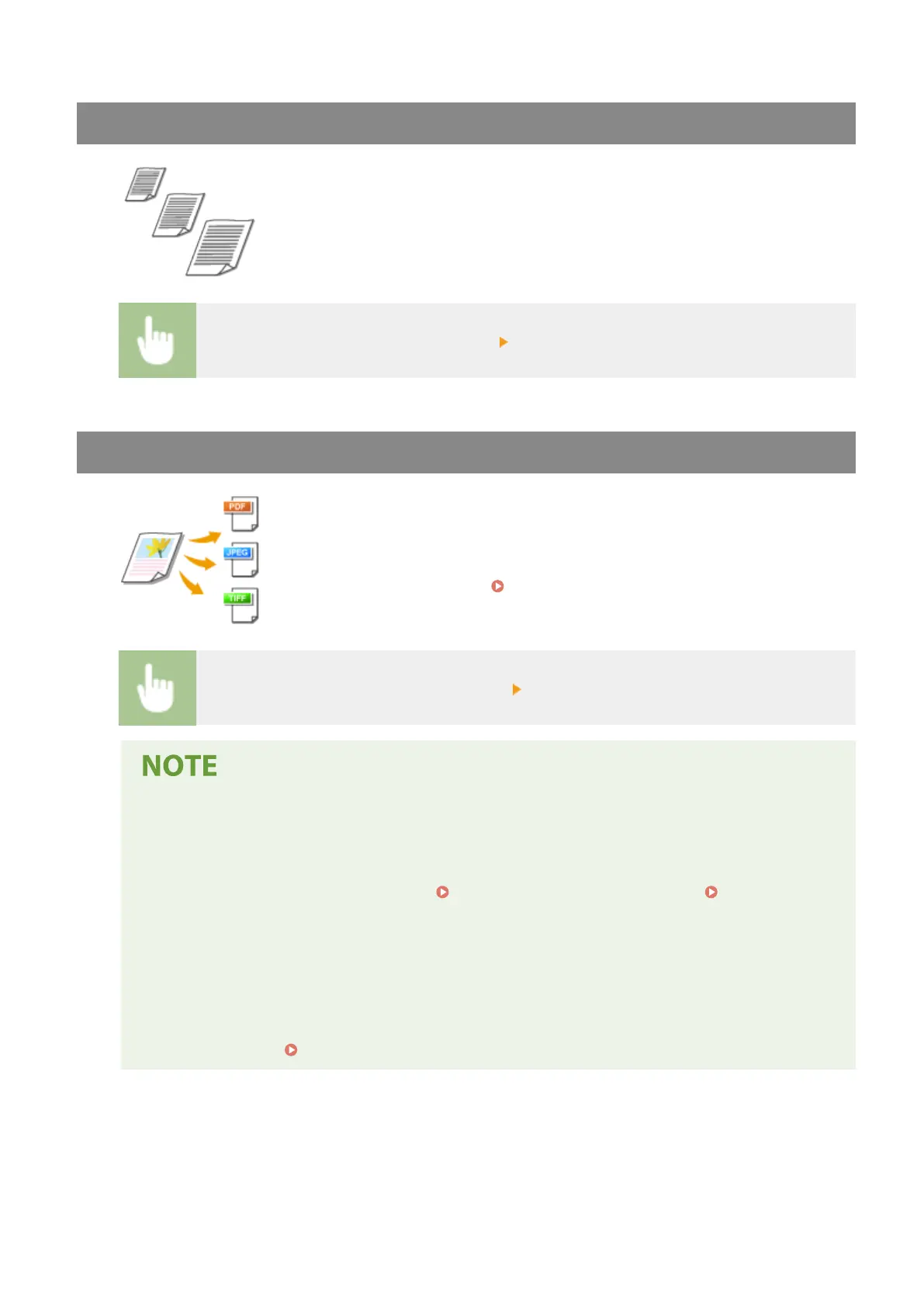
Selecting a File Format
You can select the le format to which originals are scanned from PDF/JPEG/TIFF. For
PDF, you can select Compact PDF that reduces the data size or the PDF format that
enables a text search by including text data scanned with OCR (optical character
recognition). You can also create a PDF le with enhanced security by encrypting
data or adding the signature. Enhancing the Security of Electronic Files(P. 309)
Select <File Format> in the <Send Settings> tab Select a le format
● If you select JPEG in <File Format> and try to scan a original from the platen glass, you can only scan
one page. To scan a multiple-page original all at once, use the feeder. Each page of the original is
saved as a separate le. If you select TIFF or PDF, you can scan multiple-page originals either from the
platen glass or from the feeder. In this case, whether the original is to be saved as a single le or each
page as separate les can be specied in Dividing a PDF le by Page(P. 296) or Dividing a TIFF
File by Page(P. 297) .
● <PDF (Compact)> and <PDF (Compact/OCR)> compress photos and illustrations on originals more
than <PDF> and <PDF (OCR)>. The le will be smaller, but the image quality of some originals or the
number of originals that can be scanned at once may be lower.
● In <PDF (Compact/OCR)> and <PDF (OCR)> you can congure the settings so that the machine
automatically detects the original direction during scanning based on the direction of the text read by
the OCR function.
<OCR (Text Searchable) Settings>(P. 490)
◼ Dividing a PDF le by Page
Specify whether to convert the original with multiple pages into a single PDF le or create a separate PDF le for
each page. This setting can be congured for each PDF format.
Scanning
296









 To Next Page