[Zoom]
Enable or disable enlarging/reducing images. The printouts are enlarged or reduced with the image aspect
ratio kept.
[Off] When the image is within the Printable Area(P. 572) of the paper, it is printed with
the size as is. When an image is larger than the printable area, printouts are reduced.
[Auto] Makes enlarged or reduced printouts according to the printable area of the paper.
[Enlarge Print Area]
If you select the check box, the image is printed by extending the Printable Area(P. 572) fully to the paper
size. However, a part of the image may be missing near the edge of the paper or the paper may be partly
tainted depending on the original.
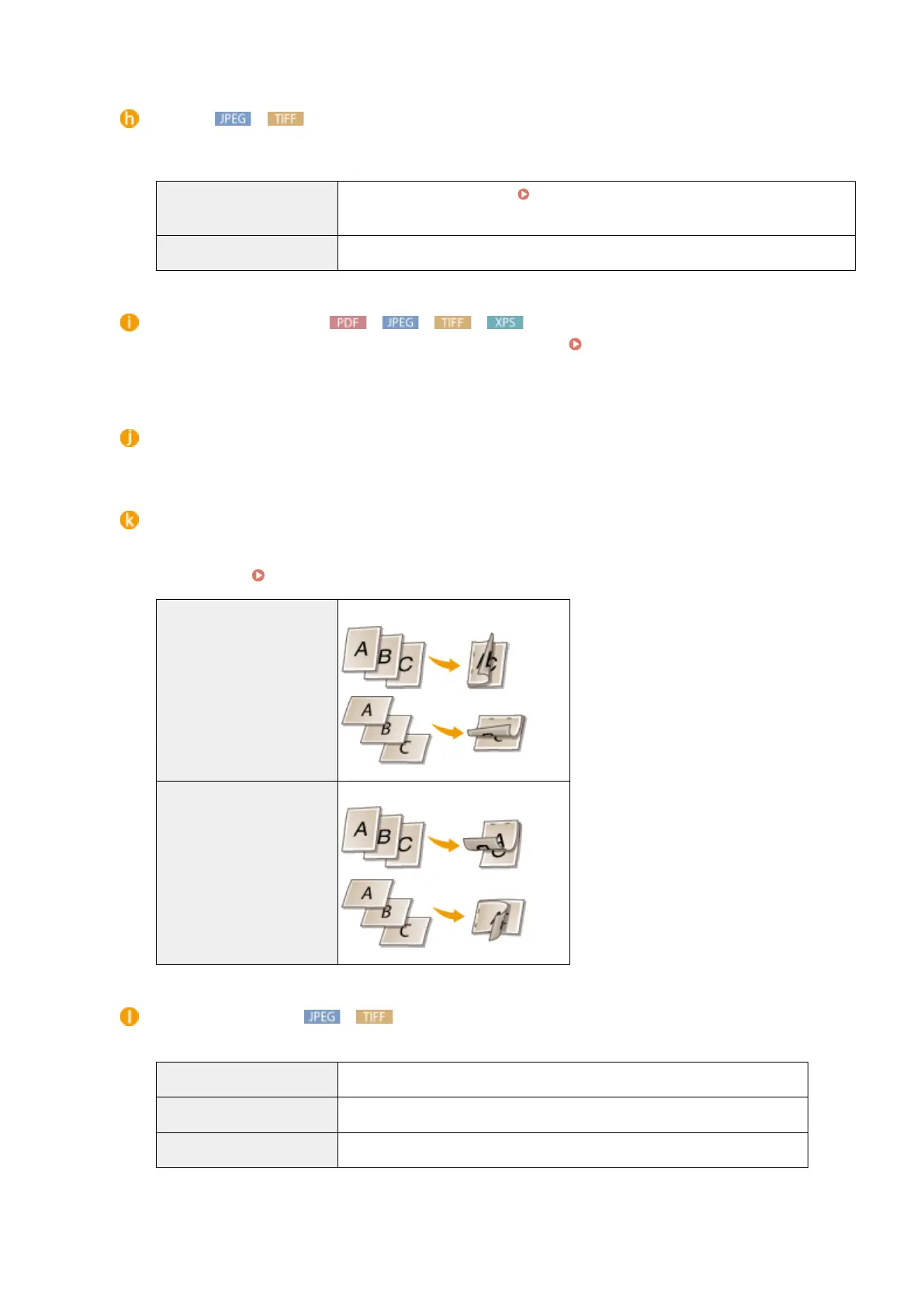
[Print 2-Sided]
Select the check box to print on both sides of the paper.
[Binding Location]
Select whether to bind the long edge or short edge of the printouts with a binding tool such as a stapler.
Printing orientation will be changed depending on the specied binding position. You can also specify the
binding margin ( Gutter(P. 397) ).
[Long Edge]
Binds the printouts on the long edge.
[Short Edge] Binds the printouts on the short edge.
[Show Warnings]
You can specify how the machine should behave if an error occurs.
[Print]
Error information is printed and no image is printed.
[Panel] No image is printed and an error message is displayed on the operation panel.
[Off] No image is printed and no error is displayed.
Printing a Document
154



 To Next Page