4
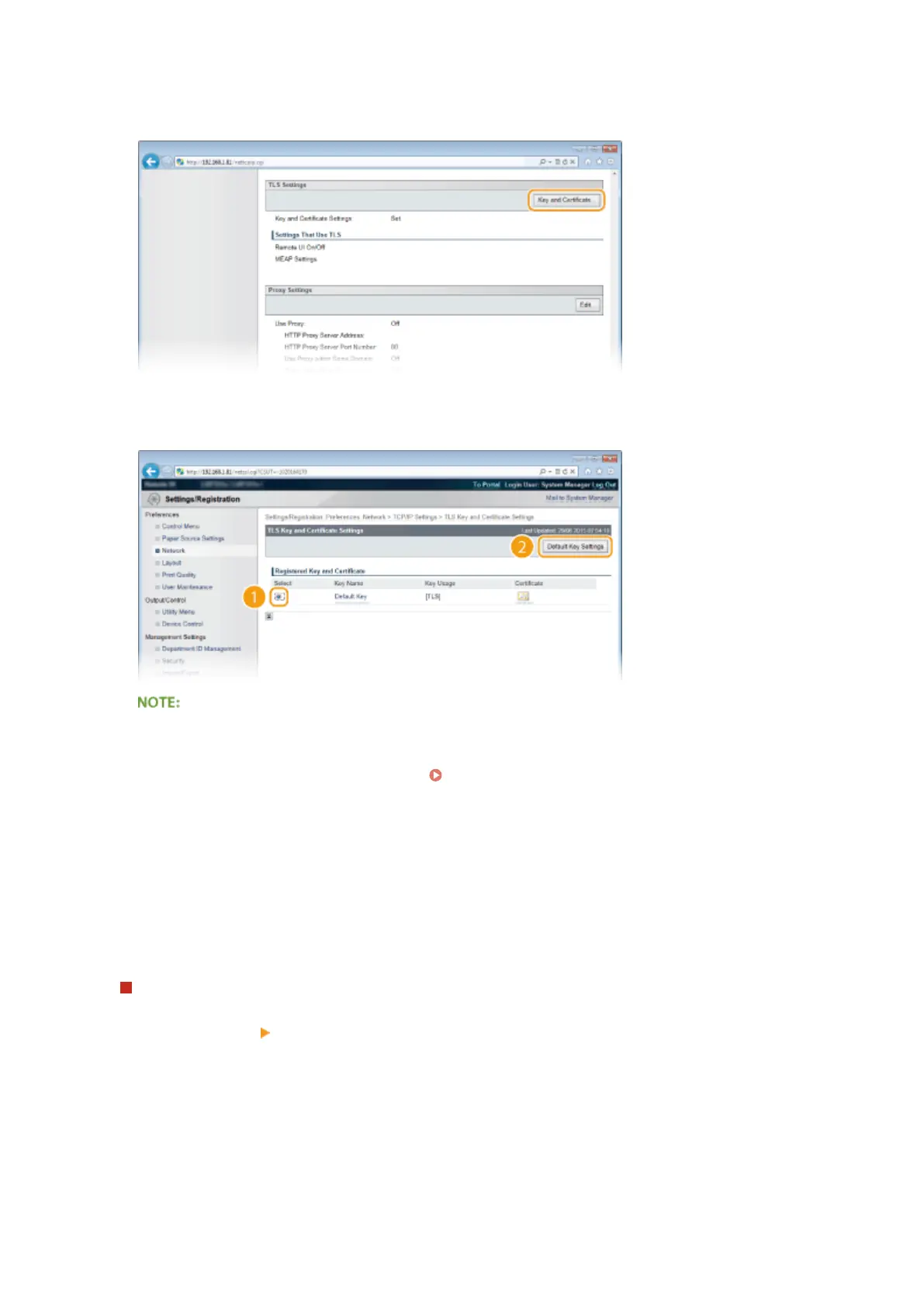
Click [Key and Certicate] in [TLS Settings].
5
Select a key from the list of keys and certicates, and click [Default Key Settings].
Viewing details of a certicate
● You can check the details of the certicate or verify the certicate by clicking the corresponding text link
under [Key Name], or the certicate icon. Verifying Key Pairs and Digital Certicates(P. 329)
If [Default Key Settings] is not displayed
● When TLS is already enabled by [Remote UI Settings] or [IPP Print Settings], [Default Key Settings] is not
displayed. To change the key to use, refer to step 6 and clear the [Use TLS] check boxes under [Remote UI
Settings] or [IPP Print Settings], respectively.
6
Enable TLS for the Remote UI.
Using TLS for communication with the Remote UI
1
Click [Security] [Remote UI Settings].
Security
295



 To Next Page