Paper Jams in the Multi-Purpose Tray
If there is paper loaded in the tray, remove it rst. If the jammed paper cannot be removed easily, do not forcibly pull it
out, but follow the procedure for a different paper jam location indicated by the message.
1
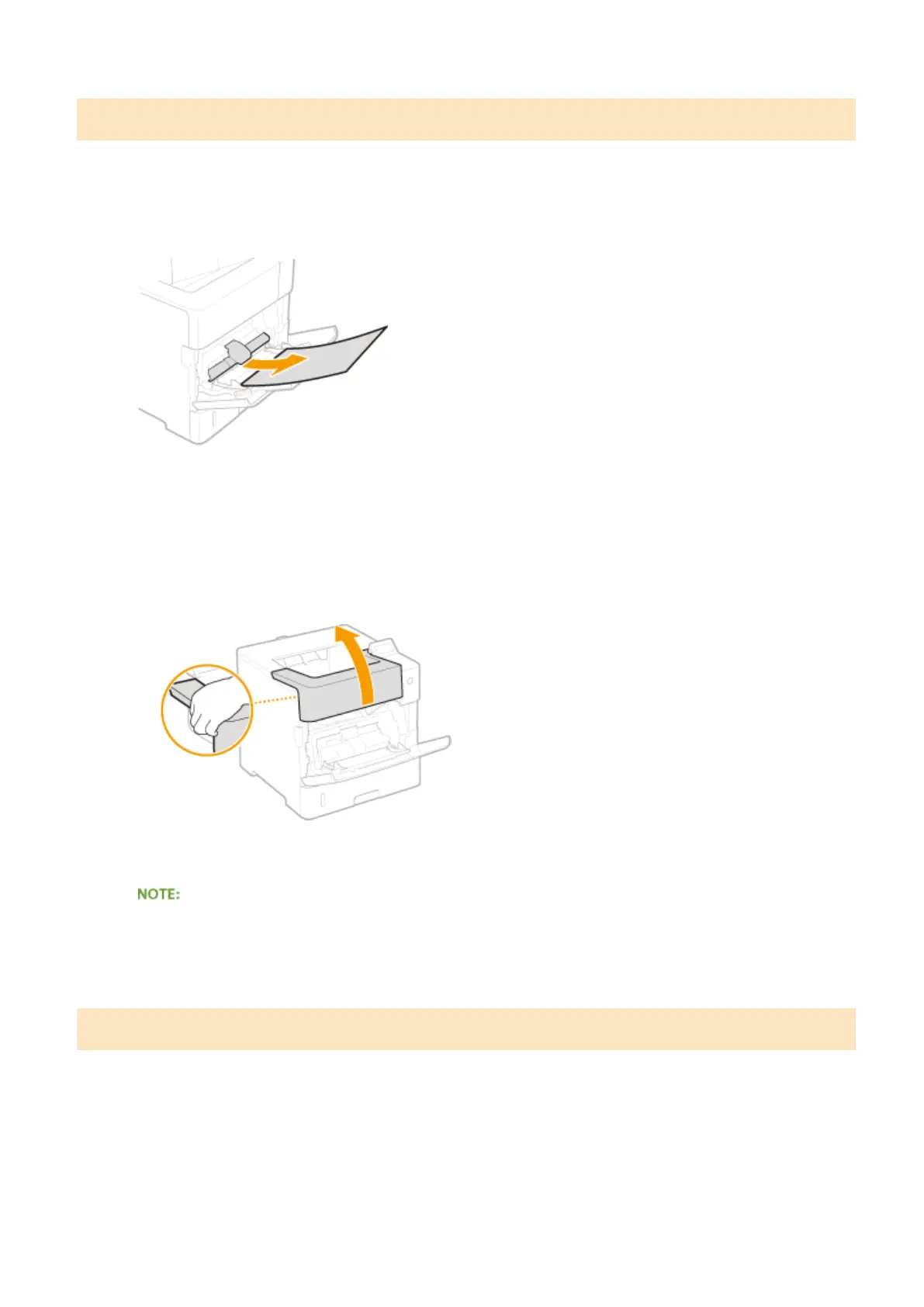
Gently pull out the paper.
2
Open and close the top cover.
● When the top cover is opened and closed, the paper jam message disappears.
1
Open the top cover.
● Hold the handle on the left side, and open the top cover.
2
Close the top cover.
When the message is still displayed
● Paper may be jammed in other locations. Check other locations, and remove jammed paper if any. If the
message is still displayed, check whether the top cover is securely closed.
Paper Jams in the Paper Drawer or the Optional Paper Deck
If the jammed paper cannot be removed easily, do not forcibly pull it out, but follow the procedure for a different
paper jam location indicated by the message.
◼ Paper Jams in the Paper Drawer
1
Pull out the paper drawer until it stops, and remove it while lifting the front side.
Troubleshooting
464



 To Next Page