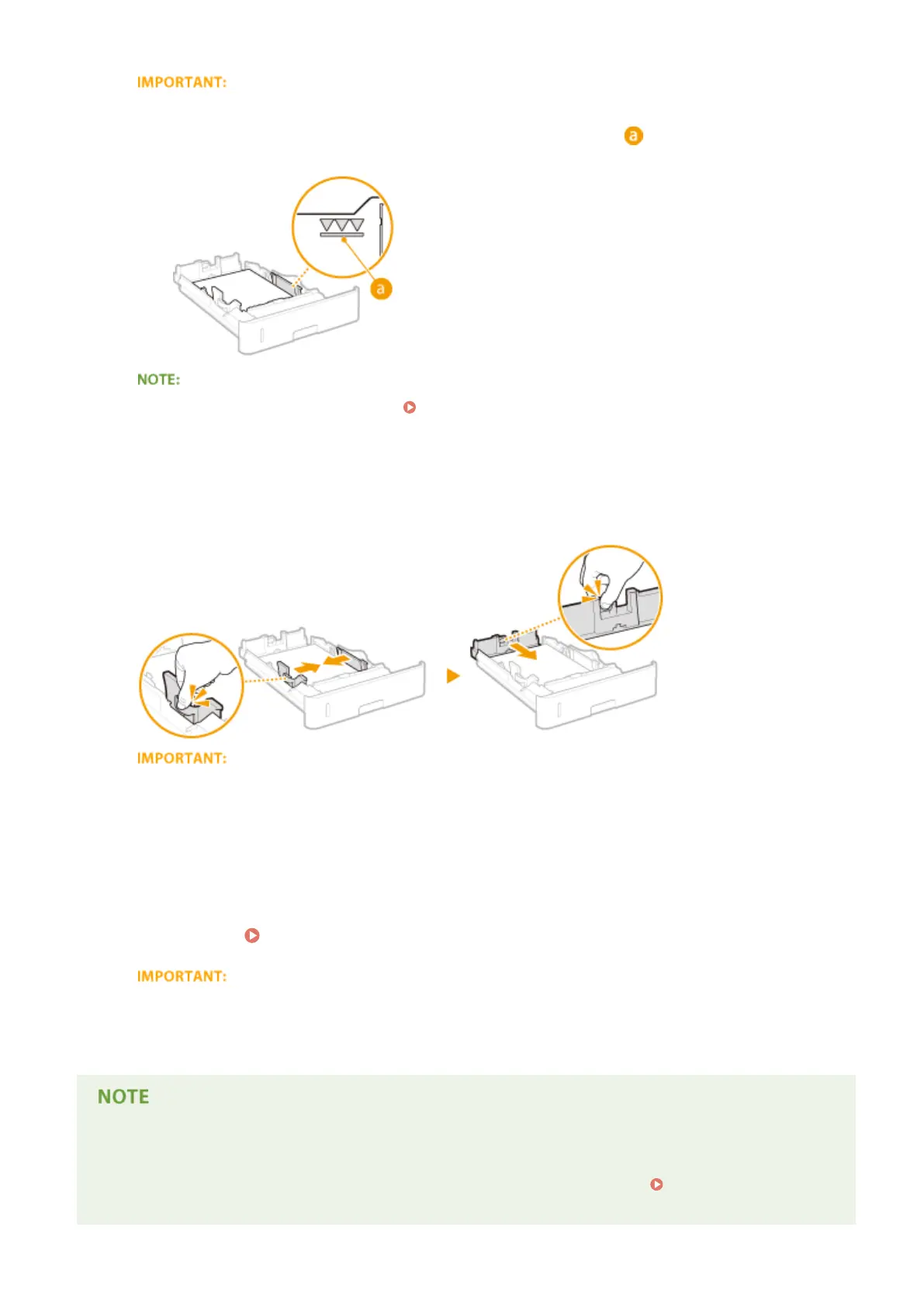
Do not exceed the load limit line when loading paper
● Make sure that the paper stack does not exceed the load limit line (
). Loading too much paper can
cause paper jams.
● When loading paper with a logo, see Loading Preprinted Paper(P. 55) .
4
Align the paper guides against the edges of the paper.
● Press the lock release lever and slide the paper guides inward until they are aligned securely against the
edges of the paper.
Align the paper guides securely against the edges of the paper
● Paper guides that are too loose or too tight can cause misfeeds or paper jams.
5
Insert the paper drawer into the machine.
»
Continue to Specifying the Size and Type of the Paper in the Paper Drawer(P. 60)
When changing the paper size or type
● If you load custom size paper or a different type of paper into the machine, make sure to change the
settings. If you do not change the paper size or type setting, the machine cannot print properly.
● When you want to print a document from an environment not allowing you to make settings for paper size
and paper type, such as from a computer running an operating system or a mobile device that does not
support any printer driver, set <Standard Paper Size> and <Default Paper Type>. Select Feeder
Menu(P. 453)
Basic Operations
42



 To Next Page