Click to jump to the corresponding page. To return to the previous page, click "Back" on your Web
browser.
Click to display the hidden detailed descriptions. Click again to close the detailed descriptions.
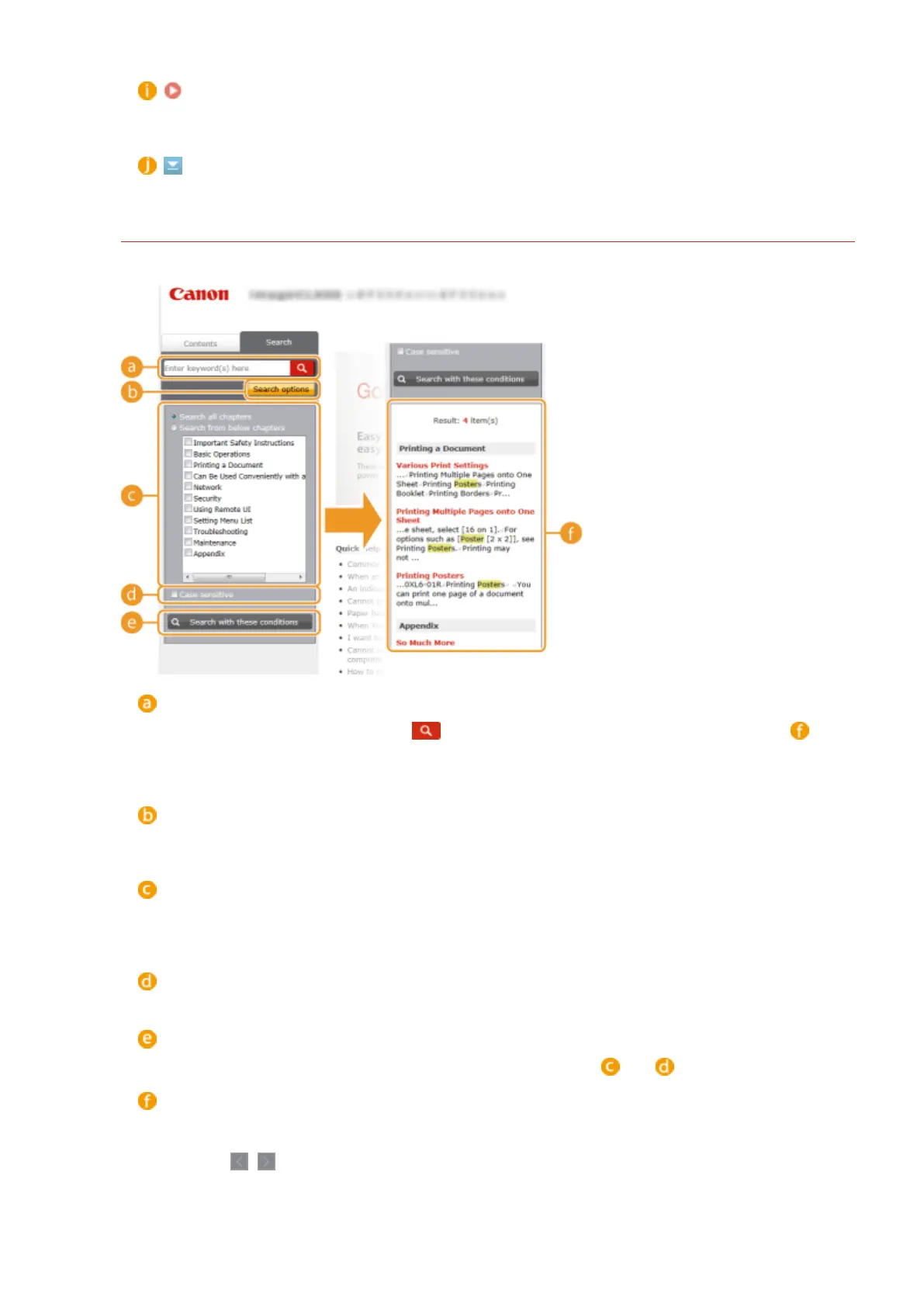
Search Tab
Contains a text box to perform a search and nd the page you are looking for.
[Enter keyword(s) here]
Enter a keyword or keywords and click to display the search results in the search result list ( ). You
can search for pages containing all the keywords by separating the keywords by a space (blank). Also you
can only search for pages containing an exact phrase by enclosing the keywords in double quotation
marks.
[Search options]
Click to specify search conditions such as scope of search and fuzzy match conditions. To display the
conditions, click this button when it is gray. To close the display, click the button when it is orange.
Search scope selector
Species the search scope. You can eciently search for topics by narrowing the search scope. The search
scope selector is especially useful when you can predict the general location of the topic that you are
looking for.
Search options selector
Select the check box to make your search case-sensitive.
[Search with these conditions]
Click to display the search results with the conditions specied with and .
Search result list
Displays the search results of the pages that contain the specied keywords. From the results, locate the
page you are looking for and click the topic title of the page. If the results cannot be displayed on one
page, click / or a page number to display the results on the corresponding page.
Appendix
596



 To Next Page