90 • SMP Gateway User Manual
Sending your security database to one or more SMP Gateways.
In this section, you will also learn how to perform the following actions:
Retrieving the security database of an SMP Gateway and storing it locally.
Disabling the security database of one or more SMP Gateways.
Unlocking a user account that has been locked out following failed login attempts.
Viewing the security log.
13.4.2 Accessing the Login Information Dialog Box
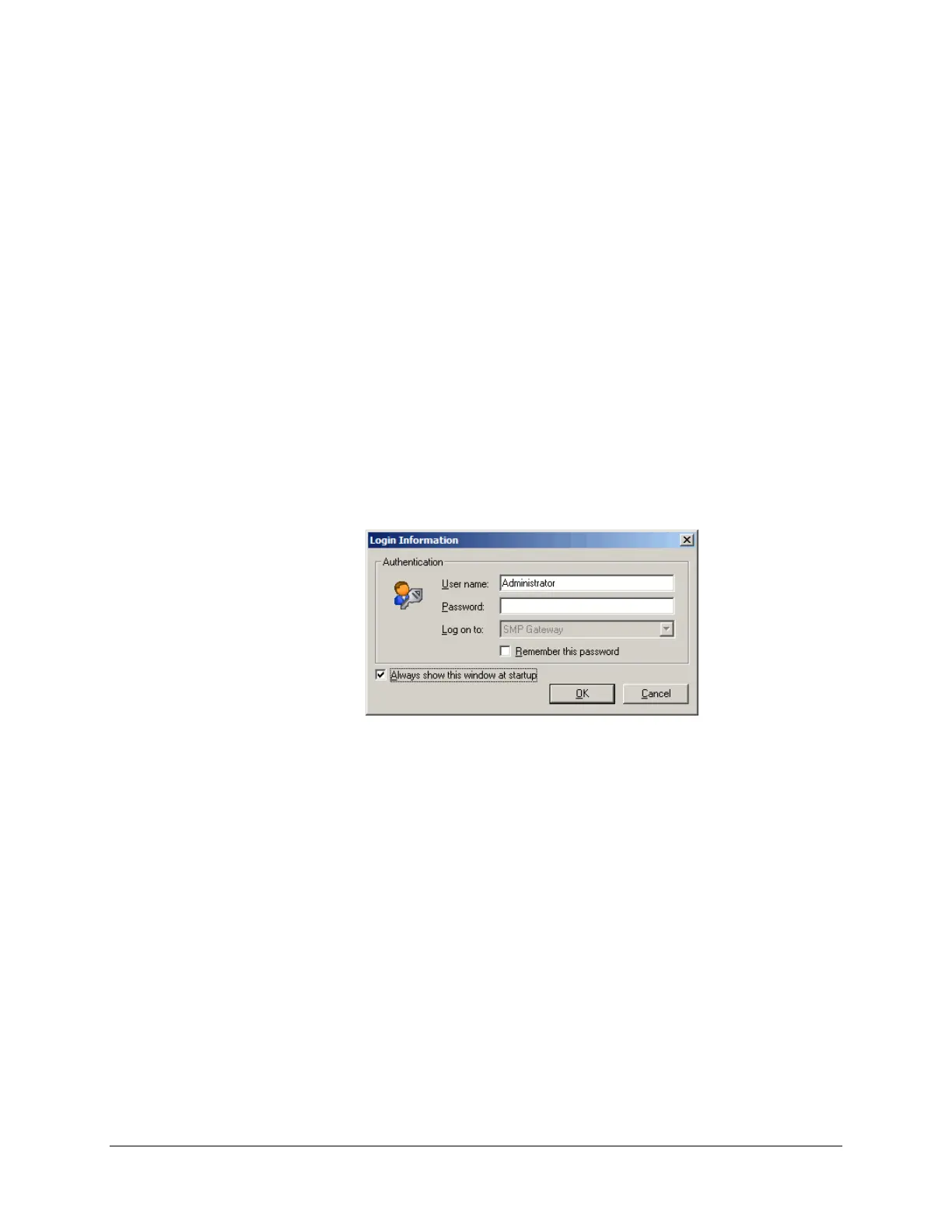
When you start SMP Manager, you need to login to edit the security. If the Login Information
dialog box is not displayed upon startup, here is how you can access it:
In the File menu, select Change Current Login.
The Login Information dialog box appears.
If security is configured on the gateway, logging in will acknowledge your rights from a list of
authorized users so you can change settings. It is then highly recommended to check Always show
this dialog box at startup, because if you need to change settings you will already be logged in
with the rights to do so. You will automatically be prompted for your credentials whenever you
start the application.
If you clear the Always show this dialog box at startup checkbox, you will no longer be
prompted at startup. It is more practical if no security is configured, and if it is not planned in a
near future.
13.4.3 Displaying an Appropriate Use Banner at Login
NERC CIP standards require the display on the user screen of an appropriate use banner upon each
interactive access attempt. SMP Manager allows this in the Login Information dialog box:
Create a text file named Appropriate Use Notice.txt in the folder
<drive>\Program Files\Cybectec\SMP Tools\Manager\.
In the text file, type the text required by the security policies of your company.



 To Next Page