22 • SMP Gateway User Manual
4.2 Main Window
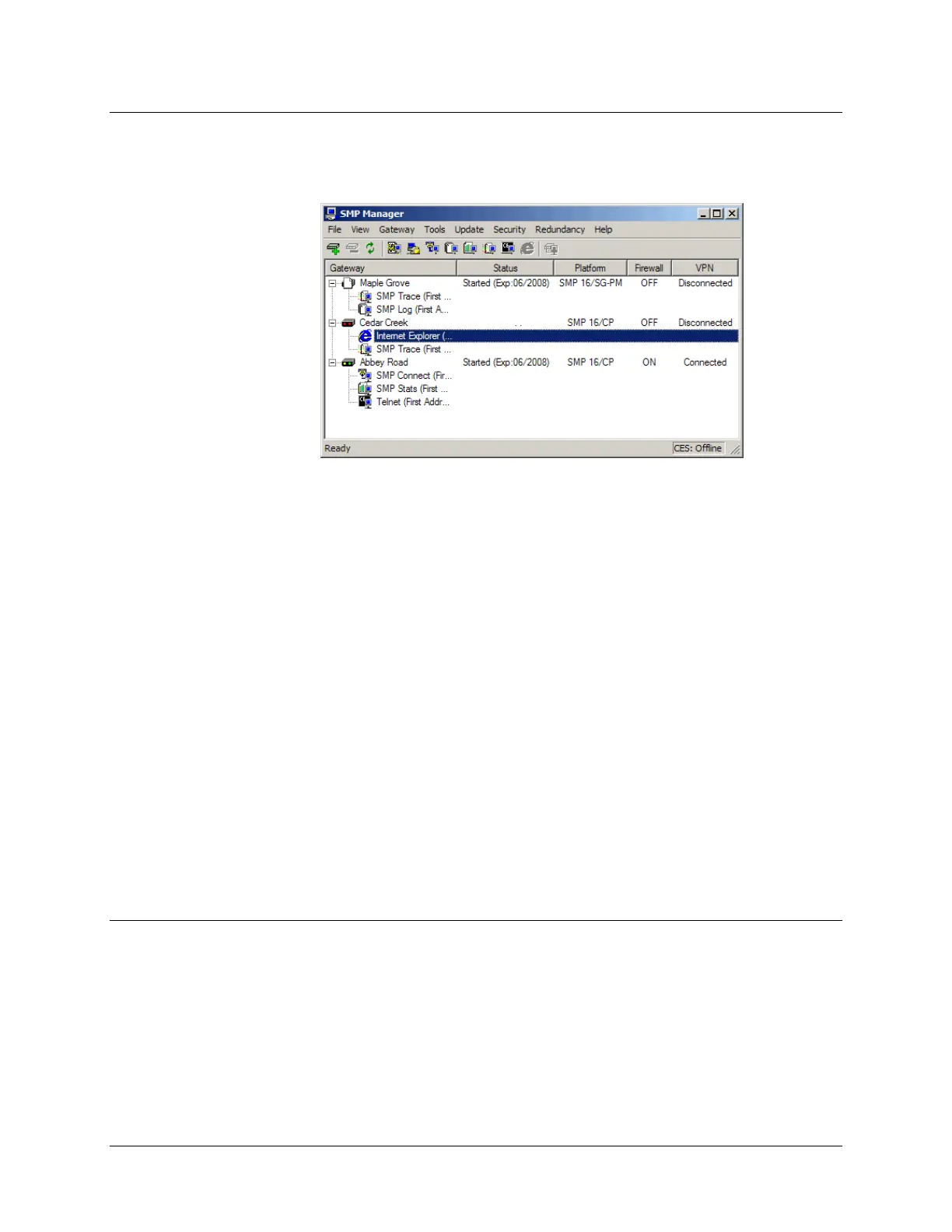
The following figure shows a typical SMP Manager window.
As illustrated, the main window displays information such as:
The list of SMP Gateways and the tools that are currently running for each gateway in the list.
The current status of each SMP Gateway in the list (started, failed, safe mode, max safe mode,
on standby, and various intermediate states).
The SMP Gateway model: SMP 4-20, SMP 8-40, SMP 4, SMP 16/CP or SMP 16/SG.
The IP address and redundancy status of any SMP Gateways you have grouped together for
the purpose of redundancy. This information is available only if your license supports
redundancy. This column is not available by default.
Whether the SMP Gateway's built-in firewall is active and whether VPN is connected or
disconnected.
This information is available only if your version of the SMP Gateway software supports the
SMP Gateway’s security features. The firewall information is not available by default
You can choose which columns you want to display and their order of appearance, with a right
click on the column header.
4.3 Adding an SMP Gateway
Creating a list of the SMP Gateways you want to monitor is easy. Proceed as follows for each
gateway you want to add to the list:
From SMP Manager’s File menu, click Add SMP Gateway to add your SMP Gateway to
the list.
The Gateway Properties dialog box appears.



 To Next Page