248 • SMP Gateway User Manual
28.1.2 Creating an SMP Gateway Report File
In the upcoming sections, we will take you through the steps required to solve your problems.
If after going through all the required procedures, you find that you need to contact Cooper Power
Systems’ Cybectec Technical Support, you will need to create a report file. This file will help the
technical support team in identifying and solving the problem.
SMP Gateway report files are stored in SMP Manager’s Reports folder. Each time a report is
generated, SMP Manager creates an event log file, indicating all operations performed during the
report generation. The event log file is also stored in the Reports folder.
To create an SMP Gateway report file:
Select the SMP Gateway in SMP Manager’s main window.
From the Gateway menu, click Make Report.
Note: The Make Report command is available if the SMP Gateway is online.
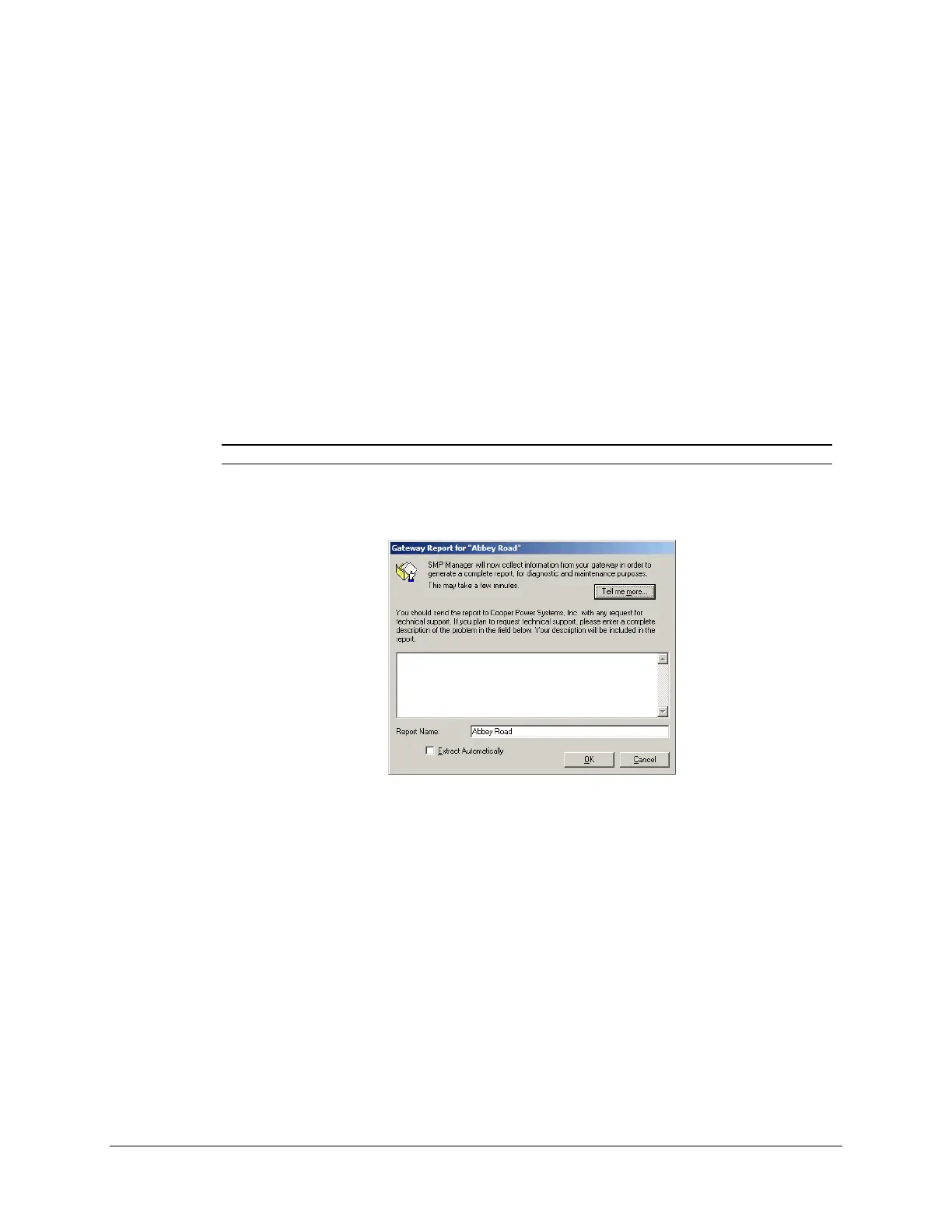
The Gateway Report dialog box appears.
Click the Tell me more button to display the information that will be collected from the
SMP Gateway;
Type additional information in the text box, such as the problem description, or the reason
why you are requesting technical support.
Assign a name to the report, in the Report Name box. SMP Manager will automatically
append the date and time to the report name.
Select the Extract Automatically checkbox, if you want to see where the report is located as
soon as SMP Manager has finished retrieving the report information. The information will be
displayed in a Windows Explorer window.
Click OK. The Save the gateway report file as dialog box appears.
Select the folder where you want to save the report file. You can also change the file name
here.



 To Next Page