SMP Gateway User Manual • 97
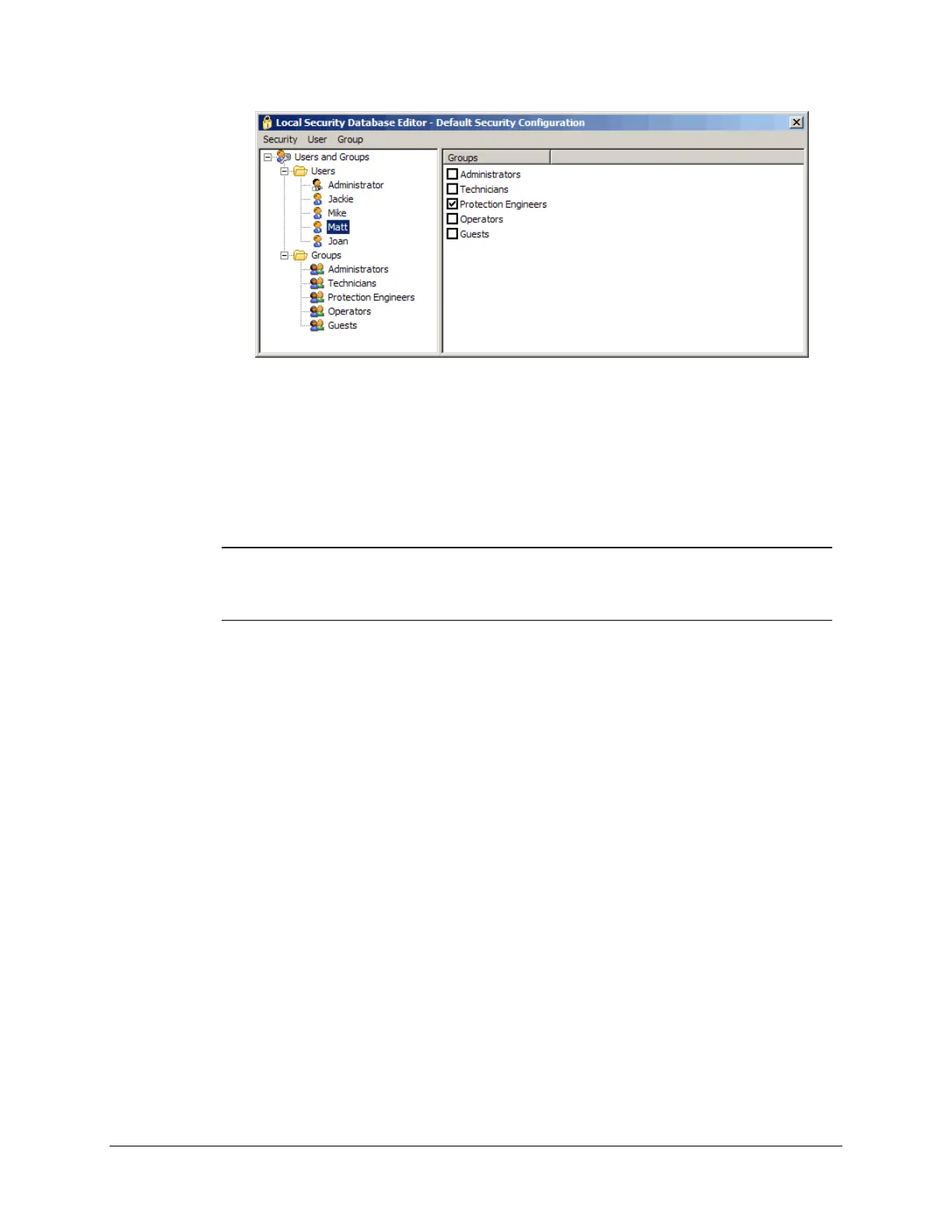
To assign a password to a new user or to change the password of an existing user:
In the left pane, select the user.
In the User menu, select Set Password.
In the Set Password dialog box, type and confirm the new password.
Note: The first time you edit the security database, we strongly suggest that you
rename the user called Administrator, since the name is so revealing that it
could open the door to a serious security breach. For the same reason, we also
recommend that you immediately assign a password to that user.
13.4.8 Validating and Saving the Security Database
Your security database, which includes your authentication policy and the users and groups you
have defined, is automatically validated and stored locally on your PC when you close the Local
Security Database Editor window.
However, if you want to manually validate your security database without closing the window,
proceed as follows:
In the Security menu, select Check Validity. This will compare your security parameters,
such as passwords, with the authentication policy that you defined beforehand.
There are two reasons why you may want to export to a file your security database on your PC:
To create a backup copy.
To transfer your security database from one PC to another.
To manually save the security database to a file on your PC:
In the Security menu, select Send to File.
In the Send Security to File dialog box, specify a file name and click Save.



 To Next Page