SMP Gateway User Manual • 23
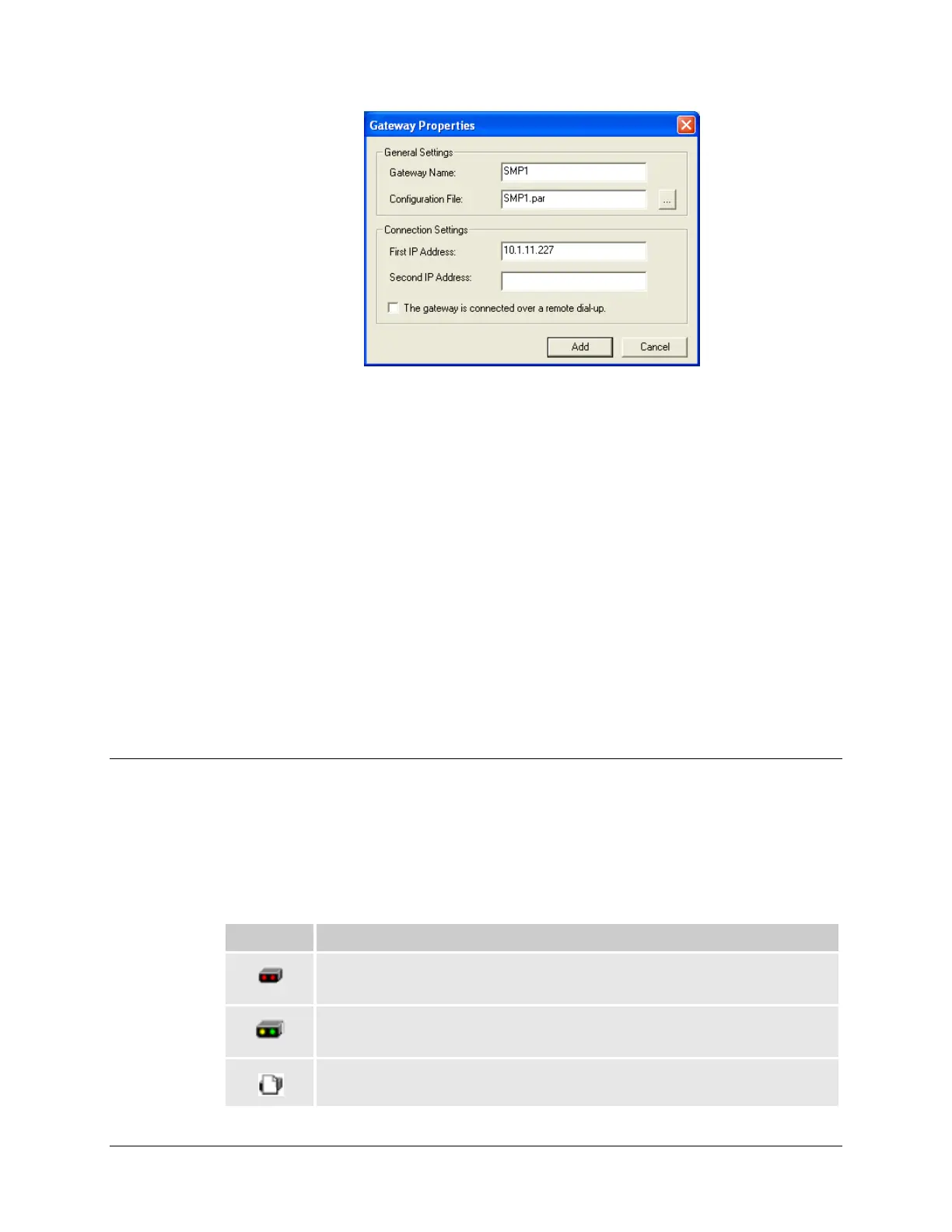
Type the name by which you want to identify your SMP Gateway in Gateway Name. The
Configuration file is the file that will be opened by default in SMP Config. If you change its
name afterwards through the File menu, you must come back to this dialog box and change
the name in the Configuration File text box, so it opens the right file at startup.
In the First Address box, type the IP address of the first Ethernet port. You can also type the
address of the second Ethernet port in the Second Address box, although it is not necessary to
do so.
If the SMP Gateway cannot be directly accessed through the network, but requires a dialup
connection, select the The gateway is connected over a remote dial-up checkbox to prevent
SMP Manager from polling the gateway for its status.
Click Add.
The SMP Gateway gets added to the list, and SMP Manager automatically detects the gateway
model and in the case of an SMP 4, whether an internal modem is installed.
4.4 Information Provided by the SMP Gateway
Icon
The SMP Gateway icon, which is displayed beside each gateway name, provides additional
information about the SMP Gateway.
The following table gives the meaning of each icon:
Icon Description
A device with two red LEDs.
SMP Manager is unable to establish a connection with the gateway.
A device with flashing yellow and green LEDs.
SMP Manager is connected to the gateway.
A blank page.
A file (configuration file, new software, etc.) has been modified and will be activated



 To Next Page