SMP Gateway User Manual • 237
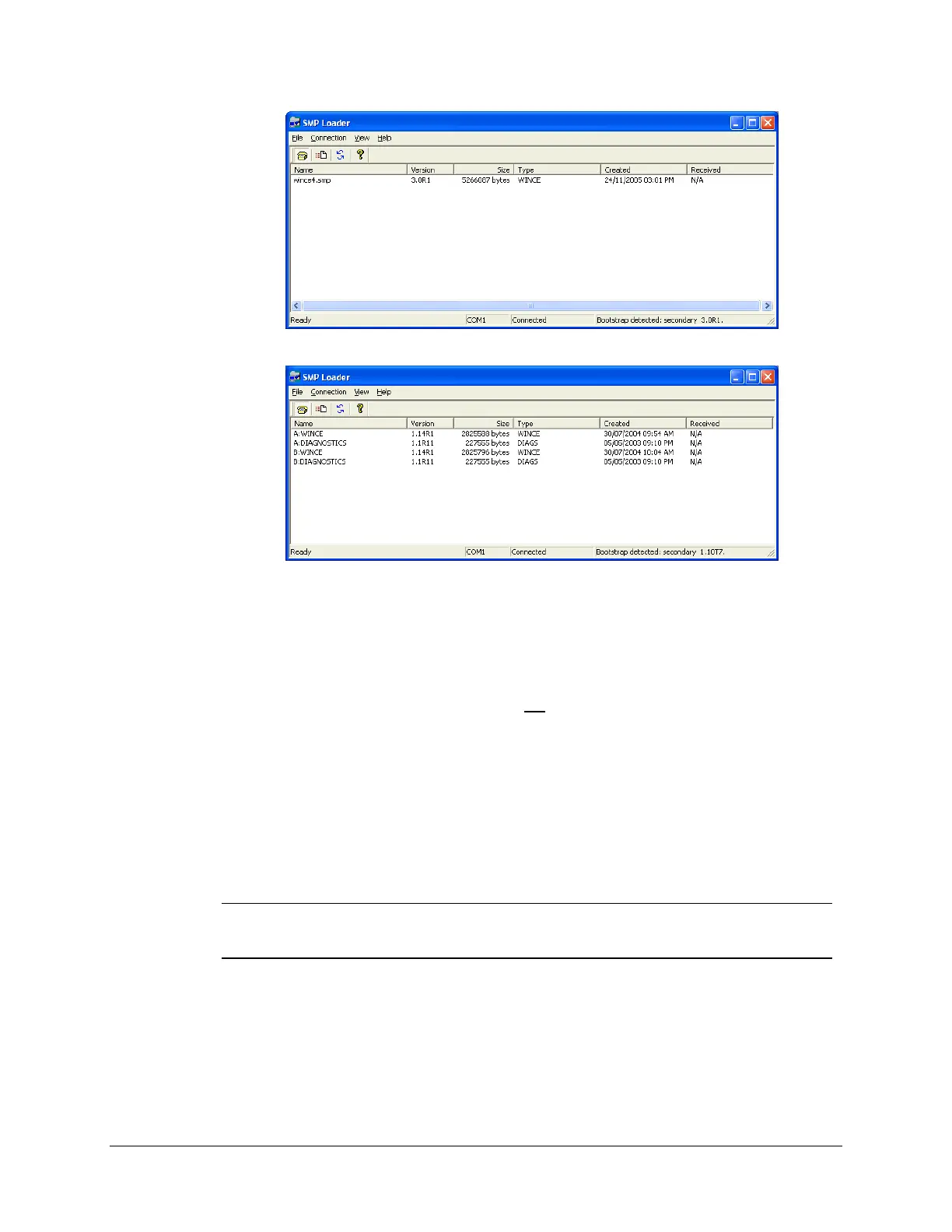
As you can see, the SMP 16 display only shows Windows CE (in the example, version 4 is loaded
on the SMP 16). The same applies to an SMP 4. The SMP 8-40 screen shows Windows CE and
the resident diagnostics, and each file name is preceded by the board – A or B – on which the file
is located. The Created and Received columns will show “N/A” if the date and time are not
available due to certain hardware constraints.
It is important to note that the display area does not
list the bootstrap programs, even though these
do indeed reside on the SMP. However, the secondary bootstrap version is shown at the bottom
right of the window, on the status bar. In very rare cases, the status bar could show a primary
bootstrap for an SMP 4-20 or SMP 8-40 (see “Corrupted secondary bootstrap”, page 240).
Yo
u can also view the bootstrap programs’ version numbers as follows:
From the Connection menu, click Bootstrap Versions.
A dialog box appears, showing the versions of both bootstrap programs.
Note: For the SMP 4 and SMP 16, the dialog box indicates that the primary bootstrap
version is unavailable since it resides in the ROM and cannot be modified in the
field.
26.4.3 Transferring Files to the SMP Gateway
You can transfer one or more files to the SMP Gateway, and you can choose the files individually.
To choose the files to transfer, do one of the following:



 To Next Page