SMP Gateway User Manual • 61
To apply a filter:
Select the tab in which you want to filter data points.
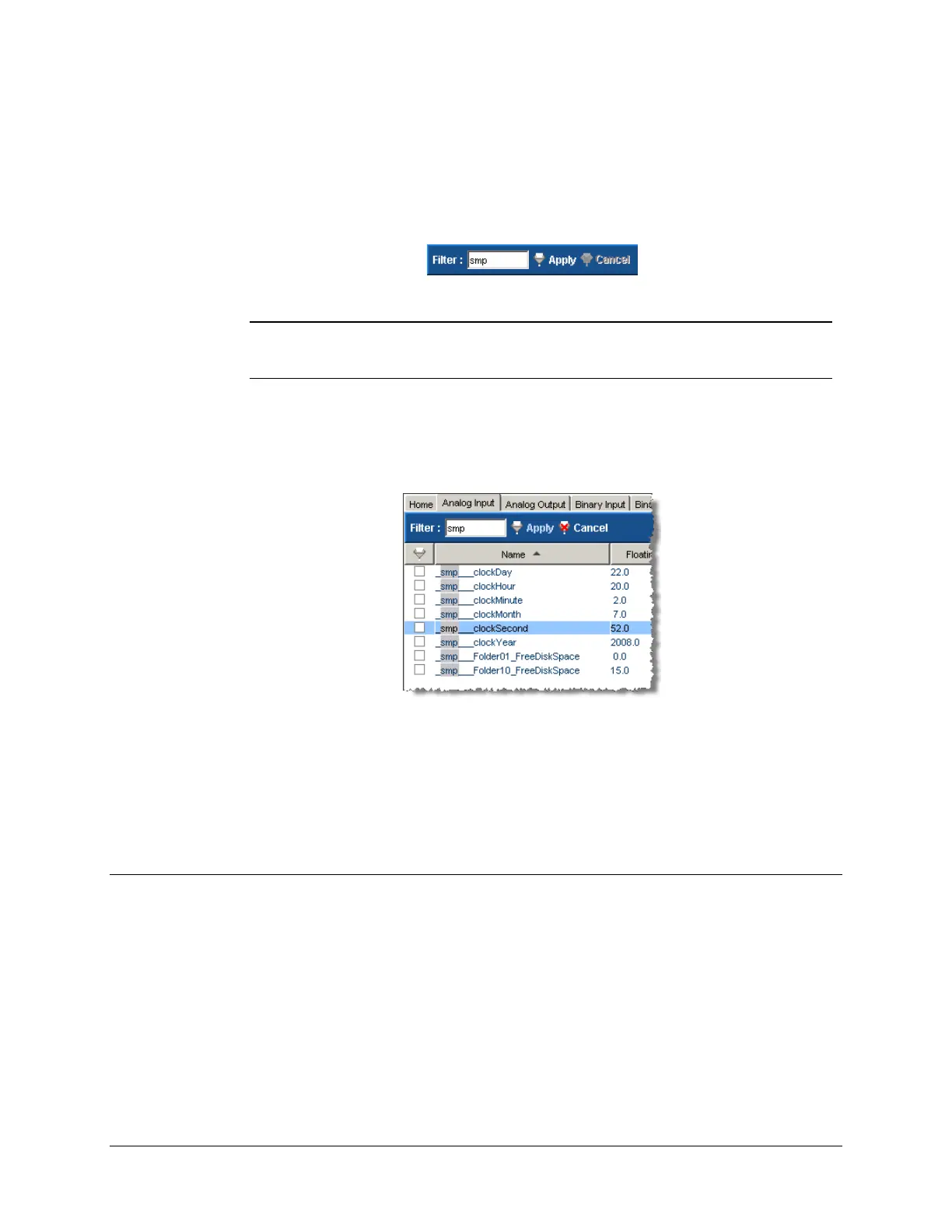
In the toolbar, type the filter criterion. It can be the device prefix, or any other text that is
common to the data points you want to display.
Note: You may specify up to 5 criteria. For example, if you type smp clock, all
data points that contain the words “smp” and “clock” will be displayed; others
will be hidden.
Click Apply. Only the data points that contain the filter criterion in any field (such as the
point’s name or address) will be displayed. The criterion text is highlighted over the point’s
name.
To remove the filter:
Click Cancel. All data points of the selected tab will be displayed.
Each tab preserved its own filter information, allowing you to navigate through the different
tabs and specify different filter criteria for each one of them.
9.4 Acknowledging Data Point Value Changes
To help you analyze your data, the web server automatically highlights any data point that changes
value, by displaying it on a gray background. The data point stays highlighted until you
acknowledge the change of value. You can also have the web server automatically acknowledge
value changes after a short delay.
To have Internet Explorer automatically acknowledge the value changes:
Click the appropriate tab to choose the type of data.
Select the Auto Ack. checkbox located at the top right, above the data point display.



 To Next Page