196 • SMP Gateway User Manual
Select the SMP Gateway for which you want to adjust time.
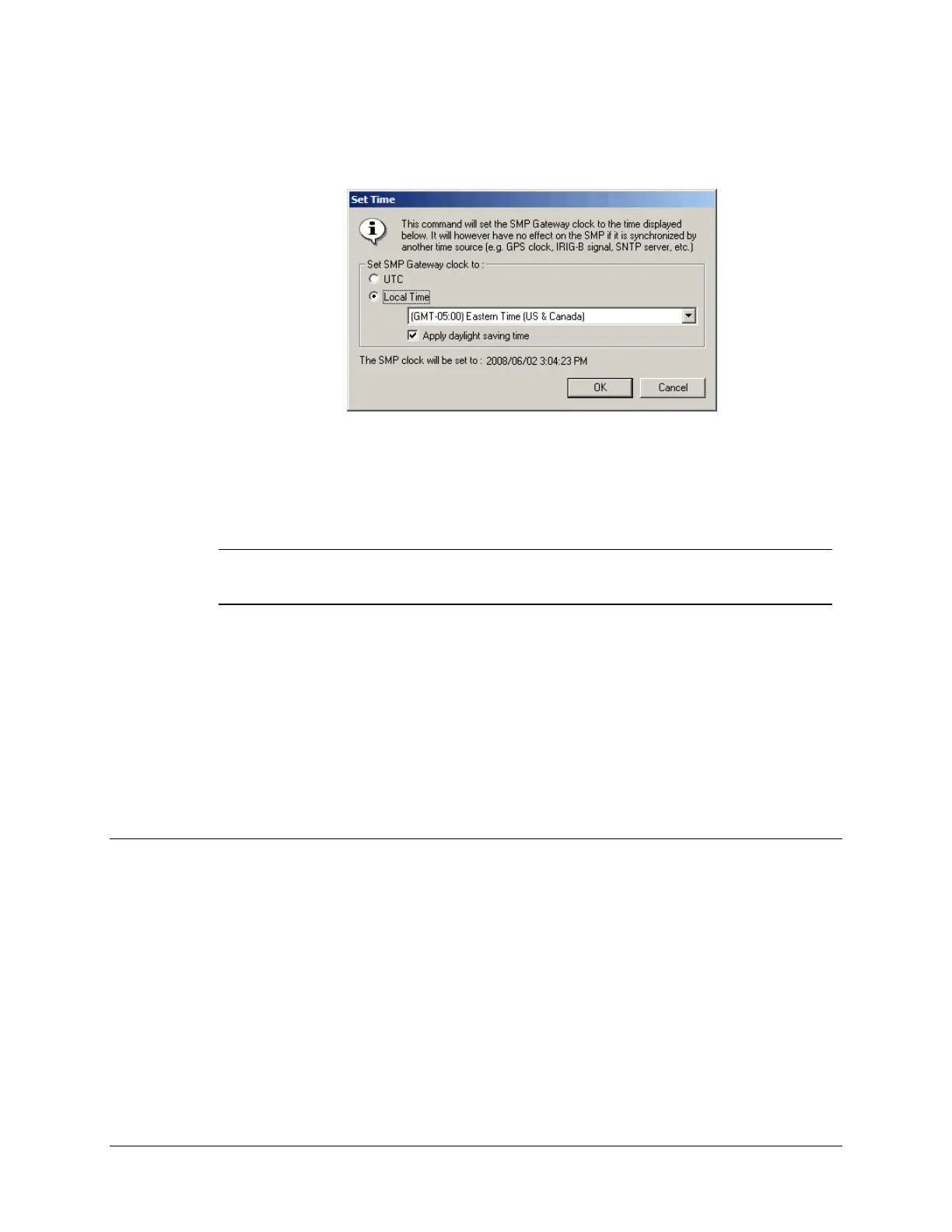
From the Gateway menu, select Set Time. The Set Time dialog box will appear.
Select whether the SMP Gateway’s clock will be set to UTC or Local Time.
If you selected Local Time, select the time zone to use for the time conversion. Select Apply
daylight saving time if needed.
Note: Daylight saving time automatic adjustment is not supported by the SMP Gateway.
If you use local time on your SMP Gateway, you must manually adjust the
gateway’s internal clock at every DST clock shift.
The time at which the clock will be set is displayed just above the buttons. If it is as expected,
click OK to set the SMP Gateway’s clock to this date and time.
The SMP Gateway’s internal clock is not an atomic clock, which means that it drifts from actual
time. Over time, data’s timestamps become less accurate. Moreover, manual time adjustment
using SMP Manager displays an accuracy of ±1 second. Consequently, time adjustment via an
external source is highly recommended for the SMP Gateway to provide accurate timestamps.
This is the topic of the next section.
21.3 Automatic Clock Adjustment
By configuring the SMP Gateway for automatic clock adjustment, you no longer have to worry
about internal clock’s drifting. All I/O changes, logs, traces and other data provided by the
SMP Gateway are time-tagged with a greater degree of accuracy - typically one second or better.
There are four ways to adjust the internal clock automatically:
Directly from a GPS signal, if you have an SMP 16 pre-installed with the GPS clock option.
You must then have a GPS antenna receiving the highly accurate satellite signal.
Using an external source, such as an IRIG-B signal. It may come from another GPS antenna
connected to another device that redistributes demodulated or modulated IRIG-B. It may also



 To Next Page