SMP Gateway User Manual • 41
To select a column or a row:
Click the header of the line you want to select.
To select several rows or columns, hold down the CTRL key while clicking their header.
To select a group of rows or columns in a sequential order, select the header of the first one,
hold down the SHIFT key and select the last one.
5.8.2 Duplicating a Line
Proceed as follows to duplicate a line:
Click the header of the line you want to duplicate.
In the Edit menu, click Duplicate Line.
The line is duplicated after the last line in the display.
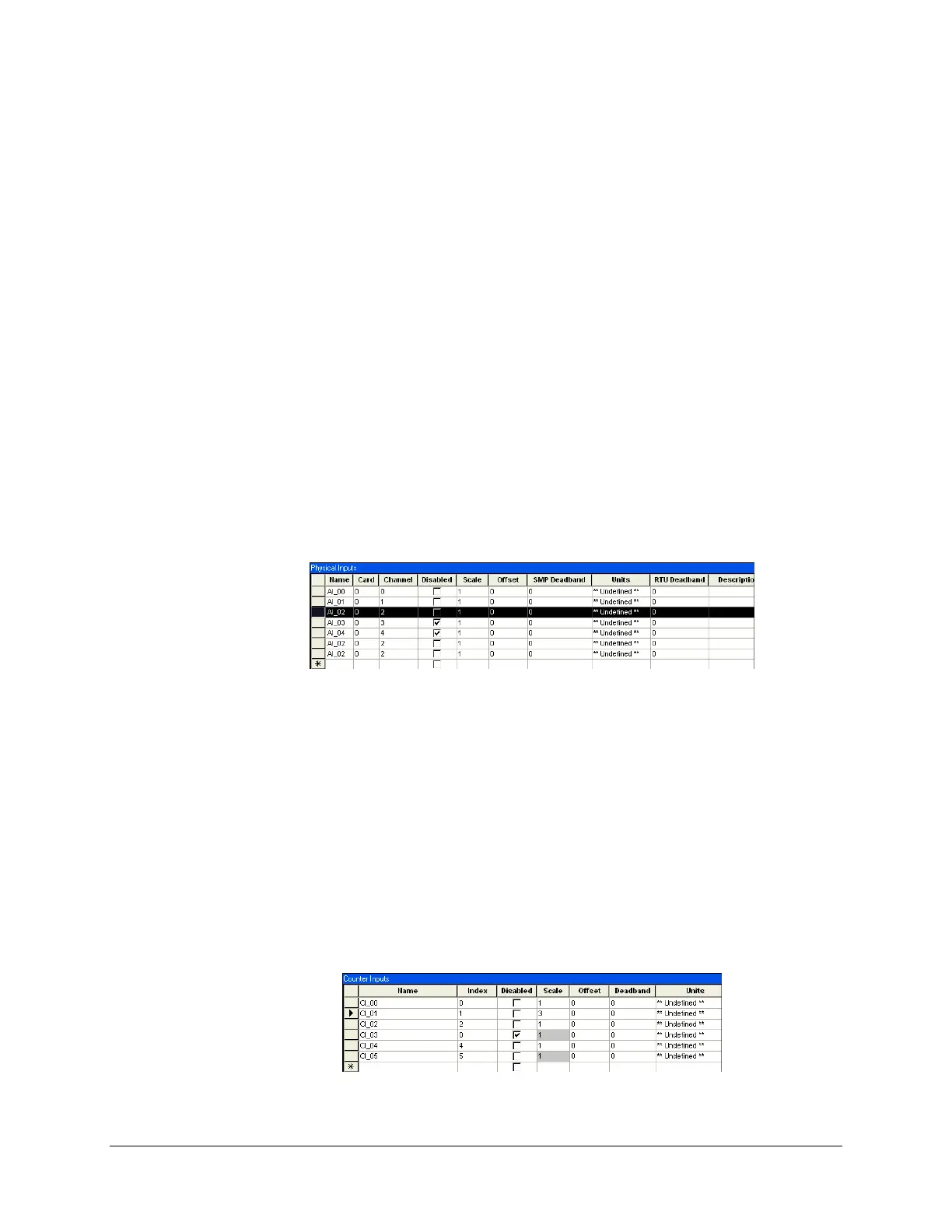
In the following example, we clicked on a line and clicked the Duplicate Line command twice, so
the line appears twice at the bottom of the list.
5.8.3 Copying a Value to a Group of Cells
The Change Selection command of the Edit menu allows you to copy a value from a particular
cell, to one or more lines selected within the same column.
To copy a value to one or more selected cells:
Click the cell to which you want to copy a value.
If you are selecting more than one cell, use the CTRL key or the SHIFT key on your
keyboard, as per standard Windows procedure.
In the Edit menu, click Select Cells.
This makes the cells turn gray, as shown next.



 To Next Page