SMP Gateway User Manual • 75
Various entries are added to the Control log when a control operation is executed on the
SMP Gateway, making it an essential resource for this portion of the commissioning task.
To consult the SMP Gateway’s Control log entries in the web browser:
Click the Logs tab.
In the left pane, select the Control log file. All the log entries will appear in the right pane,
the oldest entry being displayed at the top.
11.3.5 Closing the Commissioning Session
Even if a commissioning session automatically ends when the web browser is closed, you should
close the session manually.
Proceed as follows:
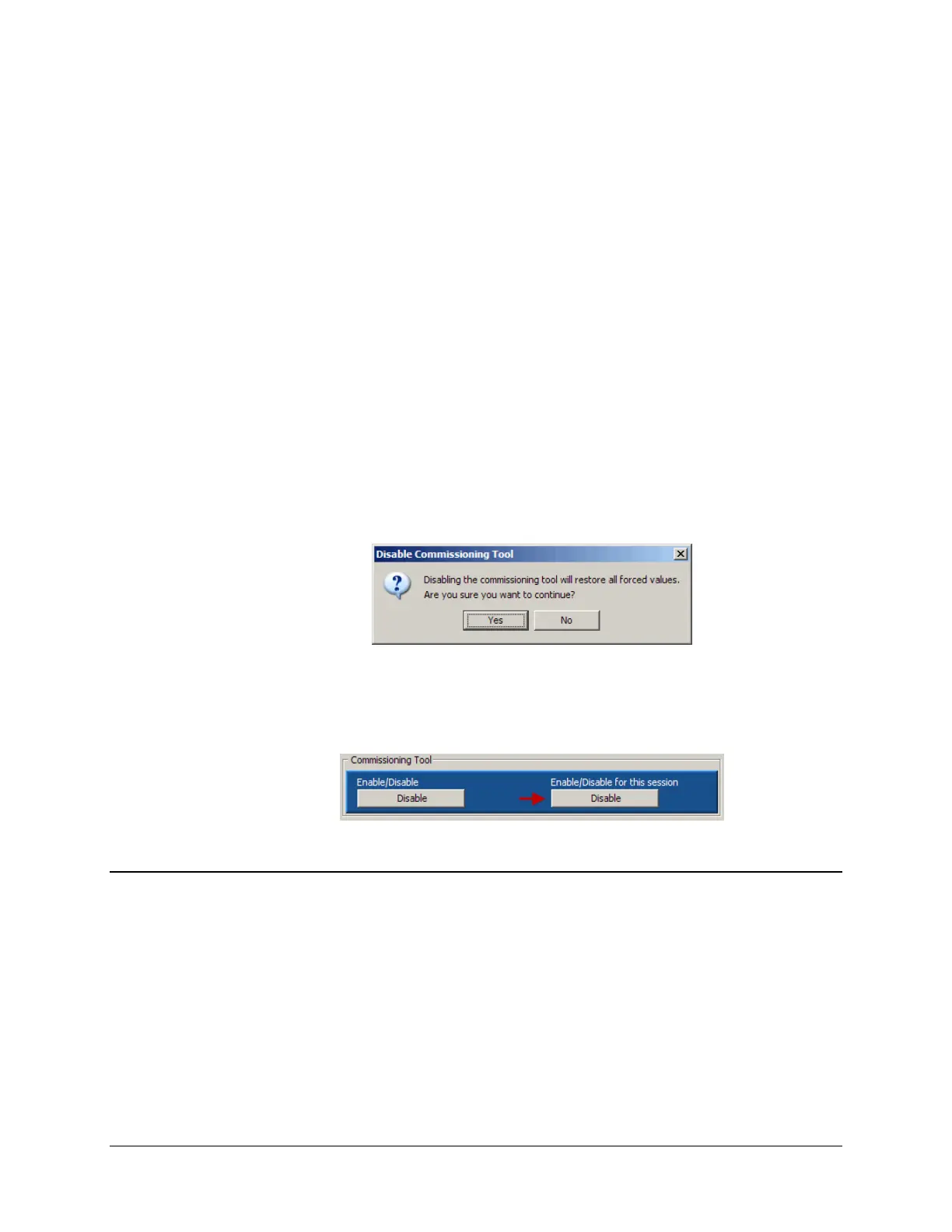
In the web browser, click the Home tab.
Under Commissioning Tool, click the Disable button on the right. The Disable
Commissioning Tool dialog box will appears.
As stated in the dialog box, the commissioning tool will restore all forced points to their
acquisition values. Click Yes. The button’s text will change to Enable and the
Commissioning Tool tab will no longer be available, until a new session is opened..
11.4 Deactivating the Commissioning Feature
When commissioning has been performed on the SMP Gateway, the user that has System
Management privilege must deactivate the commissioning feature for obvious safety reasons and
to ensure that the system will function as expected.
To deactivate commissioning:
Connect to the SMP Gateway’s website, if you are not already connected, by following the
procedure described in section 9.1, page 59.
At the website’s home page, under Commissioning Tool, click the Disable button on the left.
The button’s text will change to Enable, and the button on the right will become unavailable.



 To Next Page