SMP Gateway User Manual • 155
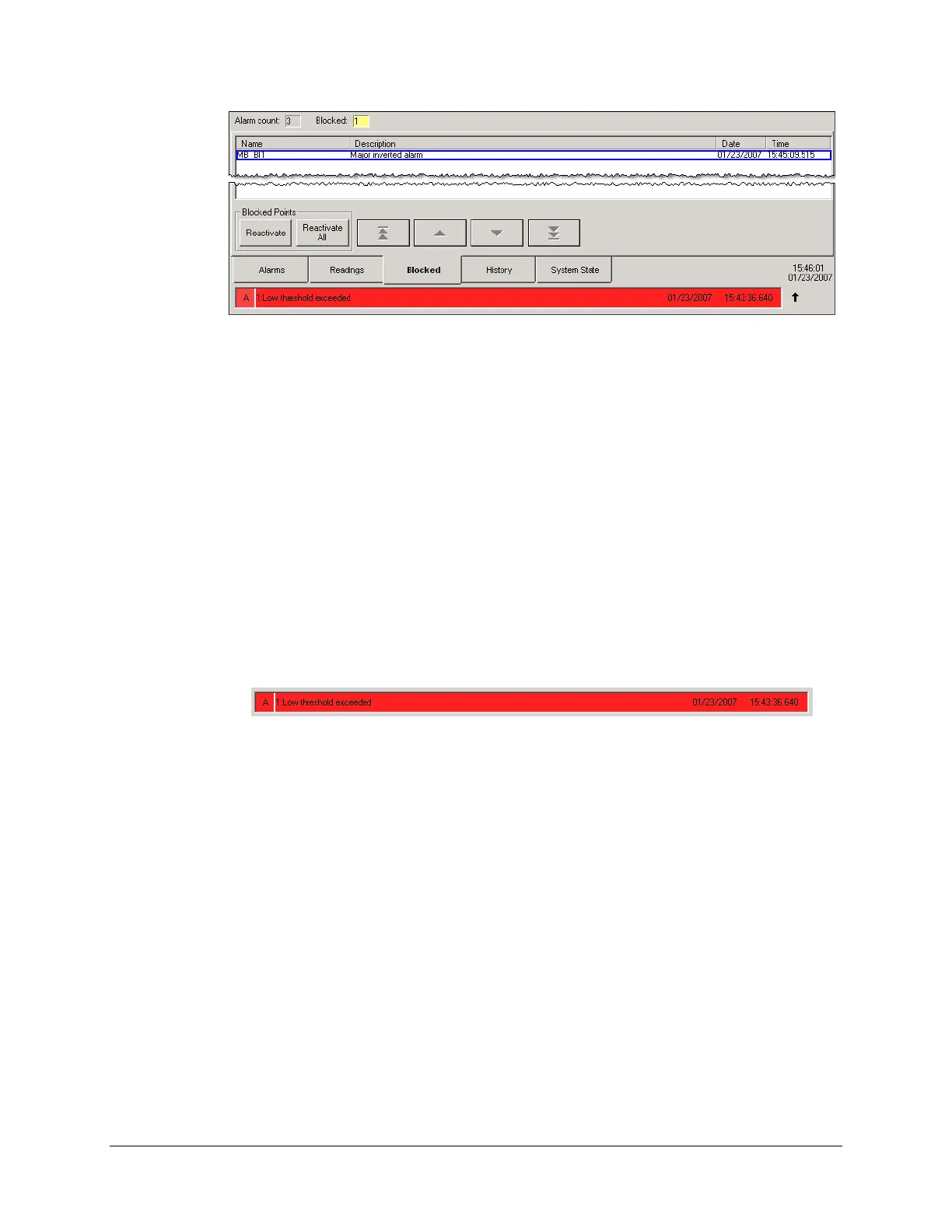
To reactivate a blocked alarm input:
From the Blocked page, select the data point that you want to reactivate.
Press Reactivate. The alarm input is moved back to the Alarms page. The sound warning
system turns on and you will then have to take action, to acknowledge and recall the input’s
current condition (see “Managing Alarms”, above).
To
reactivate all blocked alarm inputs simultaneously:
From the Blocked page, press Reactivate All.
16.6.4 Using the Single Alarm Display
The single alarm display is found at the bottom of the Annunciator’s display.
It is used to manage alarms one at a time. Depending on how it is customized, the oldest or most
recent alarm is displayed here, and the operator can acknowledge or clear the alarm simply by
pressing the display.
To customize the single alarm display, see “Setting Up the Alarms Page”, page 131.
Using t
he single alarm display is easy:
If the sound warning system is on, press the single alarm display, which will give the same
result than pressing Clear Sound in the Alarms page: the sound warning system is turned off
and the alarm is ready to be acknowledged.
If the sound warning system has already been turned off, press the single alarm display to
acknowledge the alarm just like you would do using the Alarms page’s Acknowledge button.
16.6.5 Using the History Log
An history log file is stored in the gateway’s non-volatile memory to keep track of the most recent
alarms that were triggered, and of the operations that were executed to handle them. The log file is



 To Next Page