SMP Gateway User Manual • 39
To save the configuration on your computer:
In the File menu, click Save.
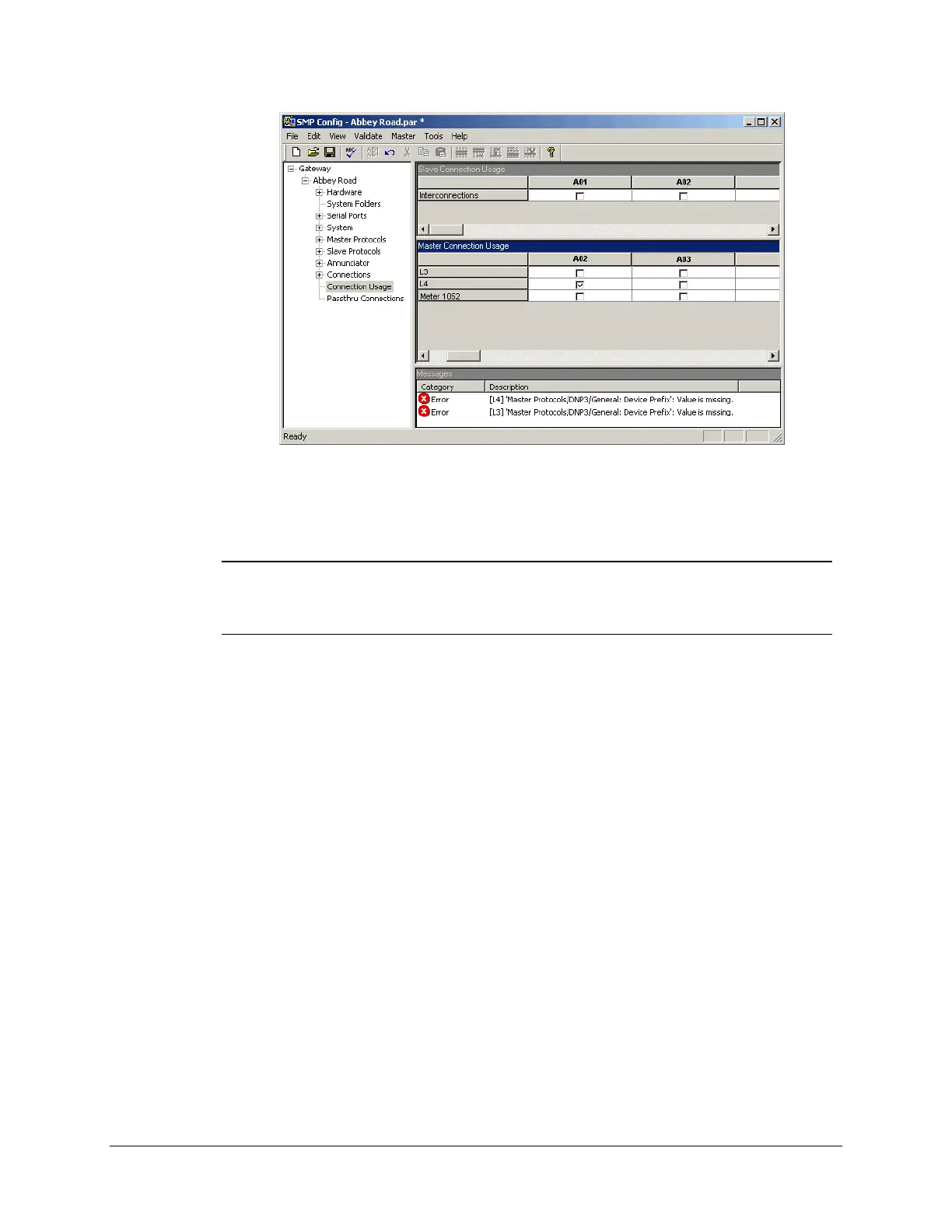
Note: You cannot save a configuration file that contains errors. This feature is intended
to prevent you from inadvertently loading an invalid configuration file onto an
SMP Gateway. However, you can save your configuration file if the Messages
pane displays warnings only.
5.7.2 Sending the Configuration to the SMP Gateway
Once the configuration file is valid, you can send it to the SMP Gateway.
To do this:
Click your SMP Gateway in the SMP Manager application window.
In the Update menu, click Send Configuration File and choose your configuration file,
which has been saved in the location you specified in the Gateway Properties dialog box.
After sending the file to the SMP Gateway, SMP Manager informs you that you have to restart
your SMP Gateway for the new application to go into effect.
In the Restart Gateway dialog box, choose Shutdown and Restart to have the
SMP Gateway restart in normal mode.
All restarts are automatically logged in the SMP Gateway’s internal log file. You can type a
comment to indicate why you restarted the SMP Gateway. This comment will be added to the
event log.



 To Next Page