160 • SMP Gateway User Manual
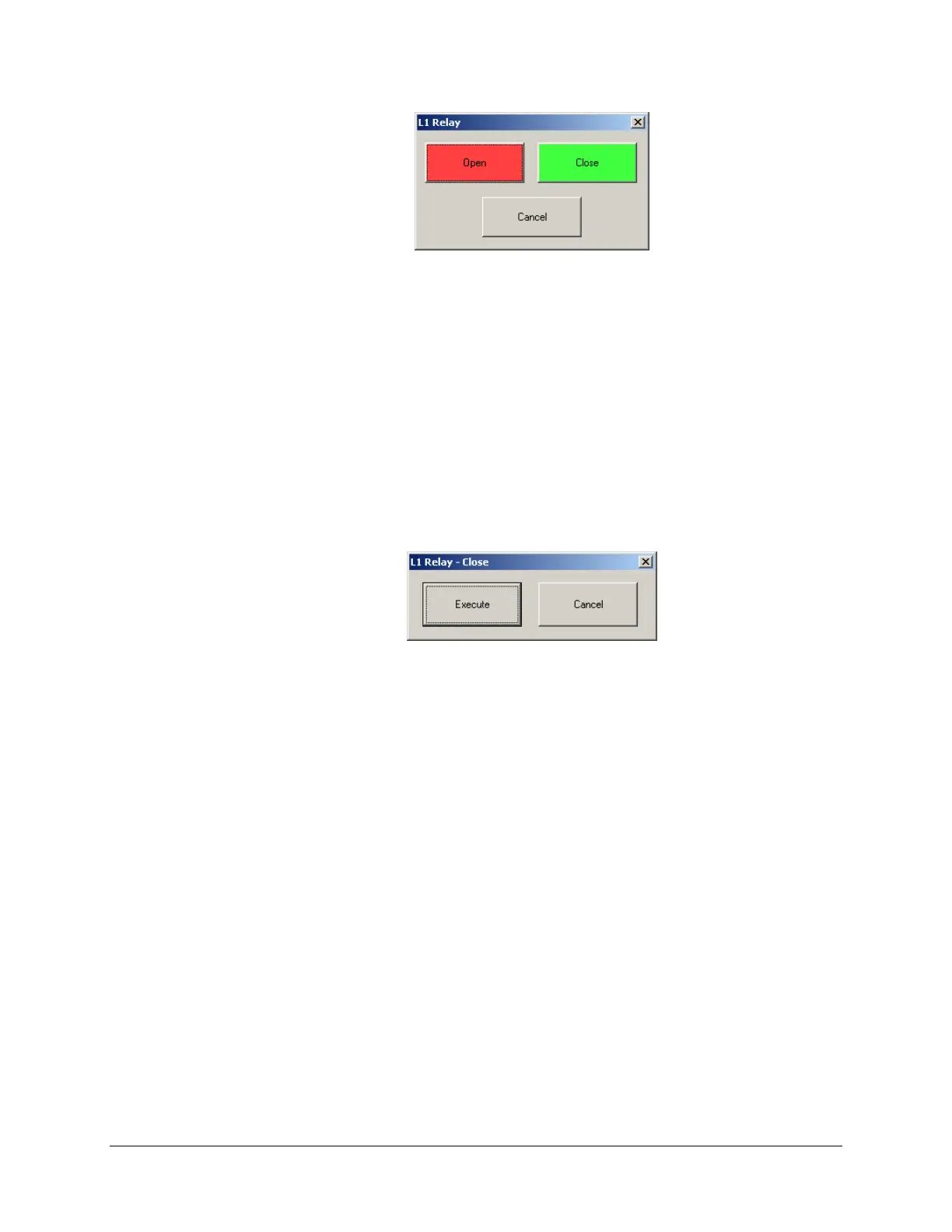
This window is also customizable, as described in the same section. In the snapshot above, the
State 0 button is named Open and the State 1 button is named Close.
To perform a control operation:
Press either the State 0 or State 1 button:
To force the corresponding output to state 0 (FALSE), press the State 0 button.
To force the corresponding output to state 1 (TRUE), press the State 1 button.
Press Cancel to close this window without forcing the output’s state.
The control operation window is replaced by a confirmation window.
Press Execute to proceed with the control operation’s execution.
Press Cancel to close this window without executing the control operation.
If you pressed Execute, two entries will be added to the history log: one to indicate that a
control operation has been performed on the given binary output, and another to indicate the
result. The same entries, and more precise information, are also stored in the Control log file,
which can be accessed using the SMP Log tool. For more information about this tool, see
“Viewing the SMP Log Files”, page 47.
If you press Cancel, the window is closed and no control operation is performed.
16.6.8 Using the Screen Saver
A screen saver can be configured to replace the Annunciator’s display by a black screen during
periods of inactivity.
To learn how to set up the screen saver, see “Setting Up a Screen Saver using SMP Config”,
page
150.
To l
eave screen saver mode, just touch the screen.



 To Next Page