238 • SMP Gateway User Manual
Using Windows Explorer, drag and drop the files in your SMP Loader main screen display.
OR
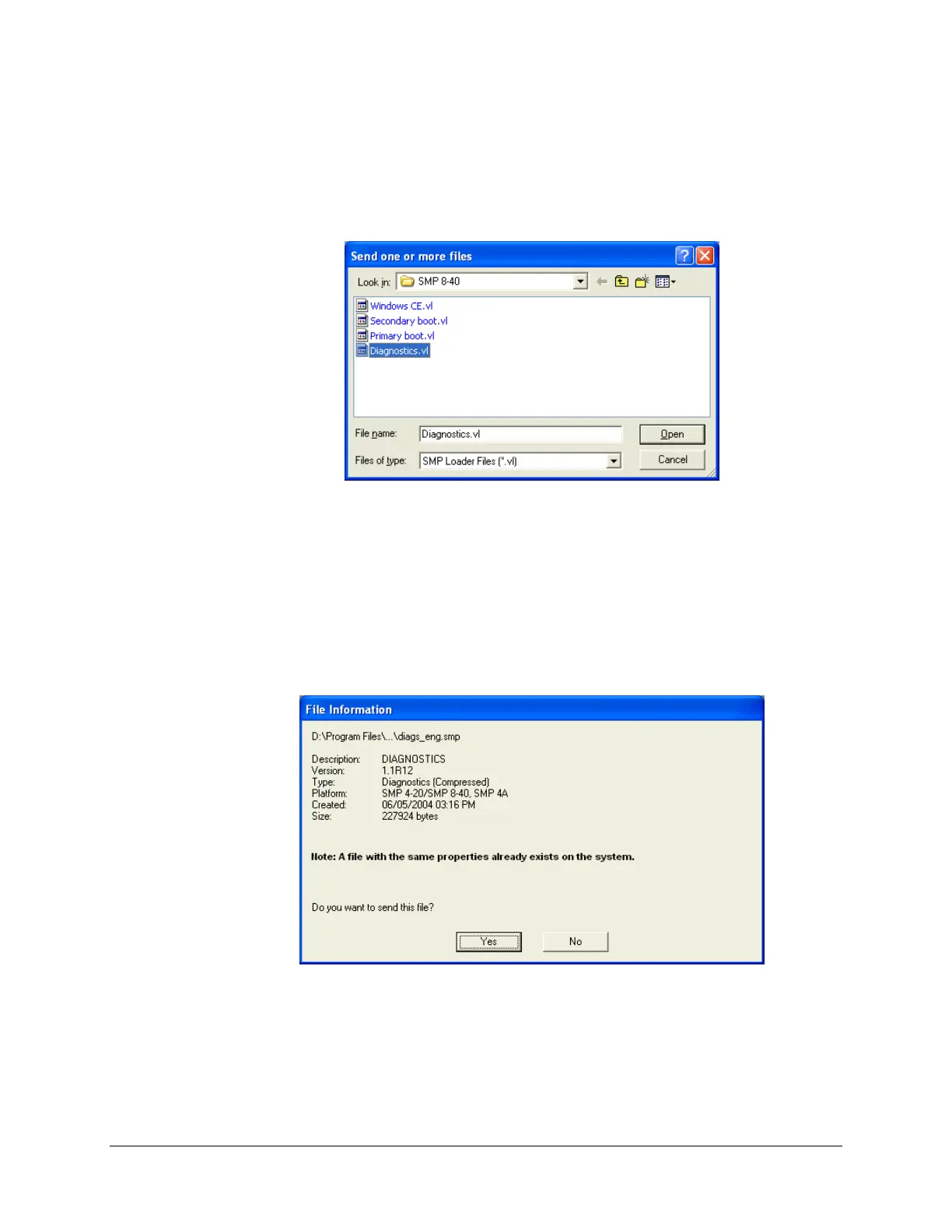
Click Send from the File menu. The Send one of more files dialog box appears.
Point to SMP Tools\Manager\SMP Firmware Libraries, and then to the SMP 4, SMP 4-
20, SMP 8-40 or SMP 16 folder, depending on the model of SMP Gateway.
Choose SMP Loader Files (*.vl) in the Files of type drop-down list. This will display one or
more files with the .VL extension. Select the file you want to send, and click Open.
The File Information dialog box appears, giving you a description of each file, within the .VL
file, that you are about to transfer and asking you to confirm your intention to carry out the
transfer.
The transfer takes place once you have responded to the question for all the files that were listed in
the .VL file, and a dialog box shows you the progress of the operation.
After the transfer, the files appear in the list of the SMP Loader’s main window, if they were not
already in the list. Otherwise, you will simply notice a difference in the version number, the size
and the creation date. In our example, we updated the diagnostics file from version 1.1R11 to
version 1.1R12 (compare with the corresponding figure of the “Main Window” section, page 236).



 To Next Page