120 • SMP Gateway User Manual
To define system folders in a SMP Gateway configuration, proceed as follows:
Open SMP Manager.
Select the SMP Gateway that will retrieve event files.
From the Tools menu, select SMP Config.
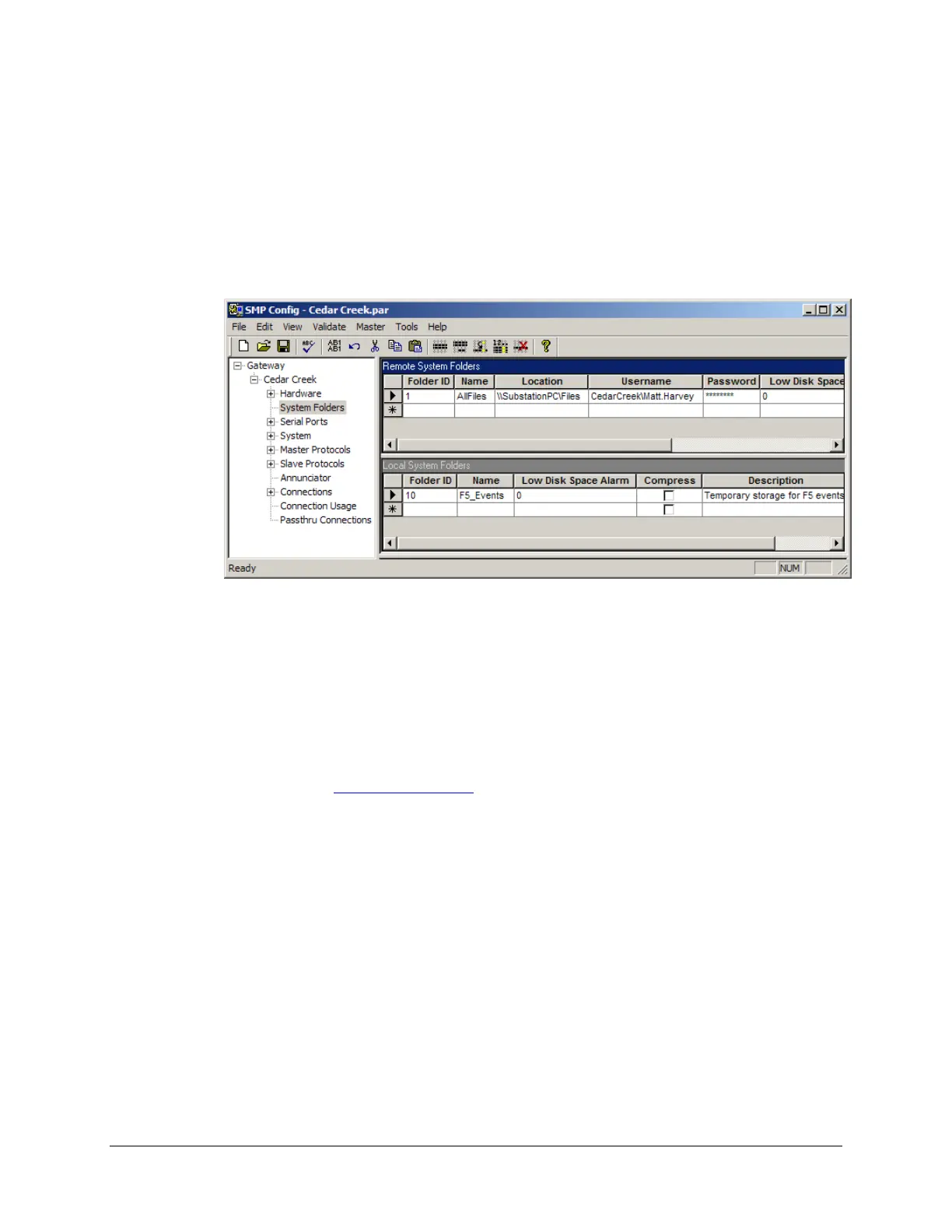
In the left pane of the SMP Config window, click System Folders.
For each new remote folder, enter the following information in the Remote System Folders
pane:
The numerical Folder ID, which is a number ranging from 1 to 99. On an SMP Gateway,
each system folder, remote or local, must have a unique ID.
The folder Name. This name references the folder in master protocols’ file-retrieval
settings. It is also used in traces, logs and stats.
The Location of the shared folder, using Unified Naming Convention. For example, the
location \\cpu104\Events
refers to a shared folder called Events on a computer
named cpu104.
A Username and a Password, if access to the shared folder is secured. You must use the
machinename\username or domainname\username format.
The number of bytes that will trigger a transition on a specific logical data point, thereby
advising you that space is running low (see the Master Protocol Common Concepts
document for details). The maximum value you can type is 2,147,483,647, and the
default is 0 (no notification at all).
Select the Compress checkbox to compress and archive event files to a ZIP file. If a
given event is made of multiple files, all files will be compressed and archived together in
the same ZIP file.
Optionally, you can provide a description of the folder.
For each new local folder, enter the following information in the Local System Folders pane:



 To Next Page