130 • SMP Gateway User Manual
If you want to temporarily disable the triggering of alarms for this data point, select the
checkbox under Disabled. The alarm conditions will be preserved in your configuration file,
but will not be used by the Annunciator.
Under Low Threshold Description, you can type a description for low threshold alarms on
this analog input. This description will be displayed in the various Annunciator pages when
such an alarm condition is met, or when an operation (ex. acknowledge) is performed on such
an alarm. The High Threshold Description setting works similarly, for high threshold alarms
on this input.
Typing each point’s name can be a tedious task, especially if you have a lot of alarm inputs to
define. Instead, you can use the same subscribtion mechanism you used to configure your slave
protocols. To do so:
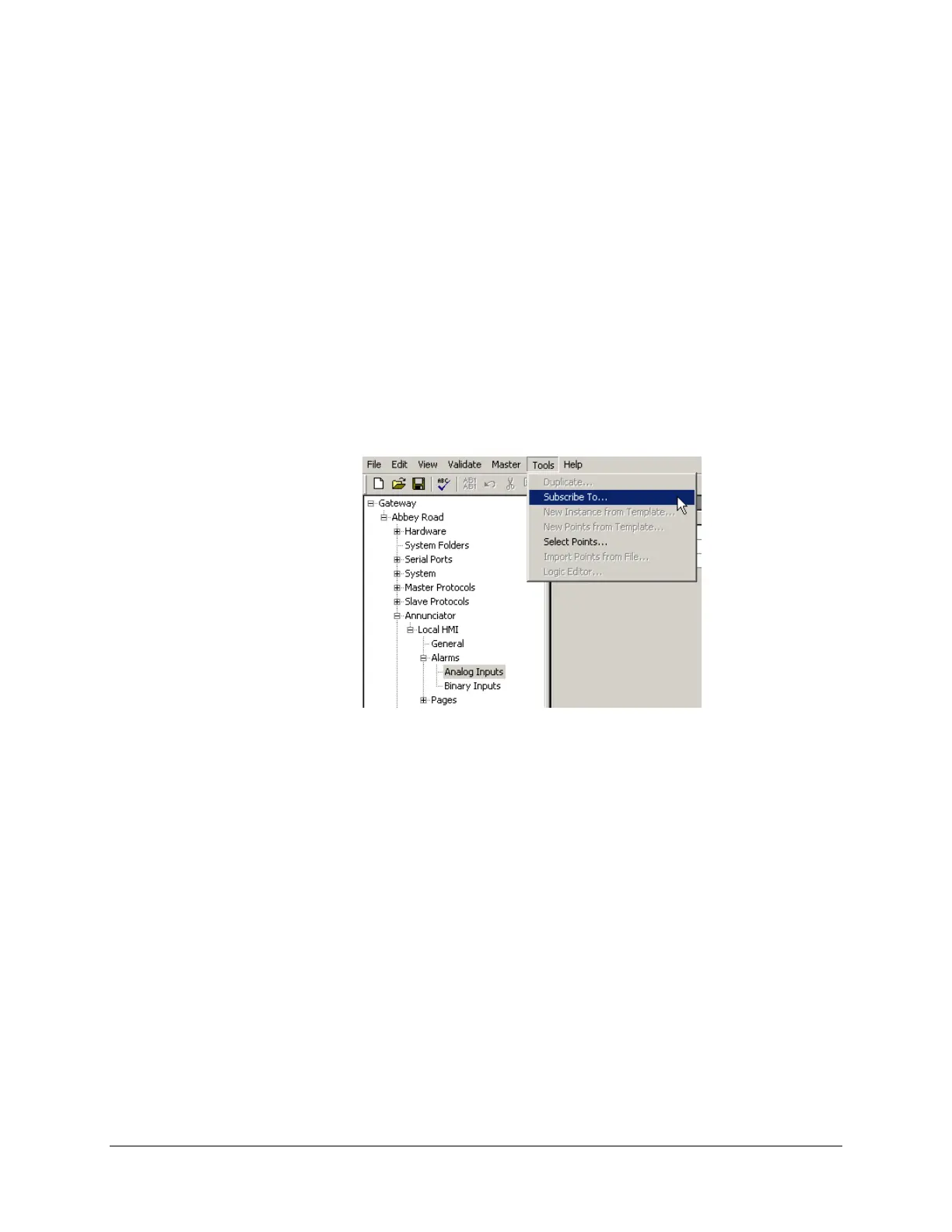
Select the Analog Inputs branch.
From the Tools menu, select Subscribe To.
The Subscribe to Master I/O dialog box appears. You can then select the master points for which
you want to define alarm conditions. To learn how to use this dialog box, see “Subscribing to the
Master Data
Points”, page 64. Once you click OK, t
he dialog box closes and a line is created in
the Analog Inputs pane for each data points. All that is left is to specify the conditions and
descriptions for these alarm inputs.
To define alarm conditions for a binary input, proceed as follows:
In the right pane’s grid, under Name, type the name of an analog input for which you want to
define the alarm conditions, or use the subscribtion feature as described above for analog
inputs.
Under Alarm Level, select a severity level for this input’s alarms.
Under Appearance Filter, specify how long, in milliseconds, the binary input must keep the
active state (TRUE or 1) before triggering an alarm. This setting filters “false” alarms.
Under Disappearance Filter, specify how long, in milliseconds, the binary input must keep
the inactive state (FALSE or 0) before considering that the alarm is no longer active. This
setting filters “false” returns to normal.



 To Next Page