6 Control Panel
• To access the Control Panel window, go to Menu and click on Control Panel.
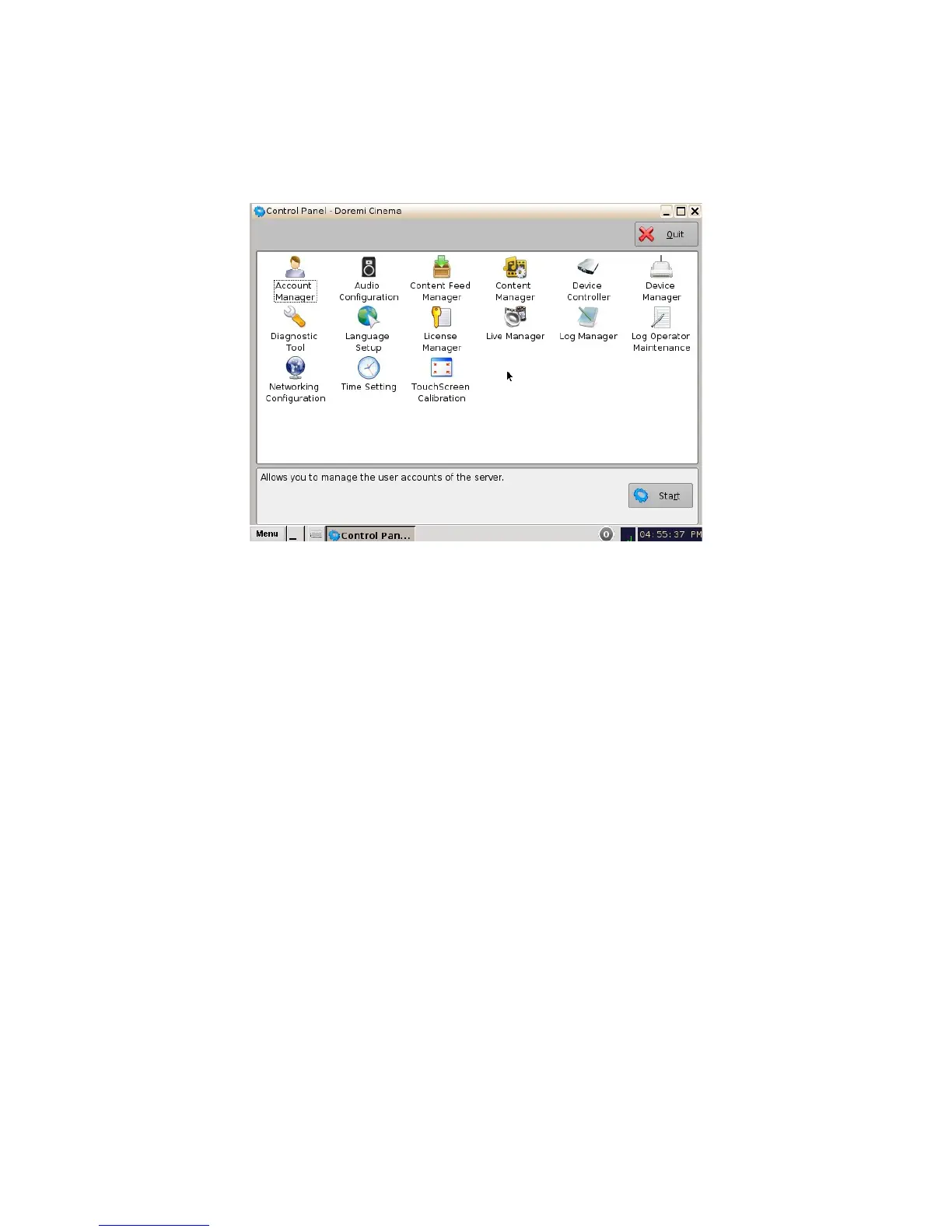
• The following window will appear:
Figure 13: Control Panel Window
• The Control Panel window provides access to various applications as listed below: See
Figure 13 above for more information.
1. Account Manager: Allows the user to add/remove/edit user accounts.
2. Audio Configuration: Allows the user to route all audio tracks to operator-designated
outputs (only SMPTE content).
3. Content Feed Manager: Allows the user to add an FTP ingest server.
4. Content Manager: Allows the user to browse, manage and export all the content available
on the player including: ShowPlaylists, CPLs, KDMs and Doremi Licenses.
5. Device Controller: Allows the user to create/edit/register devices in a simplified manner.
6. Device Manager: Allows the user to add different projectors, close caption devices, subtitle
devices, etc.
7. Diagnostic Tool: Provides the user with Diagnostic information about the system. See
document “Diagnostic Tool User Guide.”
8. Language Setup window: Allows the user to change the language used on the unit.
9. License Manager: Displays and manages software licenses installed on the unit.
10. Live Manager: Allows the user to create a device as source of live events.
11. Log Manager: Allows the user to automatically configure SMPTE and System logs.
12. Log Operator Maintenance: Allows the user to log important information (e.g., hard disk
replacement, projector lamp replacement, etc.). This application helps the system
administrator keep track of any change operated in a theater booth.
______________________________________________________________________________________
D2K.OM.001822.DRM Page 17 of 177 Version 1.5
Doremi Labs



 To Next Page