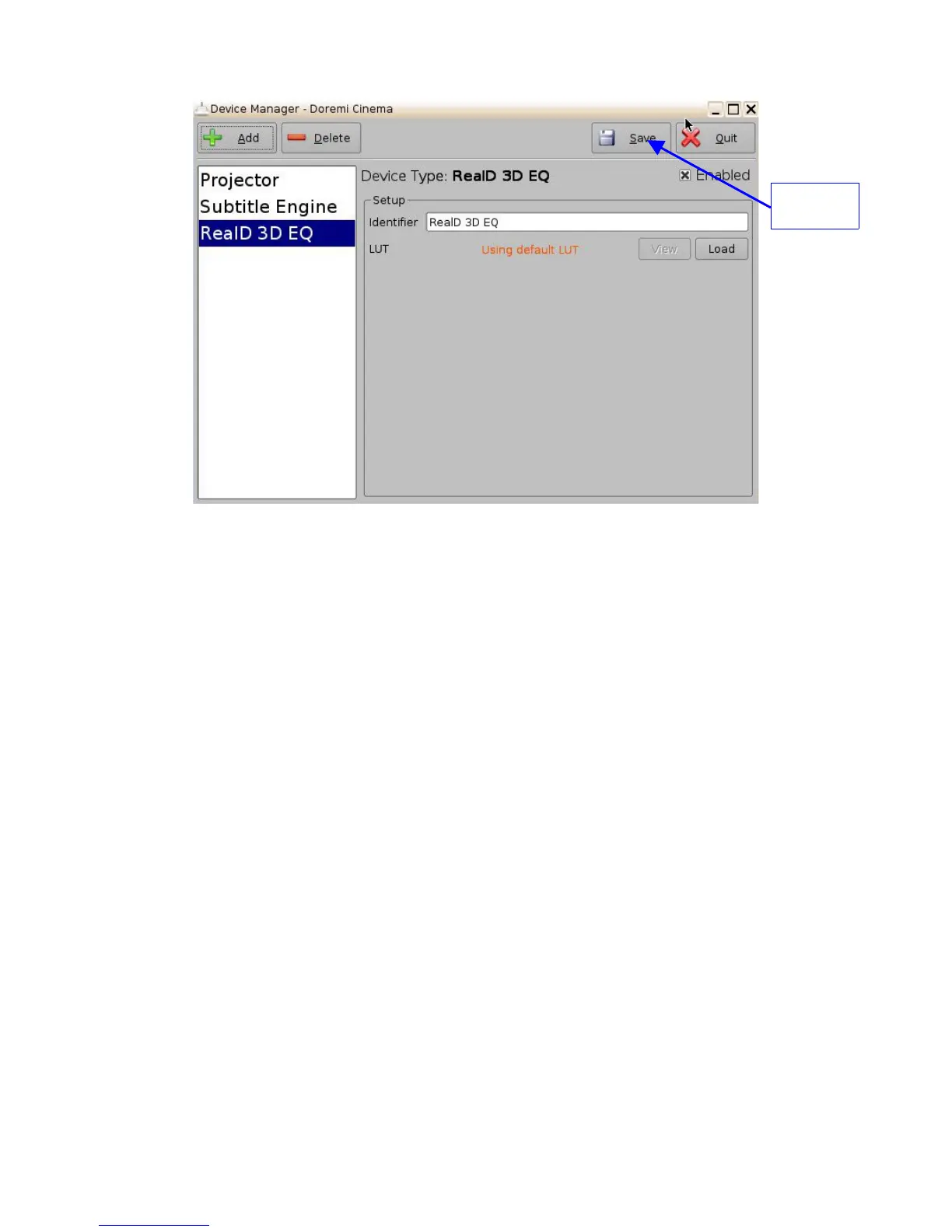
Figure 94: RealD 3D EQ Device Added
• To complete the configuration, click the Save button (Figure 94). Enter the appropriate
password and click Ok.
6.6.11.3 Sensio 3D Support
To enable the Sensio 3D support, please contact Doremi Labs Technical Support to receive the
appropriate license (Section 1.3).
6.6.12 Closed Caption Support
To enable the Rear Window devices Closed Caption support, install the appropriate license. For
information about the Closed Caption Support, contact Doremi Labs Technical Support (Section
1.3).
6.6.13 Subtitle Engine Configuration
This sections provides instructions on how to set up the Device Manager for Subtitle Engine
support. It will allow the user to burn subtitles into the picture before being exported to the
projector. Once the license has been received, follow the steps below:
• Open the Device Manager GUI by going to Menu → Doremi Apps. → Device Manager.
• The following window will appear:
______________________________________________________________________________________
D2K.OM.001822.DRM Page 80 of 177 Version 1.5
Doremi Labs
Save
Button



 To Next Page