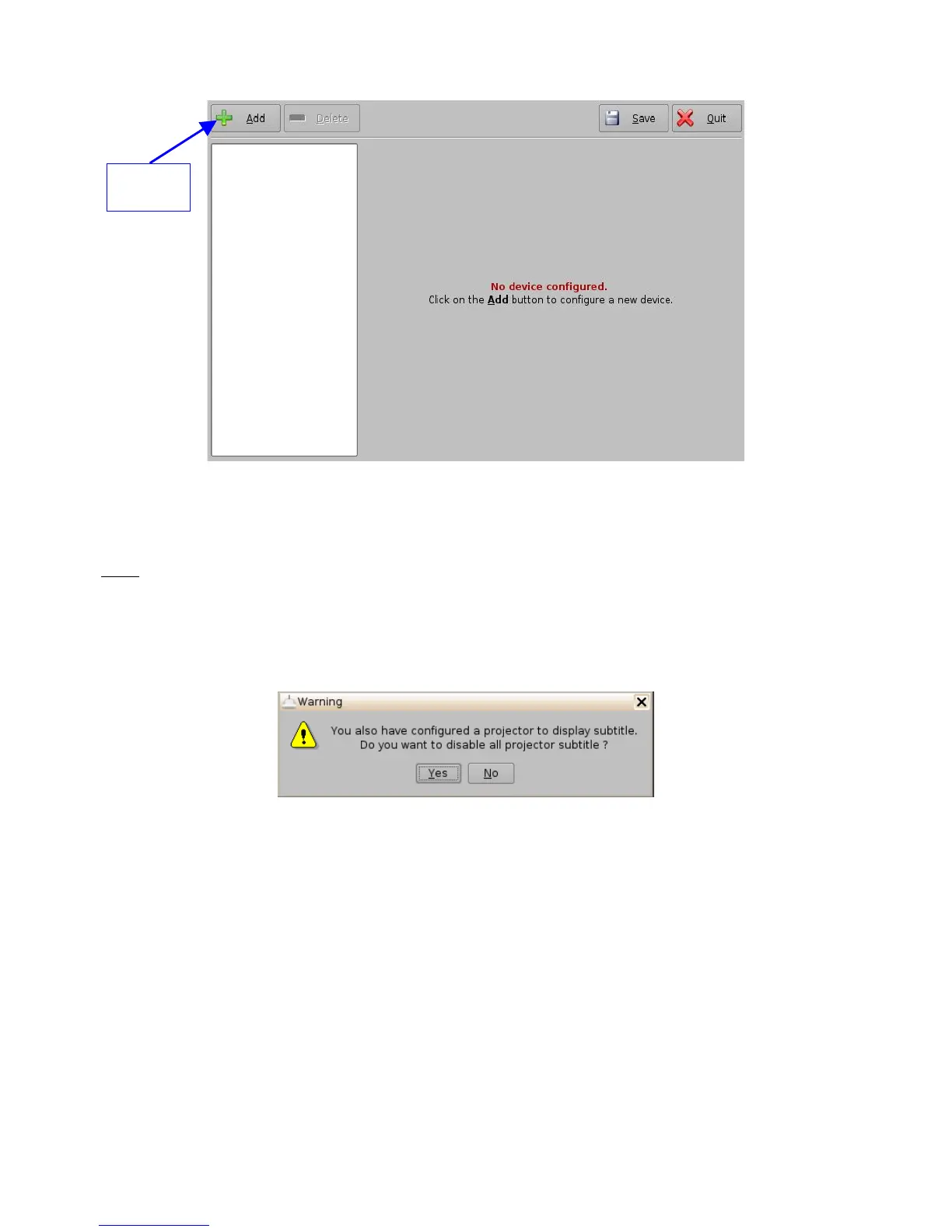
Figure 95: Device Manager GUI
• Click the Add button (Figure 95).
• The "Add Device" window will appear:
Note: In case the user already has a projector configured through Device Manager to display
subtitles, meaning that the “Enable subtitle” filed was set to Yes, adding the Subtitle Engine device
will cause a warning window to appear asking the user to disable all projector subtitle display. The
Subtitle Engine will burn the subtitle inside the picture before exporting the resulting pictures to the
projector. If the user plans to use the Subtitle Engine, click the Yes button in the warning window to
disable all projector subtitles (Figure 96).
Figure 96: Subtitle Engine Warning Window
• Select the Subtitle Engine device and click the Add button.
• The device will be visible on the main Device Manager GUI as illustrated below:
______________________________________________________________________________________
D2K.OM.001822.DRM Page 81 of 177 Version 1.5
Doremi Labs
Add
Button



 To Next Page