6.6.3 Automation Libraries Management
Support for theater automation control is also provided. The list of currently supported devices is
the following:
• eCNA
• JNior
A pre-built library of supported automation commands are available for each of these two devices.
These automation commands can then be added to Macro Cues.
6.6.4 Adding an eCNA Device
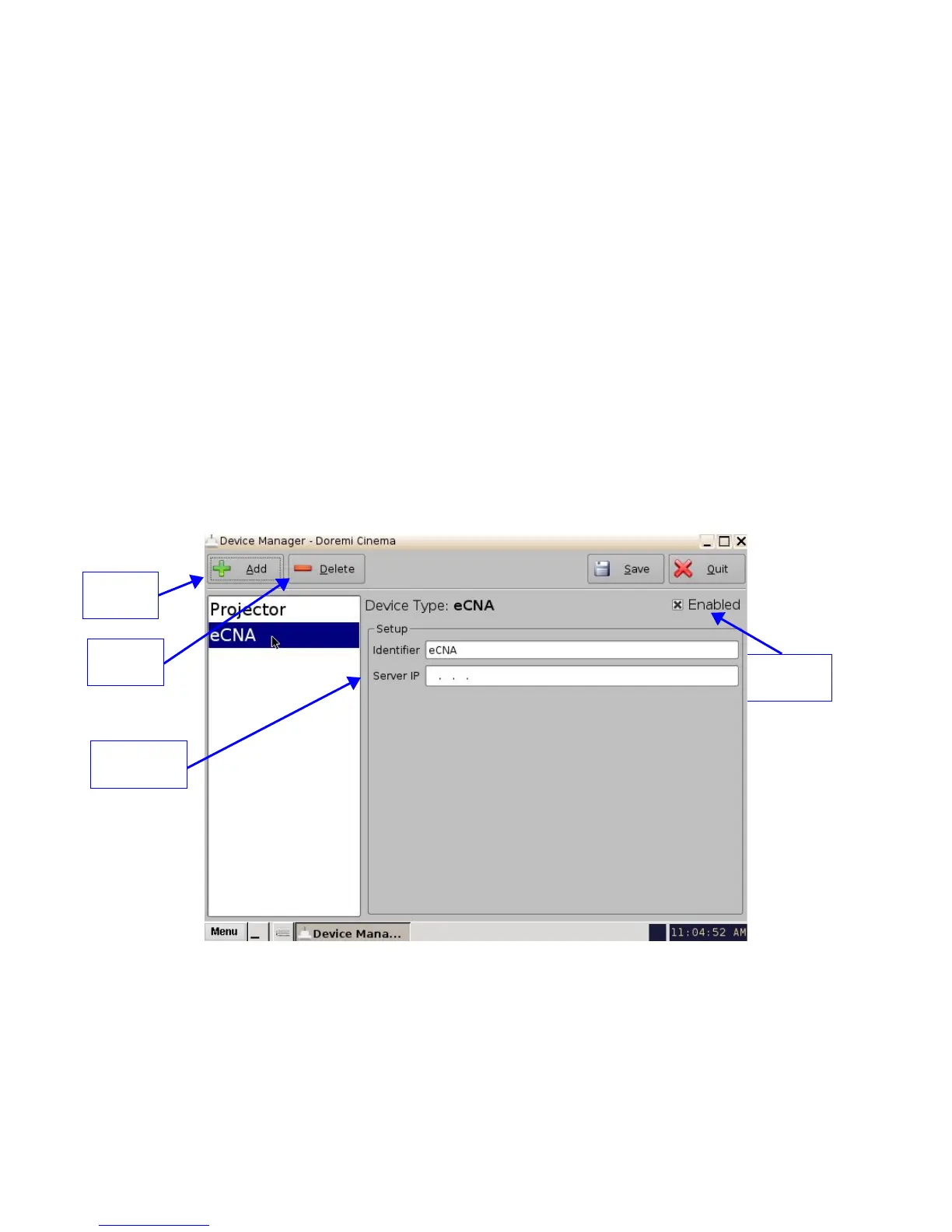
• To add the eCNA device, click the Add button in the Device Manager window
(Figure 84).
• The "Add Device" window will appear. Select the item called “eCNA” and click the Add
button.
• The Device Manager GUI will be updated to reflect the addition of the eCNA device.
• Input the name of the eCNA device in the Identifier field.
• Input the eCNA Server IP address in the appropriate field as illustrated below:
Figure 84: Device Manager GUI – eCNA Device Configuration
• If not already done so, check the Enabled check-box in the top-right corner of the GUI.
• Click the Save button to record the settings. A window asking for the password will appear.
Enter the password to save the settings and proceed.
• Click Quit when finished with the configuration. If not, continue and add more devices.
______________________________________________________________________________________
D2K.OM.001822.DRM Page 72 of 177 Version 1.5
Doremi Labs
eCNA IP
Address Field
Add
Button
Enabled
Checked
Delete
Button



 To Next Page